
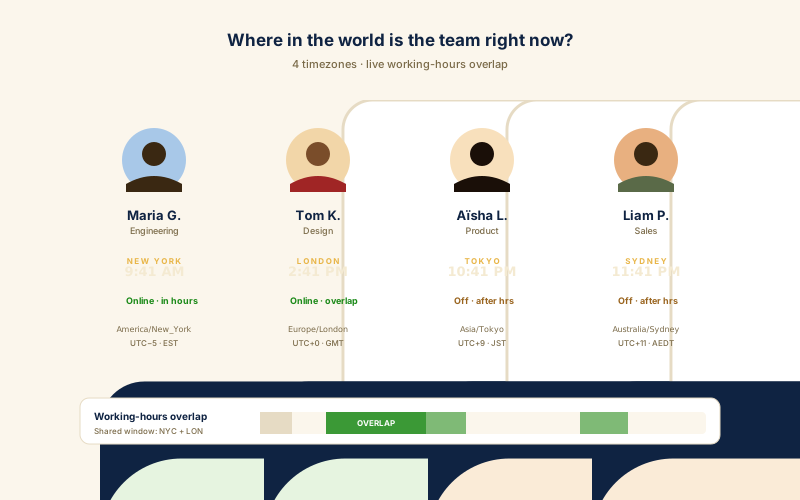
Distributed teams
Pin every office or remote hub on your About, Careers, or Contact page. New hires and prospects instantly see the local time at each location and get a feel for how the team spans the globe.
Embed a multi-city world clock with 16 layouts from analog grid to global map. Up to 61 cities, each using browser-based timezone and DST handling.
Built for no-code website teams























Live demo, not a screenshot. Pin cities, switch layouts, restyle it. What you see here is what ships to your site.
Before and after Poper
Here is the widget embedded on a real page layout, before and after. Style it to match your brand, then copy one snippet to go live.
 Before
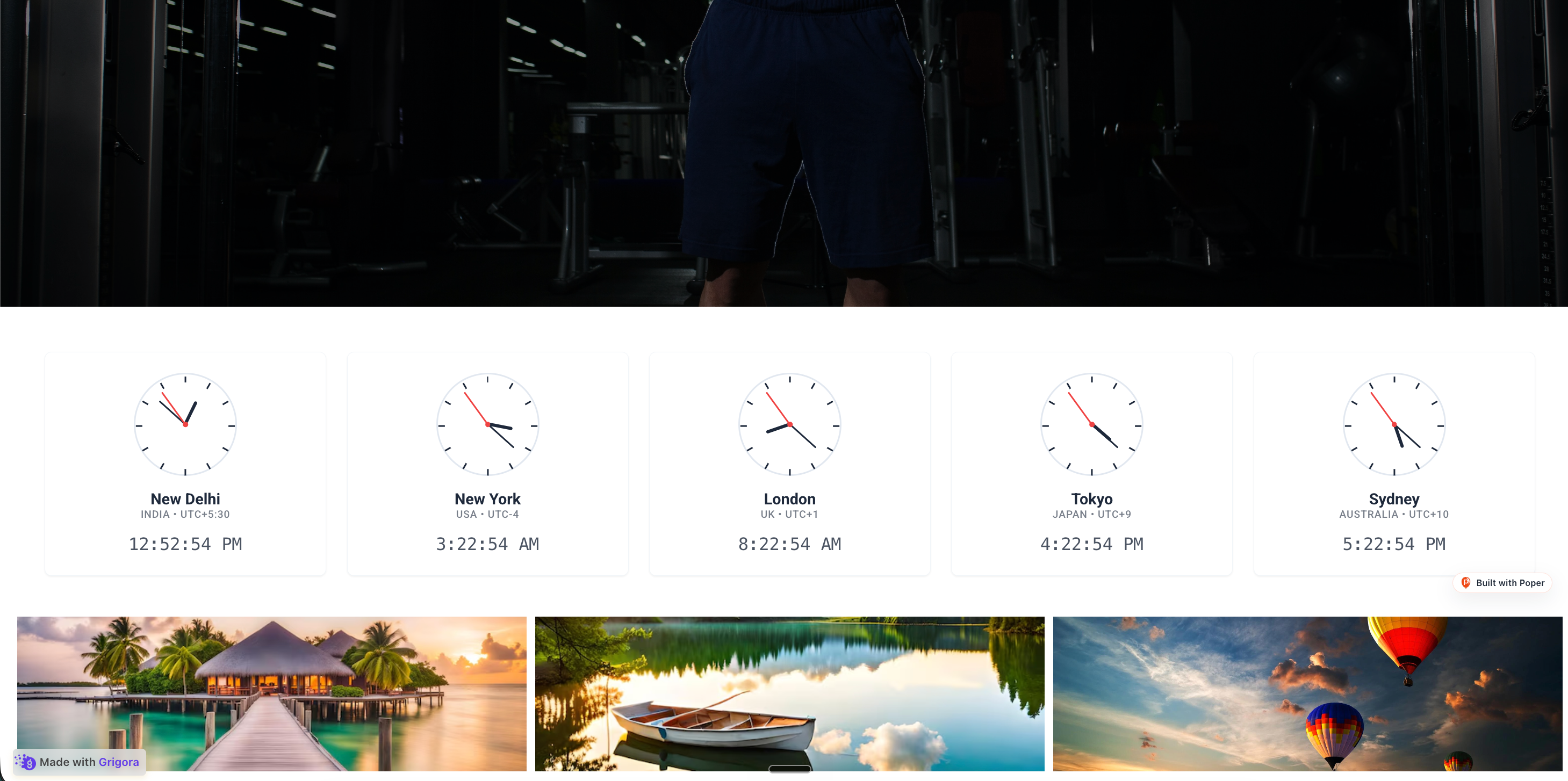 Poper widget live
Mockups for illustration. Style the widget to match your site and embed in 90 seconds.
How to use it
Choose cities, pick a layout, and embed where your Poper snippet is supported.
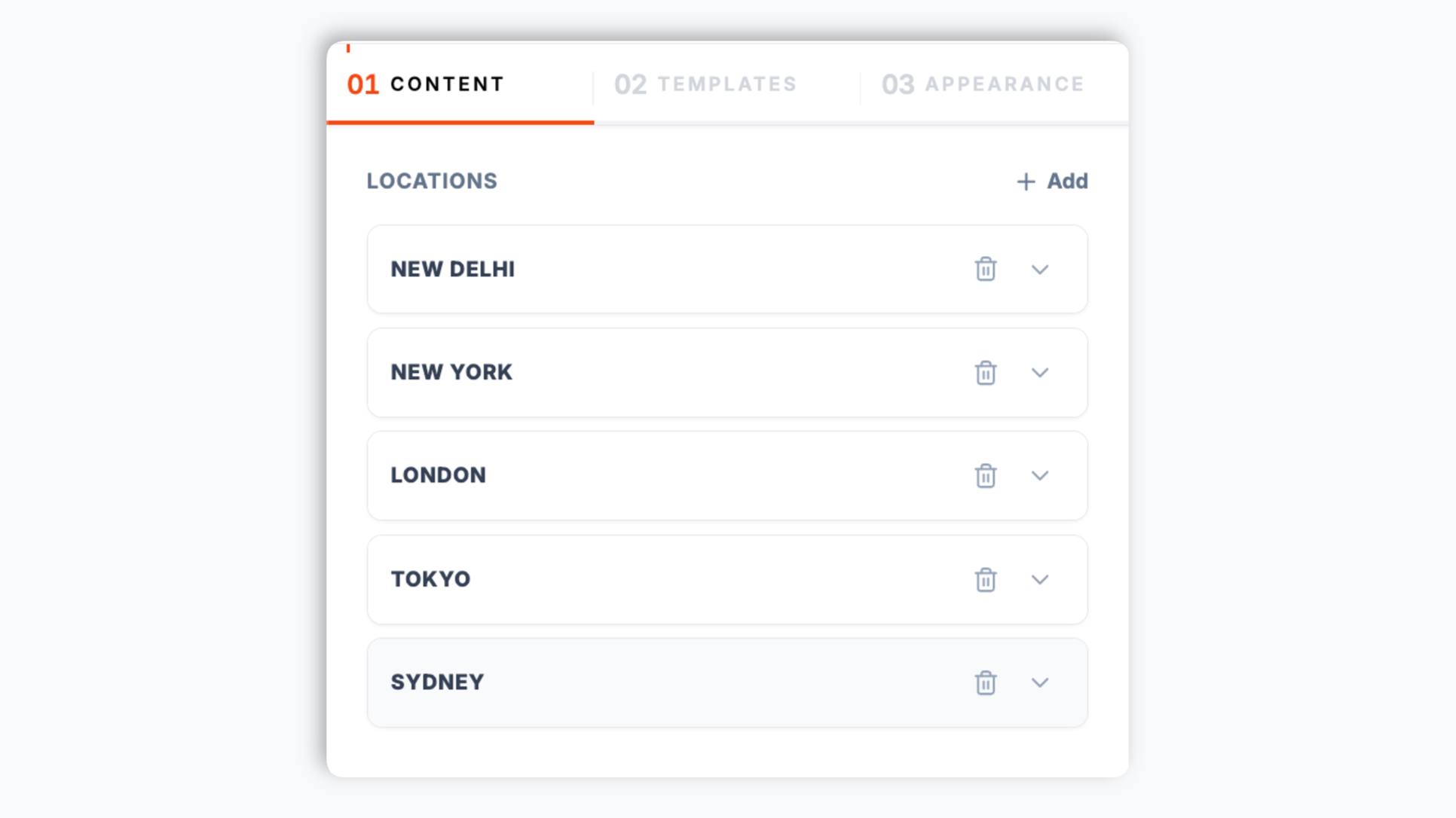
Search the city list and pin the locations you want, up to 61 cities. Each city carries its own timezone identifier (Asia/Tokyo, America/New_York, Europe/London) so it always shows the right local time.
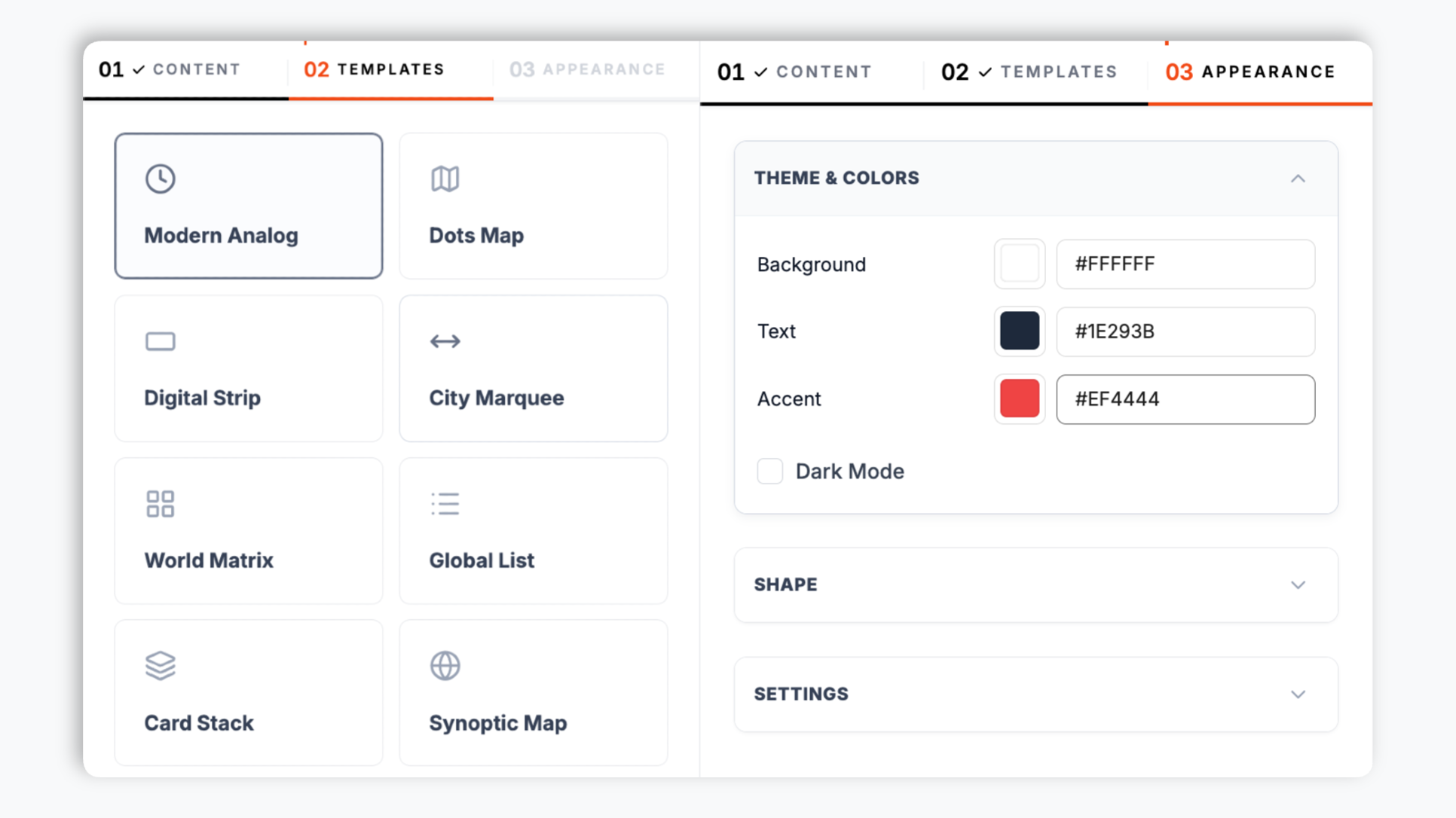
Pick from 16 layouts: Analog Grid, Digital Strip, City Marquee, Card Stack, Global Map, Global List, Synoptic Map, Cupertino Grid, Bauhaus, Swiss Rail, Dense Matrix, Flip Clock, Neon HUD, Retro Digital, Terminal, Typographic. Use the styling and time-display controls available for the chosen layout.
Paste the Poper embed snippet into your site. Works anywhere your Poper embed snippet is supported. Clock time updates in the visitor browser; map layouts can load map assets.
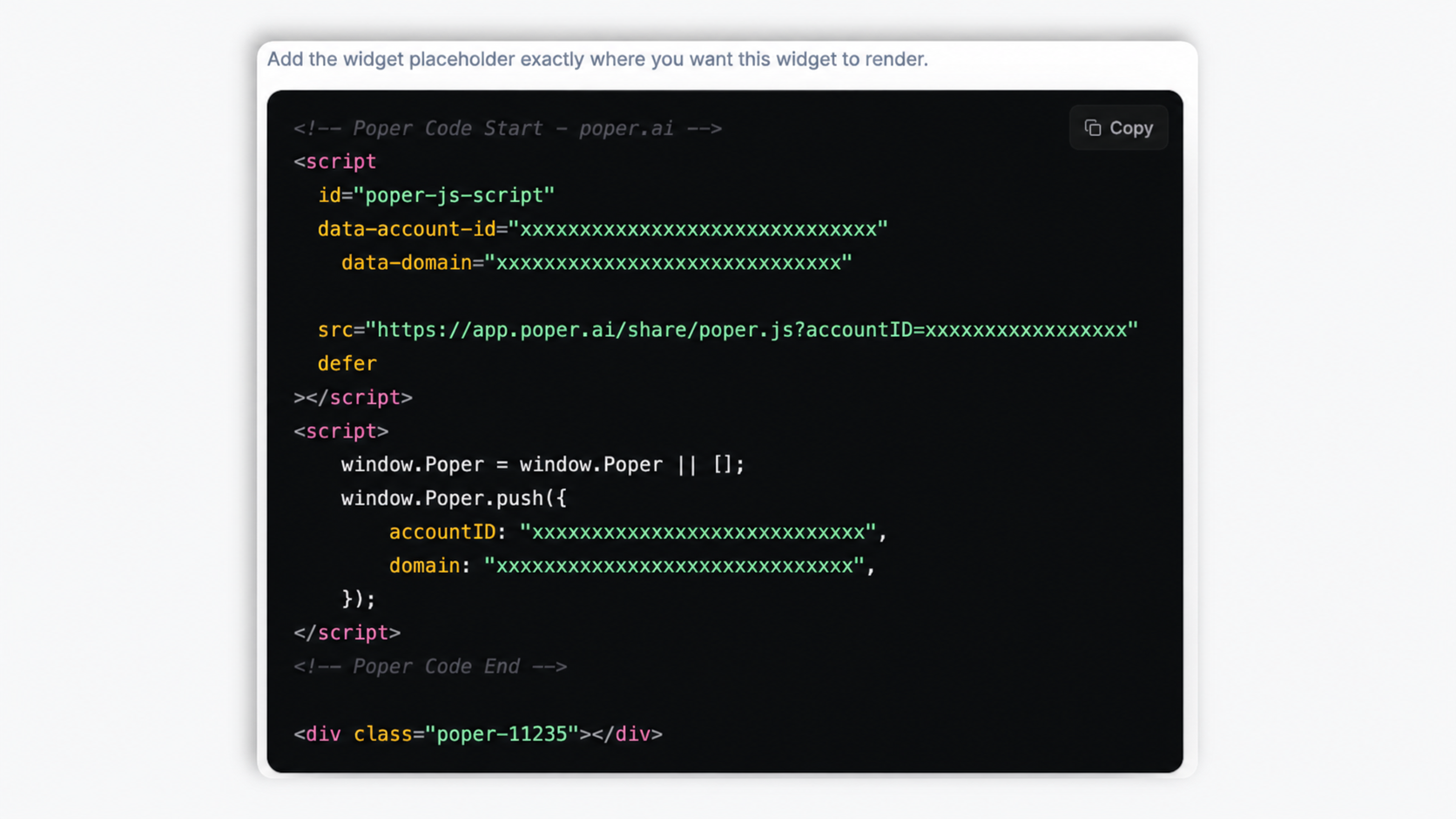
Works everywhere
Drop-in install on WordPress, Shopify, Wix, Squarespace, Webflow, Framer, Ghost, and any HTML-friendly stack. No build step, no developer needed.


Plus 250+ other platforms via the embed snippet. If your site can render a <script> tag, it can render the World Clock Widget for Website: Multi-City Timezone Display.
Six things that matter when you embed a multi-city clock, not 30 features no one uses.
This is what makes a world clock different from a single-clock widget: you display many cities side by side, each in its own timezone, all ticking in real time. Pick from 16 layouts including Analog Grid for boardrooms, Global Map and Synoptic Map for travel sites, Digital Strip and City Marquee for headers, Flip Clock and Card Stack for sidebars, Terminal and Neon HUD for developer dashboards. Preview layout changes before publishing.
Most DIY clock scripts hardcode UTC offsets and silently break the day a country shifts its clocks. Poper avoids that: each city is stored with its timezone id, and the widget uses the visitor's browser (the standard Intl and Date APIs) to apply daylight saving and offset rules. That is the same source most modern browsers use, so the time stays correct without a redeploy.
Search the built-in city list and pin the locations you need, from a handful to as many as 61 on one page.
Analog Grid, Digital Strip, City Marquee, Card Stack, Global Map, Synoptic Map, Flip Clock, Terminal, more. Preview the selected layout before publishing.
The Global Map and Synoptic Map layouts place each city as a pin on a world map, which fits travel and tourism pages where geography matters. Grid, strip, and card layouts fit headers, About pages, and sidebars. Pick the one that matches the page rather than forcing one layout everywhere.
All the time math runs in the visitor's browser, so there are no API calls every second for clock ticks. The embed is designed to load cleanly through the Poper snippet. Time calculations run locally; map layouts can load map assets.
Use cases
Four buyer types who get the most lift from embedding World Clock Widget for Website: Multi-City Timezone Display on their site.
Pin every office or remote hub on your About, Careers, or Contact page. New hires and prospects instantly see the local time at each location and get a feel for how the team spans the globe.
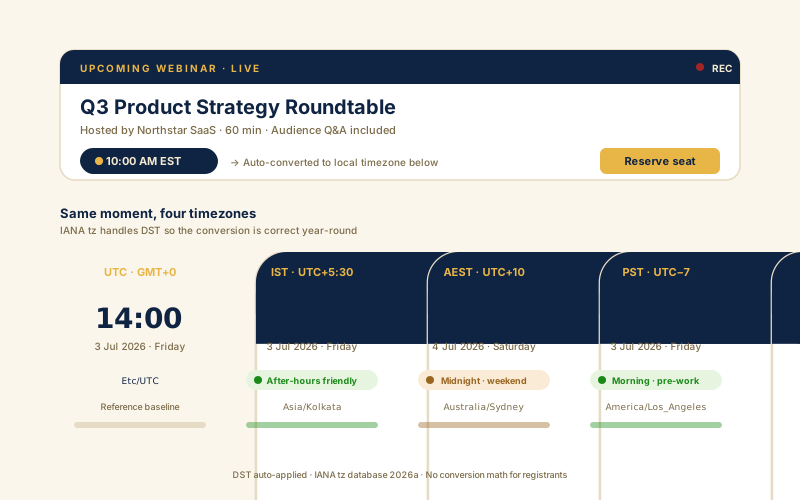
Conferences, webinars, product launches, AMAs. Pin your audience cities so registrants from every region can read the current local time at a glance and plan around the event.
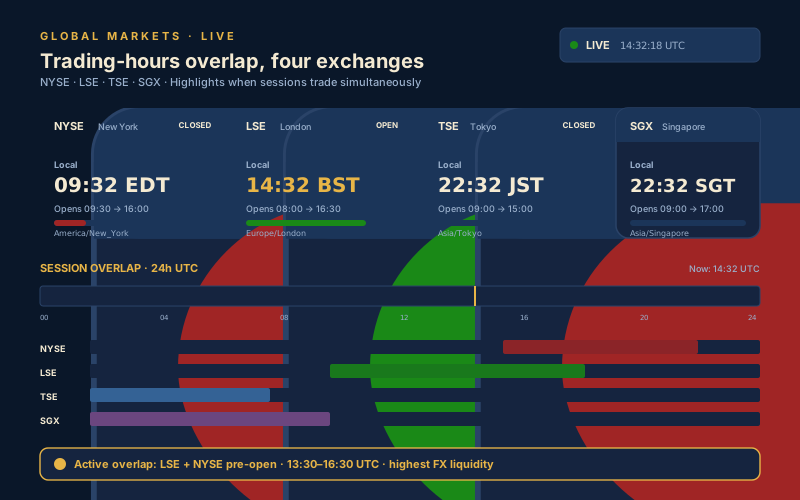
New York, London, Tokyo, Singapore side by side, each showing its current local time. A clean reference for FX, crypto, and global equity dashboards where traders track several markets.
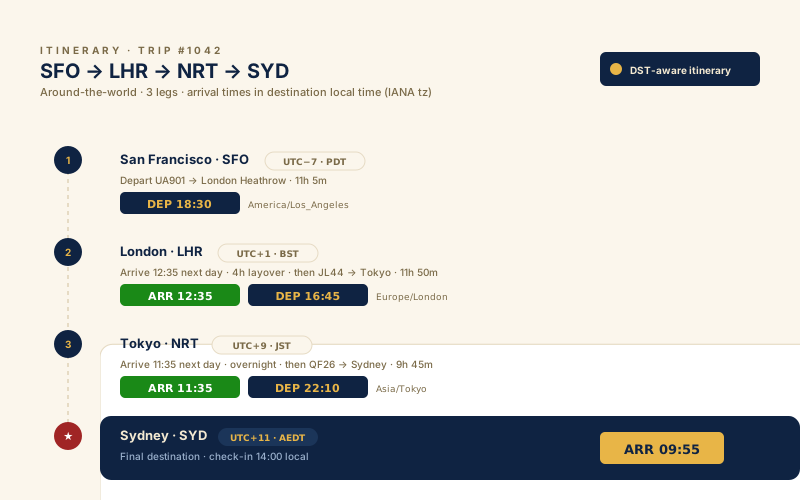
Show destination times next to hotel, tour, and itinerary cards so travelers can see the current local time wherever they are headed. Pairs well with the Global Map layout.
Most multi-clock widgets give you a handful of layouts and little design control. Here is how the popular ones stack up.
| Recommended Poper | TimeAndDate.com Clock | Common Ninja Clock | Elfsight Multi-Clock | |
|---|---|---|---|---|
| Poper workspace available | ||||
| Multi-city display (2 or more cities) | ||||
| Number of layout templates | 16 | 3 | 6 | 5 |
| Global map / synoptic map layout | ||||
| Browser-accurate timezones and DST | ||||
| Cities you can add on one page | 61 | Unlimited | Limited | Limited |
| Analog and digital layouts both | ||||
| Layout-specific brand controls | Limited | Paid only | Paid only | |
| Updates use the normal publish flow | ||||
| No-code of ads and trackers | ||||
| Starter price (billed yearly) | Plan details vary | No-code + ads | Vendor pricing varies | Vendor pricing varies |
| Bundled with popups, forms, quizzes, more widgets |
Comparison reflects external competitor positioning. Verify current details on each provider's site.
Distributed teams, travel, trading, and event brands that switched from DIY scripts and single-clock widgets to Poper.
“Adding the Poper world clock to our Careers page made the distributed nature of our team obvious to candidates. They see our offices and the local time at each one before the first interview even starts.”

“We embedded the Global Map layout on our travel itinerary pages. Seeing each destination as a pin with its current local time made the trip feel real to customers planning it.”

“We run a row of city clocks on our trading dashboard for New York, London, Tokyo, and Singapore. The Terminal layout matched our dark UI, and setup was straightforward.”

Pricing
All plans are billed yearly. Each card shows the per-month equivalent. Start free, then upgrade only when you need more campaigns, websites, or AI credits.
Yearly billing · save up to 40%Essential lead capture for solo creators and growing businesses.
billed $180/year
Full engagement suite with A/B testing, gamification & unlimited leads.
billed $348/year
Unlimited everything with white-label, API access & advanced analytics.
billed $948/year
Prices shown for the 50k monthly visitor tier on yearly billing. A Free Forever plan ($0) and a custom Enterprise plan are also available. No contracts, cancel anytime.
A world clock widget shows the current time in several cities at once on a single page. It is a small but genuinely useful element for distributed teams, travel sites, financial dashboards, and international event pages. It is also easy to get wrong: clock scripts that hardcode UTC offsets break the day a country changes its clocks. This guide walks through what actually matters when you choose and configure a world clock for your website in 2026: how a city should be tied to a timezone id rather than a fixed offset, how to choose between a map layout and a grid layout, how many cities is the right number, and how to make the widget match your site instead of clashing with it.
A company that operates across several cities can feel abstract to a visitor reading a careers page or a prospect on a contact page. A world clock makes that footprint concrete: a row of clocks for New York, London, and Tokyo says more about how a team works than a paragraph of copy. It is passive infrastructure, candidates and customers see the current local time at each location at a glance, with nothing to click. The Poper world clock is built for exactly this placement. Pin the cities that matter, pick a layout that matches the page, and the row of clocks quietly tells the story of a distributed team every time someone visits.
The most common bug in a homemade clock is hardcoding an offset: treating New York as UTC-5 and London as UTC+0. This is wrong for several months of every year, because both cities observe daylight saving time and the offset shifts. It also breaks entirely when a country changes its policy. The correct approach is to store each city with its timezone identifier (America/New_York, Europe/London, Asia/Tokyo) and let the runtime compute the current local time from that id. The Poper world clock does this. Each city carries its timezone id, and the widget uses the visitor's browser, through the standard Intl and Date APIs, to apply the current daylight saving and offset rules. That is the same source modern browsers rely on, so the displayed time stays correct as cities change their clocks, with no redeploy on your side.
The Poper world clock ships 16 layouts, and the first real decision is whether geography matters to your page. If it does, the Global Map and Synoptic Map layouts place each city as a pin on a world map, which is a natural fit for travel sites, tour itineraries, and any page where seeing where a city sits adds meaning. If geography does not matter and you just need the times, a grid or strip layout is cleaner and more compact: Analog Grid and Cupertino Grid suit corporate About pages, Digital Strip and City Marquee fit headers, Card Stack and Flip Clock fit sidebars, and Terminal and Neon HUD fit developer and trading dashboards. Pick the layout that matches the page it sits on and preview changes before publishing.
The Poper world clock lets you pin up to 61 cities, but more is not automatically better. A row of three or four city clocks reads instantly; a wall of twenty competes with everything else on the page and is slower to scan. For an About or Contact page, pick the cities that genuinely represent your team or audience, usually four to eight. For a travel itinerary, show the cities on the trip. For a trading dashboard, the major financial centers the user actually tracks. The map layouts can carry more pins gracefully because each pin is small, so if you do need a large set of cities, the Global Map or Synoptic Map is the layout that scales best. Start with the cities that matter and add more only when there is a clear reason.
An embed that ships in one fixed color scheme rarely matches the site it lands on, and a mismatched widget reads as bolted on. The Poper world clock exposes layout-specific controls that may include accent color, background, text color, card radius, dark mode, 12 or 24 hour display, and seconds where supported. Several layouts also ship with their own tuned palette (Neon HUD, Terminal, Cupertino) so they look intentional out of the box. Spend a minute matching the clock row to the section around it. The widget uses browser-side rendering; review external assets for your selected layout and validate the final embed on your own page.
A world clock widget is an embeddable script that displays the current time in several cities and timezones at once on a single web page. The Poper world clock stores each city with its timezone id and uses the visitor's browser (the standard Intl and Date APIs) to compute the current local time, applying daylight saving automatically.
Last fact-checked: . We re-verify every quarter.
Tutorial
A quick walkthrough of setting up and embedding this widget.
Tutorial video coming soon
Can't find the answer you're looking for? Chat with our support team.
Contact SupportUse browser-based timezone and DST handling to show each configured city's current time.
Free plan available forever