
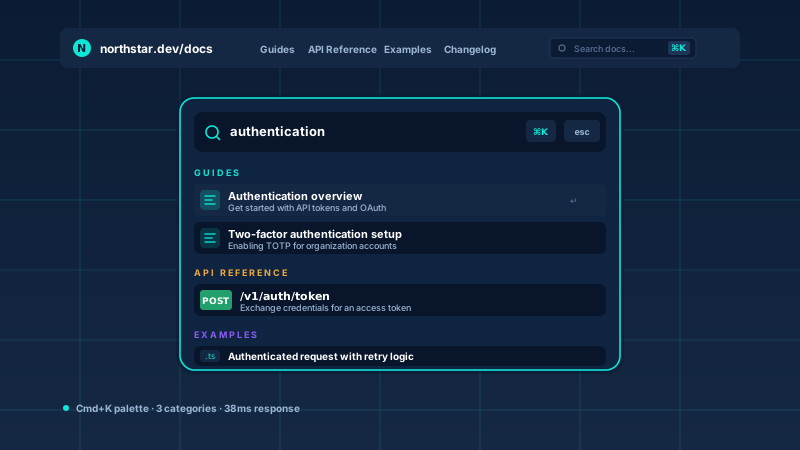
Developer + API docs search
Help developers find the right page fast. Use the Command Palette layout so keyboard-first users open search with Cmd+K and jump straight to a result.
Embed a branded search bar in 90 seconds. Connect a Google Programmable Search Engine, pick from 9 layouts including a Cmd+K palette, and style it to your site. No code.
Built for no-code website teams























Live demo, not a screenshot. Style it, brand it, embed it. What you see here is what ships to your site.
Before and after Poper
Here is the widget embedded on a real page layout, before and after. Style it to match your brand, then copy one snippet to go live.
 Before
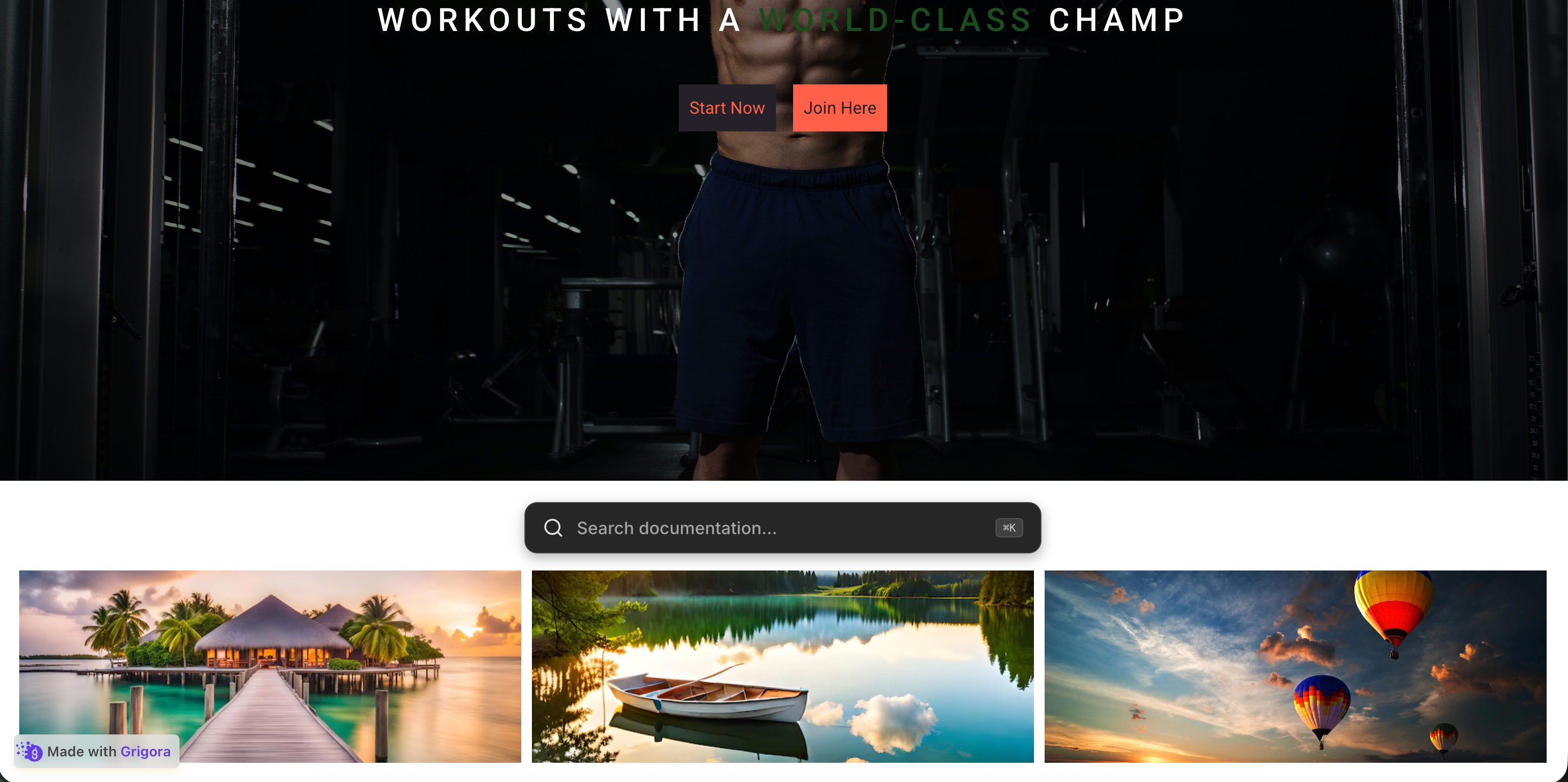 Poper widget live
Mockups for illustration. Style the widget to match your site and embed in 90 seconds.
How to use it
Three steps. Under two minutes. No developer needed.
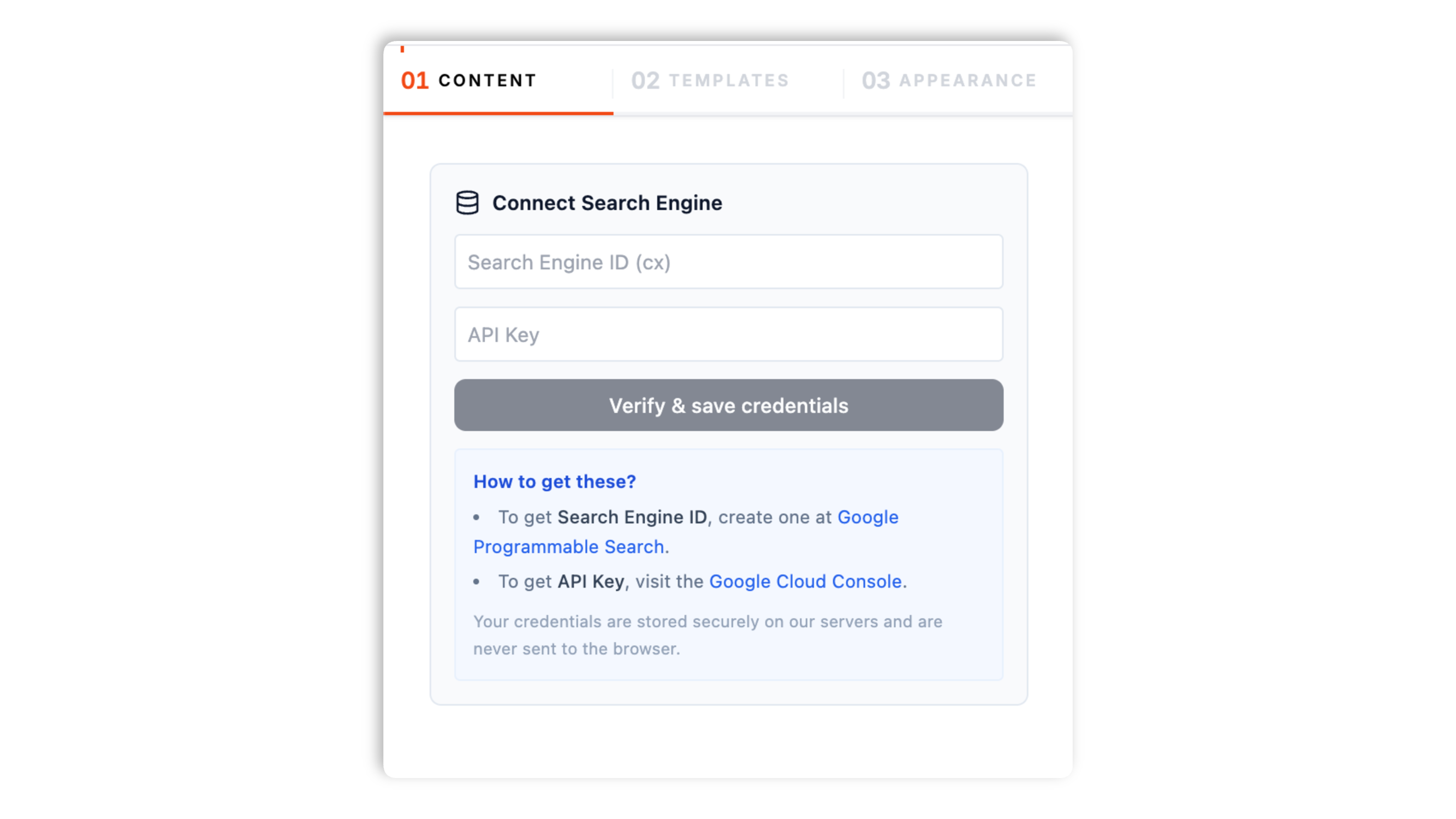
Create a free search engine at Google Programmable Search, scoped to your site, then paste its Search Engine ID and a Google Cloud API Key into the widget's Content tab.
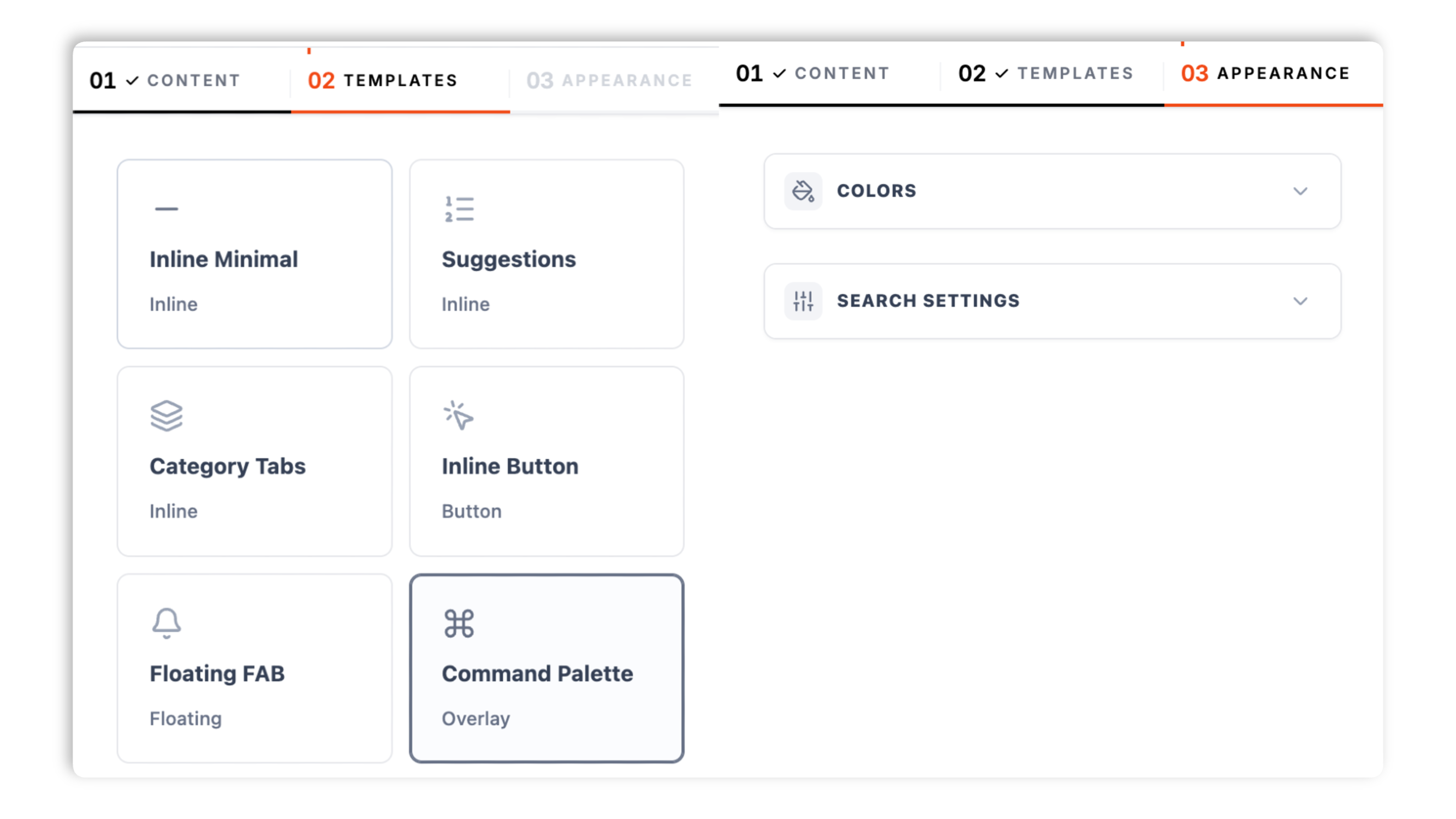
Choose from 9 layouts: Minimal Inline, Smart Suggestions, Command Palette, Floating FAB, Sidebar Panel, AI Summary, Category Tabs, Inline Button, and Filters Panel. Set your brand colors and the placeholder text.
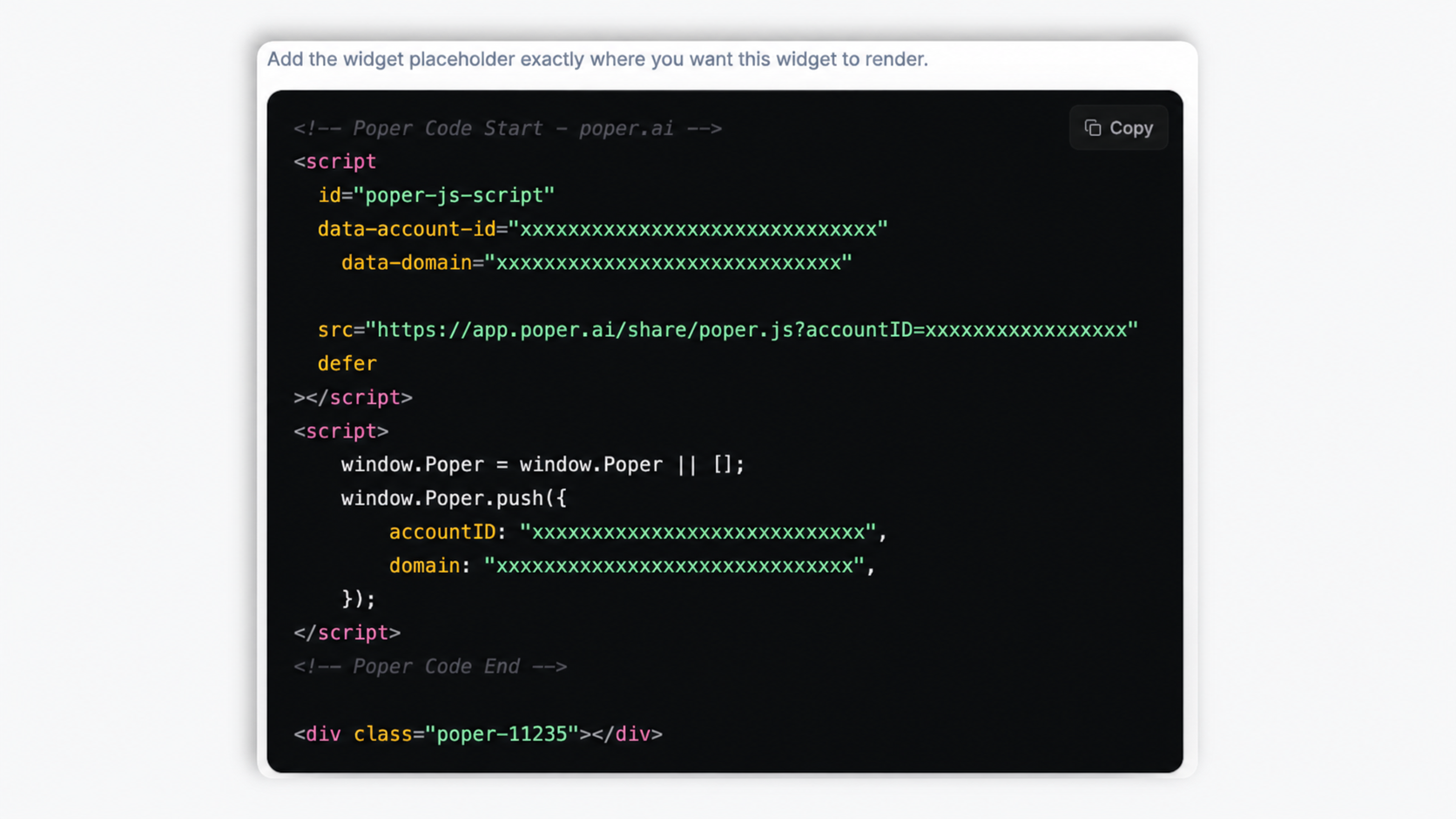
Paste the Poper embed snippet into your site. Works anywhere your Poper embed snippet is supported.
Works everywhere
Drop-in install on WordPress, Shopify, Wix, Squarespace, Webflow, Framer, Ghost, and any HTML-friendly stack. No build step, no developer needed.


Plus 250+ other platforms via the embed snippet. If your site can render a <script> tag, it can render the Search Widget for Website: Site Search Powered by Google.
Six things that matter when you are paying for site search, not 30 features no one uses.
The widget runs on Google Programmable Search, the same index Google search uses. You create a free search engine scoped to your site, connect it once with a Search Engine ID and API key, and the widget returns Google-quality results inside your own branded UI. There is no separate index for you to build or maintain, because Google already crawls your pages.
Minimal Inline, Smart Suggestions, Command Palette, Floating FAB, Sidebar Panel, AI Summary, Category Tabs, Inline Button, and Filters Panel. Switch between them in the builder through the normal publish flow. Available widget controls.
The Command Palette layout opens on a Cmd+K or Ctrl+K shortcut and closes on Escape.
Define quick-search suggestion chips, or category buttons that scope a query when picked.
Pick the AI Summary layout and the widget shows a short, generated summary above the result list, drawn from the top results for the visitor's query. The other eight layouts return a clean ranked list of result cards with thumbnail, title, and snippet.
Style the search bar and results to your site with background, card, text, accent, and border colors plus corner radius. The results render in your own UI rather than a Google-branded box. Review privacy behavior for your selected setup on your visitors.
Use cases
Four buyer types who get the most lift from embedding Search Widget for Website: Site Search Powered by Google on their site.
Help developers find the right page fast. Use the Command Palette layout so keyboard-first users open search with Cmd+K and jump straight to a result.

Let shoppers search your store from any page. Results show a thumbnail, title, and snippet, and Category Tabs let buyers scope the query to a product area.
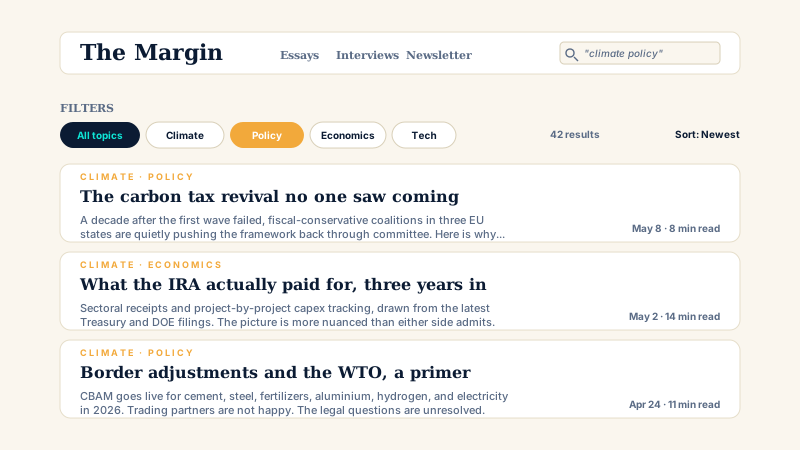
Help readers find older posts instead of bouncing. The Smart Suggestions layout shows quick-search chips you define so visitors start from a useful query.
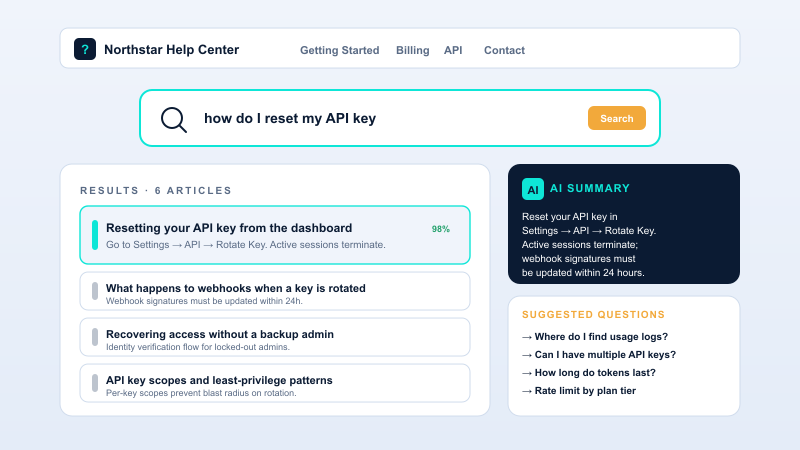
Help visitors find support articles. The AI Summary layout adds a short generated summary above the result list so common questions get a quick answer.
Most embeddable search widgets force their branding into your UI or paywall the layouts. Here is how the popular ones stack up.
| Recommended Poper | Elfsight Site Search | POWR Search | Google PSE embed | |
|---|---|---|---|---|
| Poper workspace available | Limited | Limited | ||
| Layouts included | 9 layouts | Several | Several | 1 (Google's box) |
| Cmd+K command palette layout | ||||
| AI summary above results | ||||
| Category buttons that scope a query | Paid only | Paid only | ||
| Brand color controls | Paid only | Limited | ||
| Results in your own UI, no provider logo | Paid only | Paid only | ||
| Responsive on mobile | ||||
| Plan details depend on your Poper workspace | Plan details vary | Vendor pricing varies | Vendor pricing varies | No-code with Google branding |
| Works alongside other Poper tools |
Comparison reflects external competitor positioning. The Poper Search widget itself runs on Google Programmable Search, which you connect with your own search engine ID and API key. Verify current details on each provider's site.
Docs teams, ecommerce, and support orgs who put a branded search UI on top of Google's index.
“Connecting our Google Programmable Search engine took one afternoon. We get Search results, but inside a search UI that finally matches our docs site.”

“We added the search widget to our store and used Category Tabs so shoppers can scope a query to a product area. Results show a thumbnail and snippet, which shoppers like.”

“We use the Command Palette layout on our help center so users open search with Cmd+K. The AI Summary option gives common questions a quick answer up top.”

Pricing
All plans are billed yearly. Each card shows the per-month equivalent. Start free, then upgrade only when you need more campaigns, websites, or AI credits.
Yearly billing · save up to 40%Essential lead capture for solo creators and growing businesses.
billed $180/year
Full engagement suite with A/B testing, gamification & unlimited leads.
billed $348/year
Unlimited everything with white-label, API access & advanced analytics.
billed $948/year
Prices shown for the 50k monthly visitor tier on yearly billing. A Free Forever plan ($0) and a custom Enterprise plan are also available. No contracts, cancel anytime.
Site search is one of the highest-intent moments on your website. A visitor who searches usually knows what they want, so the job of a search widget is to take them there with as little friction as possible. This guide covers what matters when you choose and configure a search widget in 2026, based on what the Poper Search widget actually does: it runs on Google Programmable Search, so you connect a Google-built search engine rather than maintaining your own index. We will cover how that connection works, the nine layouts and which one fits your site, how categories and suggestions help visitors, the AI Summary layout, and why a branded search UI on top of Google's index beats both a raw Google box and a heavyweight self-hosted index for most teams.
The Poper Search widget does not build or host its own search index. Instead it runs on Google Programmable Search, formerly known as Google Custom Search. You create a free Programmable Search Engine in Google's control panel, tell Google which site or sites it should cover, and generate an API key in the Google Cloud Console. In the widget's Content tab you paste the Search Engine ID and the API key, and Poper verifies and stores them on its servers, never sending them to the browser. From then on, when a visitor searches, the widget queries your Programmable Search Engine and renders the results inside your own branded layout. The practical consequence is that there is nothing for you to index or keep in sync: Google already crawls your pages as part of its normal web crawl, so a new page becomes searchable once Google has crawled and indexed it. You are getting Google-quality ranking and configured indexing behavior without running a crawler, a database, or a sync pipeline of your own.
The Poper Search widget ships nine layouts, and you pick one in the Templates tab. Minimal Inline is a clean input that suits blogs and docs. Smart Suggestions shows quick-search chips you define under the bar, so a visitor starts from a useful query. Command Palette opens a full overlay on a Cmd+K or Ctrl+K shortcut, the pattern technical and power users expect from tools like Linear and Notion. Floating FAB is a fixed corner button that opens search on click. Sidebar Panel slides a search panel in from the side. AI Summary adds a short generated summary above the results. Category Tabs shows category buttons above the bar, and Filters Panel shows category buttons inside the search overlay; in both, picking a category scopes the next query to that area. Inline Button is a search input paired with a labelled button. Pick the layout by how your visitors search: an inline or button layout for casual visitors who want to get back to reading, the Command Palette for keyboard-first power users, and Category Tabs or Filters Panel when visitors benefit from narrowing to a section of the site.
A blank search box asks the visitor to know exactly what to type. Two features in the Poper Search widget reduce that burden. The first is suggestions: on the Smart Suggestions layout you define a list of quick-search chips, such as your most common queries, and a visitor can click one instead of typing. The second is categories: on the Category Tabs and Filters Panel layouts you define a list of categories, and when a visitor selects one, the widget scopes their query to that category by adding it to the search terms. This is not a faceted filter system with synonym dictionaries or numeric ranges; it is a straightforward way to point a visitor at a slice of your site, which is exactly what most content and documentation sites need. Choose suggestion chips that reflect what visitors most often look for, and keep your category list short so the choices stay scannable. Both lists are edited in the Content tab and update without a re-embed.
Eight of the nine layouts return a ranked list of result cards, each with a thumbnail, a title, and a snippet, which is the familiar search-results pattern. The ninth, AI Summary, adds something on top. When a visitor searches with the AI Summary layout, the widget takes the top results and generates a short summary that appears above the result list, so a visitor who just wants a quick answer to a common question can read it without opening a page. The full result list still appears below the summary, so a visitor who wants to dig deeper can. This layout suits a help center or knowledge base, where many queries are questions that have a short answer. For a documentation site or a store, where the visitor usually wants to land on a specific page or product, one of the ranked-list layouts is usually the better fit. As with any generated text, treat the AI summary as a helpful starting point rather than a guaranteed-correct answer, and make sure the underlying pages it draws from are accurate.
There are three common ways to add search to a site, and the Poper Search widget sits deliberately in the middle. The first way is the raw Google Programmable Search embed: it is free and uses Google's index, but it renders Google-branded results in a box you cannot really style, which looks bolted-on. The second way is a heavyweight hosted search platform with its own index: it gives you available design control, but you pay a developer to integrate it, configure index settings, and wire record-pushing into every publish, and the bill scales with index size and query volume. The Poper Search widget takes the index quality of the first option and the design control of the second, without the cost of either. It uses Google's index, which you connect once, so there is no index to build or maintain, and it renders the results in nine fully brandable layouts that look like part of your site, with no provider logo. Because it is part of the Poper widget suite, it also sits alongside your popups, forms, quizzes, and other widgets on Works alongside other Poper tools, instead of being a separate vendor to manage.
A search widget for a website is an embeddable component that adds a search bar to any page. The Poper Search widget runs on Google Programmable Search: you connect a Google-built search engine, and the widget returns Google-powered results inside one of nine brandable layouts.
Last fact-checked: . We re-verify every quarter.
Tutorial
A quick walkthrough of setting up and embedding this widget.
Tutorial video coming soon
Can't find the answer you're looking for? Chat with our support team.
Contact SupportPoper Search takes 90 seconds to embed and puts a branded search bar on your site.
Free plan available forever