
Wedding + portrait photographers
Show your best shots in a justified or masonry layout with a lightbox popup so visitors can view each photo full screen.
Embed a responsive photo gallery in 90 seconds. 11 layouts including grid, masonry, carousel, justified, and collage. Lightbox popup, category filter, and watermark. No code.
Built for no-code website teams























Live demo, not a screenshot. Style it, brand it, embed it. What you see here is what ships to your site.
Before and after Poper
Here is the widget embedded on a real page layout, before and after. Style it to match your brand, then copy one snippet to go live.
 Before
 Poper widget live
Mockups for illustration. Style the widget to match your site and embed in 90 seconds.
How to use it
Three steps. Under two minutes. No developer needed.
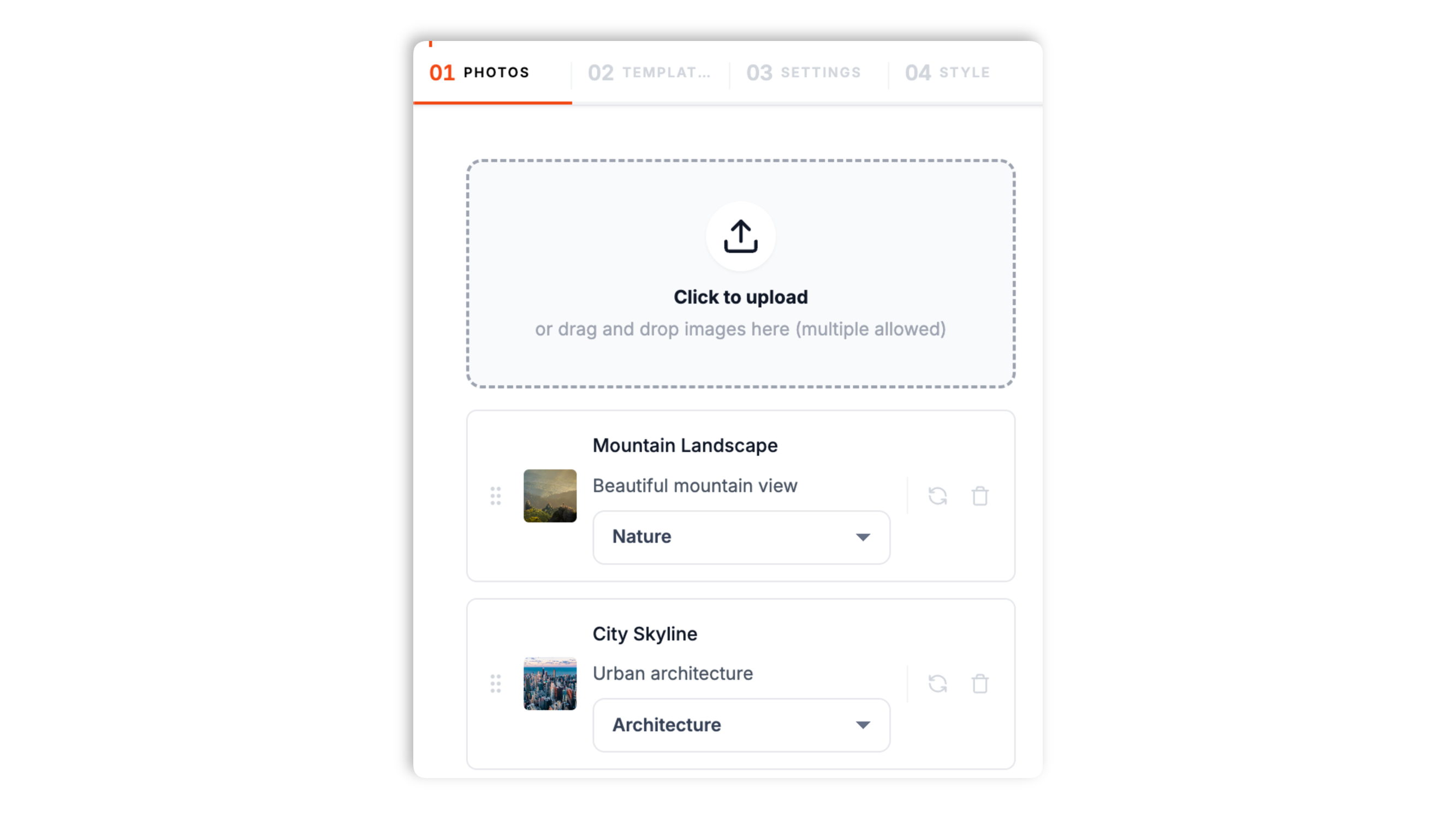
Upload your photos in the Photos tab. Give each photo a title, a description, and a category, and an optional link. Set up category names so visitors can filter the gallery.
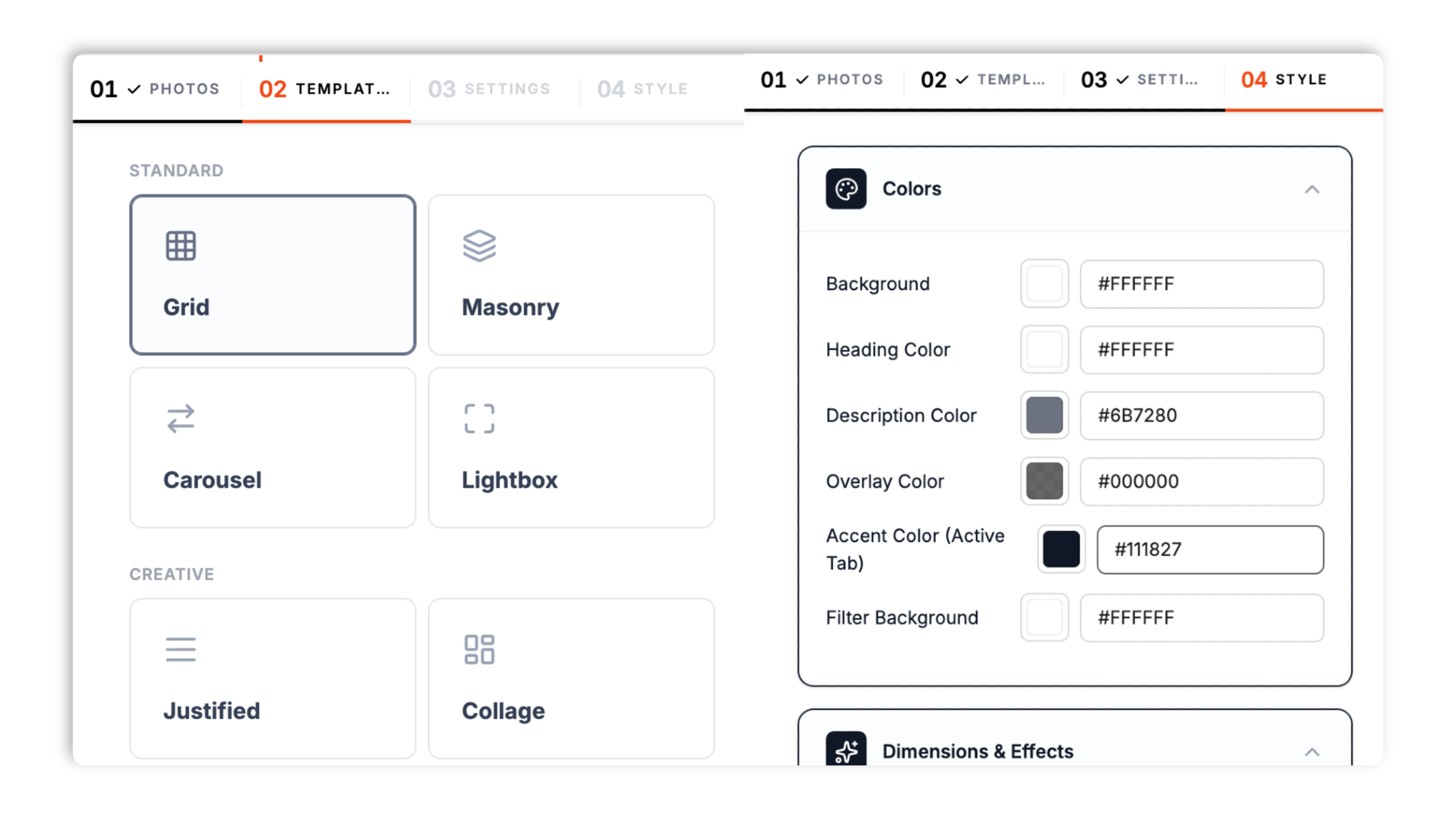
Choose from 11 layouts in the Templates tab: Grid, Masonry, Carousel, Lightbox First, Justified, Collage, Split View, Timeline, Stacked, Scroll, and Full Bleed. Set columns, spacing, colors, corner radius, hover effect, and the click action.
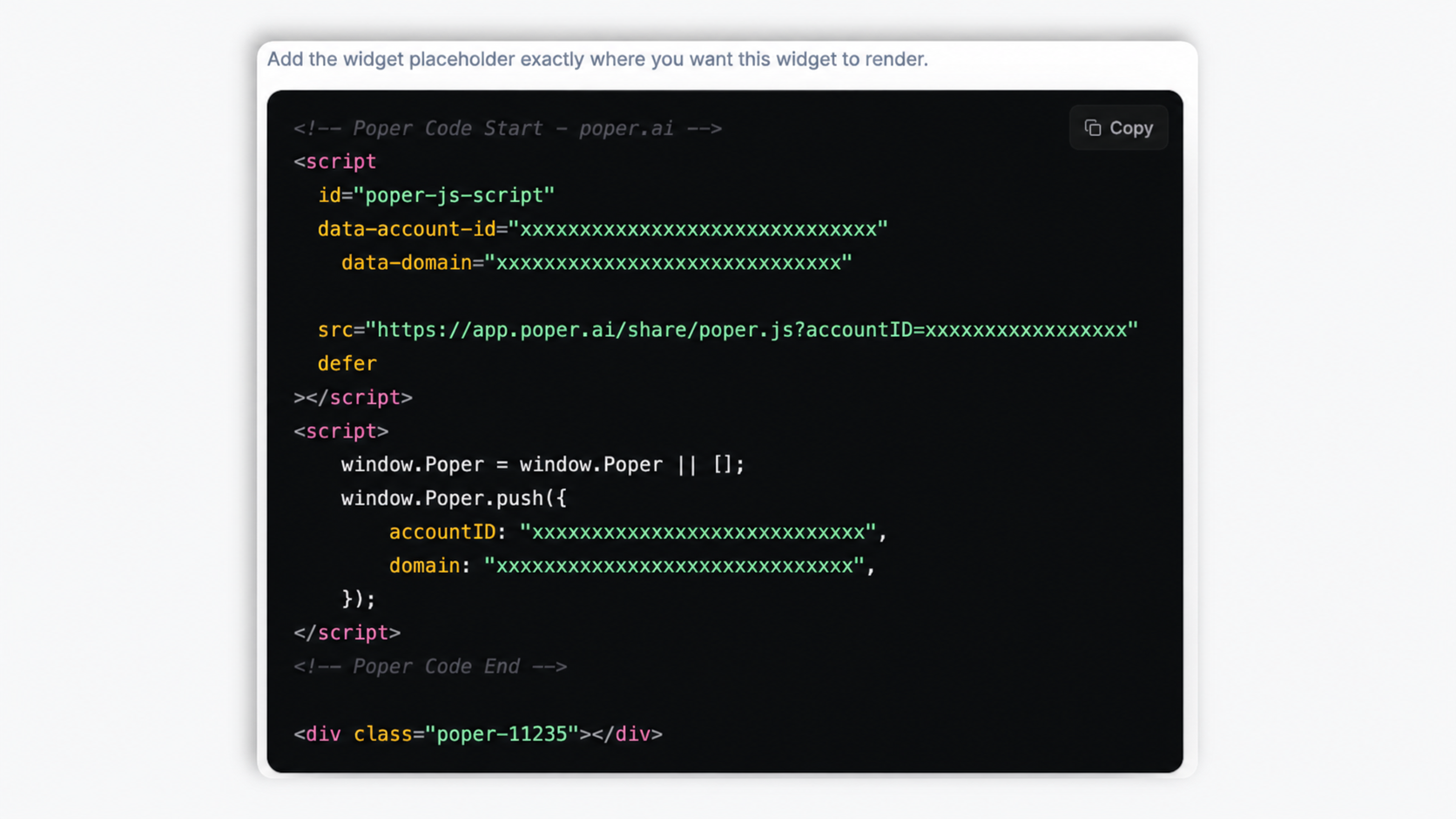
Paste the Poper embed snippet into your site. Works on WordPress, Squarespace, Webflow, Wix, Shopify, Framer, Ghost, and supported HTML setup.
Works everywhere
Drop-in install on WordPress, Shopify, Wix, Squarespace, Webflow, Framer, Ghost, and any HTML-friendly stack. No build step, no developer needed.


Plus 250+ other platforms via the embed snippet. If your site can render a <script> tag, it can render the Photo Gallery Widget: Grid, Masonry, Carousel & Lightbox for Any Site.
The features that matter when you are embedding a photo gallery, not 30 nobody uses.
Grid, Masonry, Carousel, Lightbox First, Justified, Collage, Split View, Timeline, Stacked, Scroll, and Full Bleed. Masonry packs photos in a Pinterest-style waterfall. Justified fills rows flush. Switch layout in the dashboard through the normal publish flow, and every layout adapts from mobile to desktop.
Set the click action so tapping a photo opens it in a full-screen lightbox popup, with the photo's title and description shown. Or set the click action to follow each photo's link instead.
Tag photos with categories and show an on-page filter so visitors can narrow the gallery to one group.
Add a text or image watermark over your photos, with an opacity control, to mark your work.
Set background and text colors, corner radius, drop shadow, and a hover effect. Adjust column count and spacing per layout. No CSS required.
Add a photo, change a caption, or switch the layout in the dashboard and the update reaches every site running the embed. Use the Poper embed snippet in a supported page.
Use cases
Four buyer types who get the most lift from embedding Photo Gallery Widget: Grid, Masonry, Carousel & Lightbox for Any Site on their site.
Show your best shots in a justified or masonry layout with a lightbox popup so visitors can view each photo full screen.
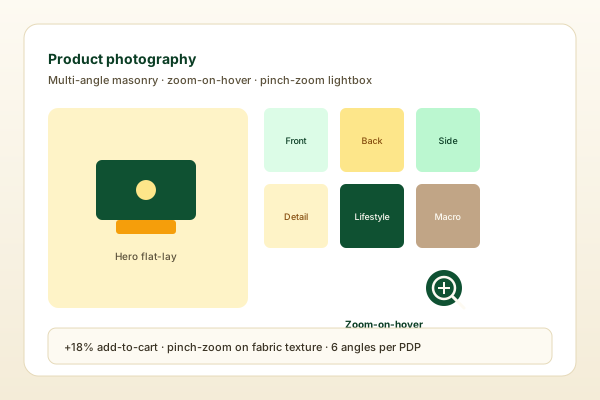
Replace a single hero image on product pages with a multi-angle gallery. Masonry surfaces lifestyle and detail shots together, and the lightbox lets buyers view each shot full screen.
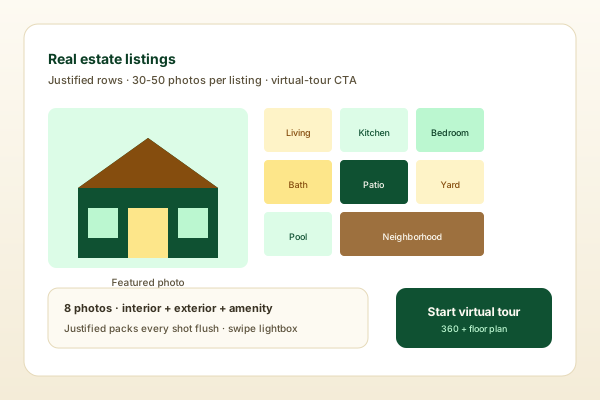
Bedroom, bathroom, kitchen, exterior, and neighborhood photos. Justified or grid layouts pack many photos per listing, and category tags let buyers filter by room.
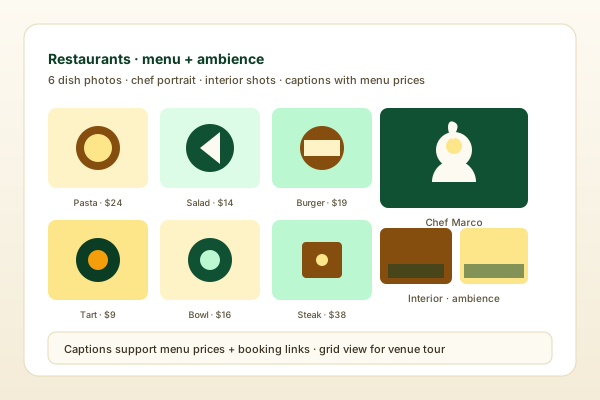
Showcase your space, plates, and events. Use the grid for a venue tour and the carousel for a hero, with categories to separate dishes from interiors.
Most third-party gallery widgets ship a couple of layouts and paywall the rest. Here is how the popular ones stack up.
| Recommended Poper | Elfsight Photo Gallery | POWR Gallery | Common Ninja Gallery | |
|---|---|---|---|---|
| Poper workspace available | Limited | Limited | Limited | |
| Grid layout | ||||
| Masonry layout (Pinterest-style packing) | Paid only | Paid only | Limited | |
| Number of gallery layouts | 11 layouts | Carousel + grid | Carousel + grid | Limited |
| Carousel, Justified, Collage, Timeline layouts | Carousel only | Carousel only | Limited | |
| Lightbox popup | Paid only | |||
| Use the source fields supported by the widget | Paid only | Limited | ||
| Text or image watermark | Paid only | Limited | ||
| Color, radius, and hover-effect styling | Paid only | Limited | ||
| Pricing | Plan details vary | Vendor pricing varies | Vendor pricing varies | Vendor pricing varies |
| Works alongside other Poper tools |
Comparison reflects external competitor positioning. Verify current details on each provider's site.
Photographers, ecommerce brands, restaurants, and realtors who use Poper.
“We moved our portfolio to Poper's masonry layout and the lightbox finally lets visitors view each photo full screen. Uploading and tagging the photos took an afternoon.”

“Replacing single product images with a gallery on our product pages gave buyers every angle in one place. The category filter keeps a long gallery usable.”

“Eleven layouts meant we did not have to settle. Justified packed 40 listing photos without breaking the page, and switching layouts took one click.”

Pricing
All plans are billed yearly. Each card shows the per-month equivalent. Start free, then upgrade only when you need more campaigns, websites, or AI credits.
Yearly billing · save up to 40%Essential lead capture for solo creators and growing businesses.
billed $180/year
Full engagement suite with A/B testing, gamification & unlimited leads.
billed $348/year
Unlimited everything with white-label, API access & advanced analytics.
billed $948/year
Prices shown for the 50k monthly visitor tier on yearly billing. A Free Forever plan ($0) and a custom Enterprise plan are also available. No contracts, cancel anytime.
A photo gallery is one of the highest-impact visual elements on a portfolio, product, or listing page, and also one of the easiest to get wrong. A plain stack of image tags looks dated and gives the visitor no way to view a photo closely. A good gallery widget gives you a layout that fits the content, a lightbox for full-screen viewing, and a way to organize photos so the visitor can find what they want. This guide walks through what matters when you choose and configure a photo gallery widget in 2026: picking the right layout, the lightbox and click behavior, category filtering, and the styling controls that make the gallery feel native to your site.
Poper's photo gallery widget ships eleven layouts, and the right one depends on the content. Grid shows uniform thumbnails in a fixed column count, the safe default for product shots or evenly sized images. Masonry packs photos into a Pinterest-style waterfall that keeps tall and wide images at their natural proportion. Carousel is a swipeable horizontal slider for a hero or a highlight reel. Lightbox First is a minimal grid built to push visitors straight into the popup. Justified fills each row to the full width by adjusting heights so rows end flush. Collage arranges photos into an artistic patterned layout. Split View shows a large photo with a thumbnail rail. Timeline lays photos out as a chronological sequence. Stacked, Scroll, and Full Bleed each give a different storytelling rhythm, from layered cards to smooth vertical scrolling to immersive edge-to-edge images. You can switch between all eleven in the dashboard through the normal publish flow, so it is worth trying a few against your real photos.
Every gallery has to answer one question: what happens when a visitor clicks a photo. Poper's widget lets you choose. Set the click action to open a lightbox popup and clicking a photo expands it full screen, with the photo's title and description shown alongside it, so visitors can inspect a shot closely without leaving the page. Set the click action to follow the link instead and each photo becomes a link to a URL you set on it, which is useful when each image should lead somewhere, such as a product page or a case study. Pick the behavior that matches the job: a portfolio usually wants the lightbox, while a gallery of product tiles often wants links.
A gallery with more than a dozen photos benefits from structure. Poper's widget lets you tag each photo with a category and manage the list of category names. When the category filter is shown, the gallery displays a row of filter chips so a visitor can narrow it down to a single group: a real estate listing can separate interior, exterior, and neighborhood; a restaurant can separate plates from ambience; a photographer can separate weddings from portraits. Filtering happens on the page without a reload. Categories are optional, so a small gallery can skip them entirely and show every photo at once.
The Style and Settings tabs keep the gallery looking like part of your site. You set the background and text colors, the corner radius on the photos, whether photos carry a drop shadow, and a hover effect such as a zoom on mouse-over. Layout-specific controls cover the column count and the spacing between photos. If you want to mark your images, the watermark setting overlays text or an image across each photo with an opacity control, which photographers and illustrators often use on public-facing galleries. None of this requires writing CSS: every option is a dashboard control.
A photo gallery widget is an embeddable script that displays a responsive collection of photos you upload on your website. Poper's photo gallery widget offers 11 layouts including grid, masonry, carousel, justified, and collage, a full-screen lightbox popup, a category filter, and a watermark option.
Last fact-checked: . We re-verify every quarter.
Tutorial
A quick walkthrough of setting up and embedding this widget.
Tutorial video coming soon
Can't find the answer you're looking for? Chat with our support team.
Contact SupportPoper takes about a minute to embed and your gallery Updates follow the normal widget publish and refresh flow.
Free plan available forever