





















WhatsApp Chat Widget for Website. Free, No-code - Poper
WhatsApp Chat Widget

The WhatsApp widget that turns visitors into conversations.

Add a WhatsApp chat button to any website in minutes. Nine layouts, prefilled messages, per-agent routing. One tap opens WhatsApp on the visitor's own phone. No code, no WhatsApp Business API.

No credit card required
14-day free trial
Cancel anytime

Built for no-code website teams

Timetics
Academie Digitale
Goldcast
nbcf
Seedstock
Wow
Linkxar
Gale Toyota
Skills
Rugby Sport
Lamp
Leaktronics
Steel
Theatre in Chicago
Globerto
Meetup
FYM
Zeben
Kraftix
IETraditionala
Meethires
Leadscrape
Happily
Timetics
Academie Digitale
Goldcast
nbcf
Seedstock
Wow
Linkxar
Gale Toyota
Skills
Rugby Sport
Lamp
Leaktronics
Steel
Theatre in Chicago
Globerto
Meetup
FYM
Zeben
Kraftix
IETraditionala
Meethires
Leadscrape
Happily
Available on Poper plans

Try the live WhatsApp widget

Live demo, not a screenshot. Switch layouts, change the brand colour, rewrite the greeting. What you see here is what ships to your site.

Before and after Poper

Build it in Poper. Ship it to your site.

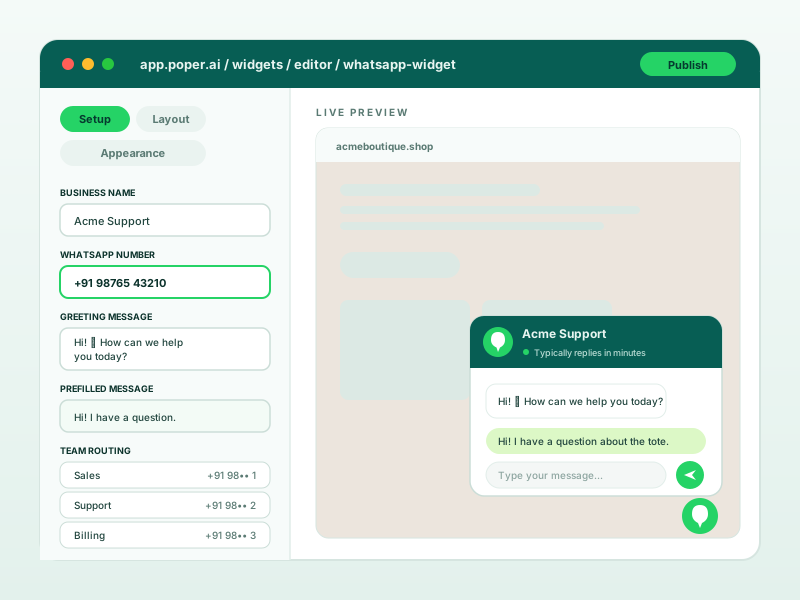
Set your WhatsApp number, greeting, and prefilled message in the builder, pick one of nine layouts, then embed. Visitors tap the green button and land in a WhatsApp thread with your message already typed.

app.poper.ai
Poper WhatsApp widget builder showing the Setup, Layout, and Appearance tabs with the business name, WhatsApp number, greeting, prefilled message, and team routing numbers beside a live chat previewBefore
Poper WhatsApp widget builder showing the Setup, Layout, and Appearance tabs with the business name, WhatsApp number, greeting, prefilled message, and team routing numbers beside a live chat preview
acmeboutique.shop
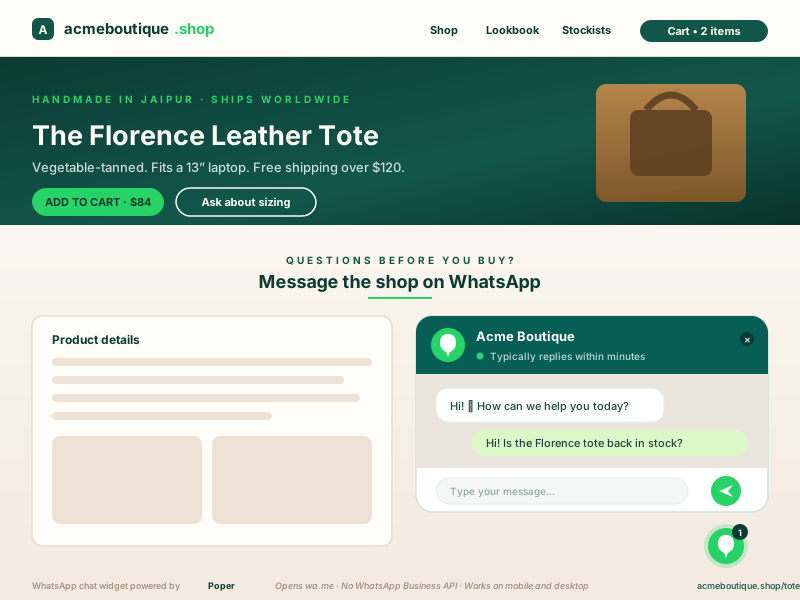
Acme Boutique product page for the Florence leather tote with the embedded WhatsApp chat widget open in the bottom right, showing the greeting message and a visitor asking if the tote is back in stockPoper widget live
Acme Boutique product page for the Florence leather tote with the embedded WhatsApp chat widget open in the bottom right, showing the greeting message and a visitor asking if the tote is back in stock

Mockups for illustration. Style the widget to match your site and embed in 90 seconds.

How to use it

How to add a WhatsApp chat widget to your website

Enter your number, pick a layout, paste one snippet. Under five minutes, no developer.

  1. 01

    Enter your WhatsApp number and messages

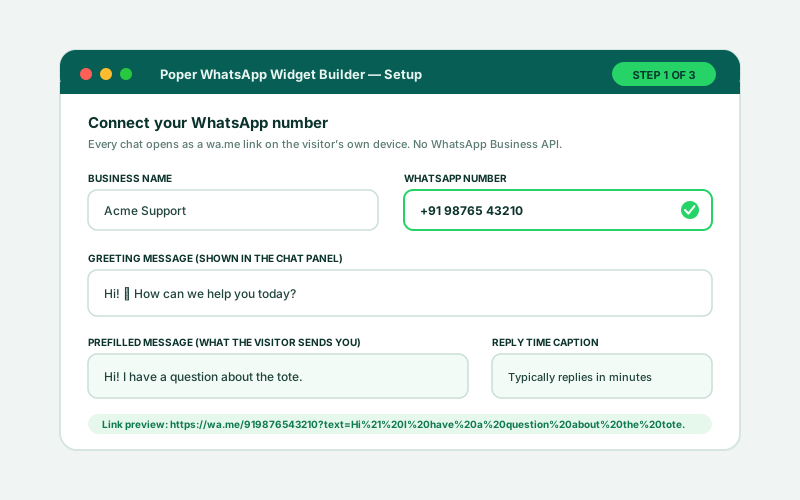
    Add your business name, the WhatsApp number that should receive chats, the greeting shown inside the chat panel, and the prefilled message the visitor sends you. A reply-time caption ('Typically replies within minutes') sets expectations honestly.

    Poper WhatsApp widget builder setup step with business name, WhatsApp number, greeting message, prefilled message, and reply-time caption fields
  2. 02

    Pick a layout and brand it

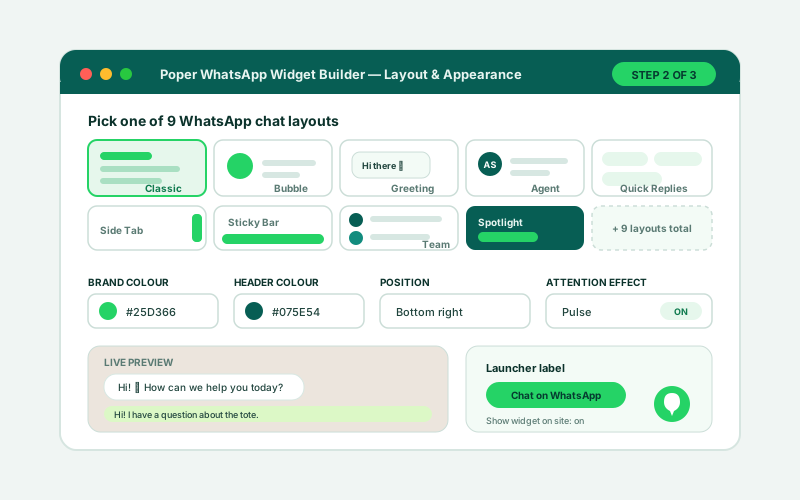
    Choose from nine layouts: Classic, Bubble, Greeting, Agent, Quick Replies, Side Tab, Sticky Bar, Team, and Spotlight. Then set the brand colour, header colour, launcher label, corner position, and an attention effect (pulse, bounce, or wobble).

    Poper WhatsApp widget layout picker showing Classic, Bubble, Greeting, Agent, Quick Replies, Side Tab, Sticky Bar, Team and Spotlight layouts with brand colour and position controls
  3. 03

    Copy the snippet and embed

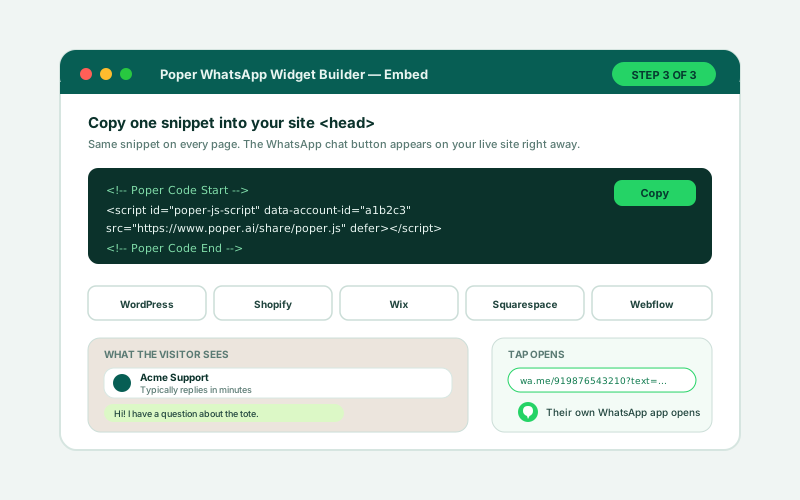
    Paste the one-line Poper snippet into your site head. The WhatsApp button appears on every page where the snippet loads, and a per-widget toggle lets you hide it without removing the code.

    Poper embed snippet for the WhatsApp chat widget with a copy button, WordPress, Shopify, Wix, Squarespace and Webflow badges, and a preview of the wa.me link that opens

Works everywhere

Works with every website platform you already use

Drop-in install on WordPress, Shopify, Wix, Squarespace, Webflow, Framer, Ghost, and any HTML-friendly stack. No build step, no developer needed.

WordPress
Shopify
Wix
Squarespace
Webflow
Framer
Ghost
HTML

Plus 250+ other platforms via the embed snippet. If your site can render a <script> tag, it can render the WhatsApp Chat Widget.

What you get with the Poper WhatsApp widget

Six things that matter when you're picking a WhatsApp chat button, not thirty features nobody uses.

Nine WhatsApp chat layouts, one widget

Classic opens a full chat panel with a live message box. Bubble is a minimal floating button with a compact popover. Greeting slides in a proactive welcome message. Agent leads with a named person and avatar. Quick Replies routes visitors by topic. Side Tab pins a slim tab to the edge. Sticky Bar docks a full-width bar to any edge. Team lists every agent with their own number. Spotlight is a premium branded hero. Same setup, nine very different first impressions.

Prefilled messages that arrive pre-labelled

Every chat opens with your message already typed, so you know what the visitor wants before you read a word. Set one global prefilled message, or give each Quick Reply topic its own: 'Track my order', 'Sales enquiry', 'Get support'.

Per-agent WhatsApp numbers

The Team layout gives sales, support, and billing their own number so chats land with the right person, not a shared inbox.

Brand colour, not just WhatsApp green

Set the brand colour, header colour, launcher label, corner position, and an attention effect: pulse, bounce, or wobble.

No WhatsApp Business API, no monthly per-conversation fee

The widget builds a standard wa.me click-to-chat link. No Meta business verification, no Business Solution Provider, no message-template approval, and no per-conversation billing. Any WhatsApp number works, including the free WhatsApp Business app.

Works the same on phone and desktop

On a phone the link hands off to the WhatsApp app. On a laptop it opens WhatsApp Web or the desktop app. The conversation and its history live in the visitor's WhatsApp either way, so nothing is trapped in a tool you have to keep paying for.

Use cases

Where WhatsApp Chat Widget actually moves the needle

Four buyer types who get the most lift from embedding WhatsApp Chat Widget on their site.

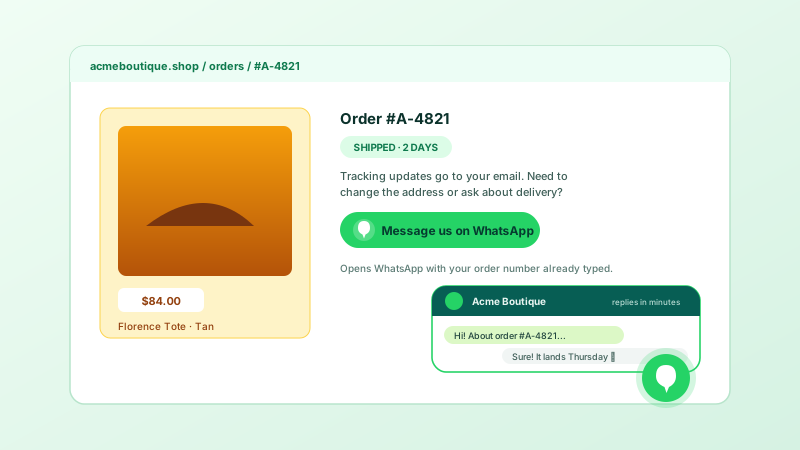
Ecommerce order status page for the Florence leather tote with a WhatsApp chat widget open showing the order number prefilled in the message and a reply confirming Thursday delivery

Ecommerce order questions

Shoppers ask about sizing, stock, and delivery before they buy, and about tracking after. Put a WhatsApp button on product and order pages with the order number prefilled so the answer takes one message, not an email thread.
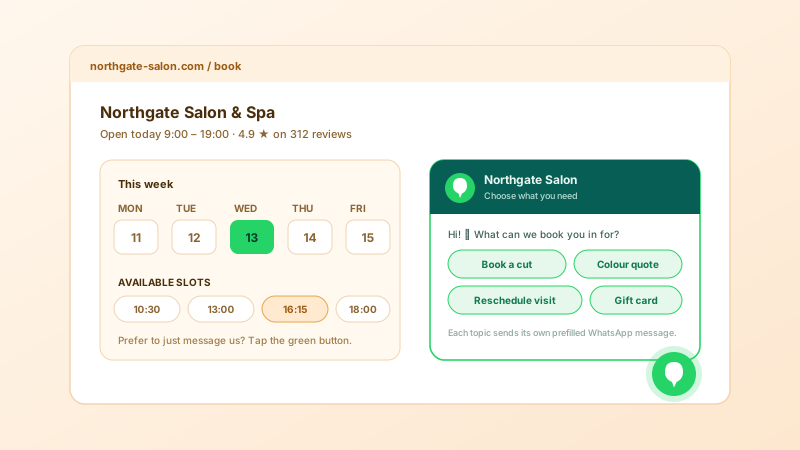
Northgate Salon booking page with an availability calendar beside a WhatsApp Quick Replies widget offering Book a cut, Colour quote, Reschedule visit and Gift card topics

Local service bookings

Salons, studios, garages, and repair shops lose bookings to forms nobody fills in. The Quick Replies layout turns 'Book a cut', 'Colour quote', and 'Reschedule visit' into one-tap WhatsApp messages that reach the front desk instantly.

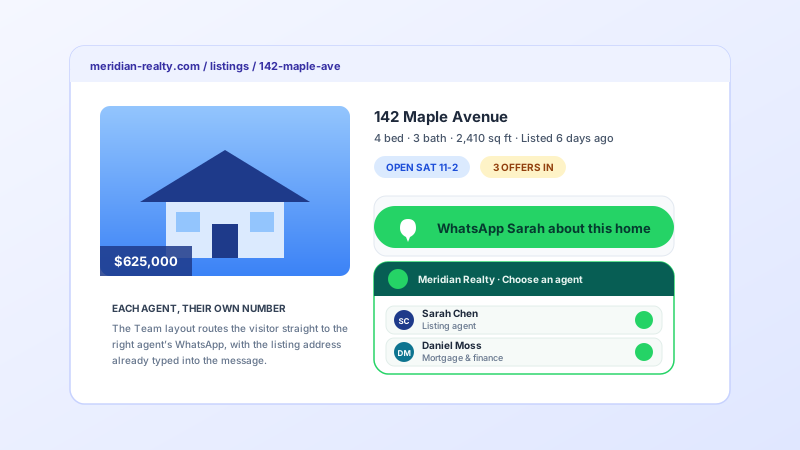
Real estate listing page for 142 Maple Avenue with a WhatsApp Team layout widget routing enquiries to listing agent Sarah Chen or mortgage adviser Daniel Moss on their own numbers

Real estate enquiries

A buyer looking at a $625K listing wants the agent now, not a callback tomorrow. The Team layout routes the enquiry to the listing agent's own WhatsApp with the property address already typed into the message.

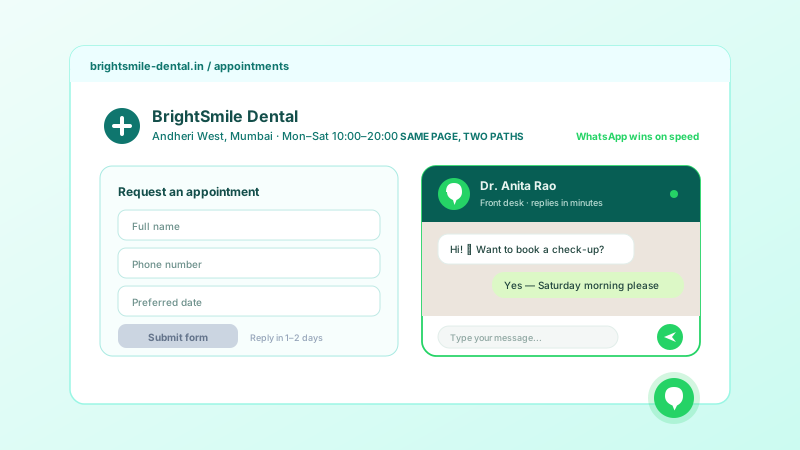
BrightSmile Dental appointments page showing a slow contact form beside a WhatsApp chat widget where the front desk replies in minutes to book a Saturday check-up

Clinic and practice appointments

Clinics, dentists, and law practices sit on contact forms that take two days to answer. A WhatsApp chat button next to the form captures the patients and clients who would otherwise close the tab.

Poper vs other WhatsApp chat widgets

Most WhatsApp widgets ship two layouts and paywall the third, or drag you into a Business API contract you did not ask for. Here is what to check before you pick one.

 Recommended
Poper
Elfsight WhatsApp Chat
Chaty
POWR Chat
Poper workspace available
Limited
Limited
Limited
Distinct chat layouts included
9 layouts
Fewer layouts
Fewer layouts
Fewer layouts
Prefilled message the visitor sends
Per-topic prefilled messages (Quick Replies)
Varies
Varies
Varies
Per-agent WhatsApp numbers (Team routing)
Varies
Paid tiers
Varies
Edge-docked sticky bar (top/bottom/left/right)
Custom brand and header colours
Paid tiers
Paid tiers
Attention effect (pulse, bounce, wobble)
Varies
Varies
Varies
Requires WhatsApp Business API
Pricing starting from
Vendor pricing varies

Comparison reflects external competitor positioning at the time of writing. Verify current features and pricing on each provider's own site.

How teams run WhatsApp on their site

Storefronts, agencies, clinics, and local services using one WhatsApp button instead of a contact form.

Enquiries arrive pre-labelled
We swapped our contact form for the WhatsApp widget on product pages, with the product name prefilled. Enquiries now arrive already telling us what they're about, so the first reply actually answers the question.
Priya Nair
Priya Nair
Founder · Acme Boutique
Three numbers, one button
The Team layout was the whole reason we picked it. Sales, support, and billing each have their own WhatsApp number, so nothing lands in one shared thread that somebody has to forward.
Daniel Moss
Daniel Moss
Operations Lead · Meridian Realty
Live the same afternoon
We were quoted weeks of setup for the WhatsApp Business API before we'd sent a single message. The widget was live the same afternoon, and at our volume it does everything we actually needed.
Anita Rao
Anita Rao
Practice Manager · BrightSmile Dental

Pricing

Simple, yearly pricing. Save up to 40%.

All plans are billed yearly. Each card shows the per-month equivalent. Start free, then upgrade only when you need more campaigns, websites, or AI credits.

Yearly billing · save up to 40%

Starter

Essential lead capture for solo creators and growing businesses.

$15/mo

billed $180/year

  • 5 active campaigns (5 widget instances)
  • 1 website, 1,000 leads/mo
  • 100+ templates, 10+ display formats
  • Smart triggers & basic analytics
  • No Poper branding
  • 500 AI credits
Start with Starter
Most popular

Pro

Full engagement suite with A/B testing, gamification & unlimited leads.

$29/mo

billed $348/year

  • Everything in Starter
  • Unlimited campaigns & leads
  • 10 websites, 5 team seats
  • A/B testing & gamification
  • Multi-step forms & quiz builder
  • Custom domain (CNAME), 2,000 AI credits
Start with Pro

Business

Unlimited everything with white-label, API access & advanced analytics.

$79/mo

billed $948/year

  • Everything in Pro
  • Unlimited websites & team seats
  • White-label (add-on) & API access
  • Logic jumps, live quizzes & polls
  • Payment forms (Stripe/PayPal)
  • Advanced analytics, 5,000 AI credits
Start with Business

Prices shown for the 50k monthly visitor tier on yearly billing. A Free Forever plan ($0) and a custom Enterprise plan are also available. No contracts, cancel anytime.

Guide · 7 min read

The complete guide to adding a WhatsApp chat widget to your website

A WhatsApp widget is a button on your website that opens a WhatsApp conversation with your business. The visitor taps it, WhatsApp opens on their own device with your prefilled message already typed, and they hit send. That is the whole mechanic, and it is why WhatsApp chat buttons convert where contact forms do not: the visitor never leaves an app they already trust, never invents a subject line, and never wonders whether the message went anywhere. This guide covers how the widget actually works under the hood, which of the nine layouts fits which kind of site, what a WhatsApp click-to-chat link can and cannot do, and where the free widget approach ends and the WhatsApp Business API begins.

01

What a WhatsApp widget is, and what it is not

A WhatsApp widget is a click-to-chat launcher. It renders a floating button, bar, or tab on your site, optionally opens a small chat-styled panel with a greeting, and then hands the visitor off to WhatsApp with a link of the form https://wa.me/<phone-number>?text=<url-encoded message>. Nothing is sent from your server, no message leaves the visitor's device until they press send in WhatsApp itself, and no third party sits between you and the conversation. That is the important part: the widget is a very well-dressed link. What it is not is a helpdesk. There is no shared inbox, no ticket queue, no SLA timer, no canned-response library, no chatbot, and no agent-assignment engine. Messages arrive in whichever WhatsApp account owns the number you entered, exactly as if the visitor had typed the number in by hand. For the overwhelming majority of small businesses, storefronts, clinics, agencies, and local services, that is not a limitation, it is the point. You already answer WhatsApp all day. The widget just removes the step where the visitor has to find your number.

03

Choosing between the nine layouts

Nine layouts sounds like a lot until you match them to intent. Classic is the default and the safest choice for a general business site: a floating panel with a header, a greeting, a typing indicator, and a real message box, which reads as a live chat and sets the expectation that a human is there. Bubble strips that back to a small round launcher and a compact popover, which suits content-heavy sites and blogs where a full panel would compete with the page. Greeting proactively slides a welcome bubble in from the side with an unread badge, which is the highest-attention option and the one to use on a landing page where chat is the primary conversion action. Agent leads with a named person, a role, and an avatar, which is the right call for advisers, consultants, brokers, and anyone whose credibility is personal rather than corporate. Quick Replies replaces the message box with topic pills, each carrying its own prefilled message and optionally its own number, which is the highest-signal layout because every incoming chat is pre-categorised. Side Tab pins a slim vertical tab to the left or right edge, staying visible without covering content on long pages. Sticky Bar docks a full-width bar to the top, bottom, left, or right edge, which works well for announcements and for mobile-first sites where a corner bubble competes with a sticky add-to-cart button. Team lists your contacts, each with their own WhatsApp number, so the visitor self-routes to sales, support, or billing before the first message. Spotlight is a glossy branded hero with a headline and subtitle, best used on a dedicated contact page rather than site-wide. If you cannot decide, start with Classic, then switch to Quick Replies once you see which three questions arrive most often.

04

Writing the greeting, prefilled message, and reply-time caption

Three short strings do most of the conversion work in a WhatsApp widget, and most sites get all three wrong. The greeting is what the visitor reads inside the panel before they commit. 'Hi! How can we help you today?' is fine, but a specific greeting is better: 'Questions about sizing, stock, or delivery? Message us and we'll answer today.' The prefilled message is what the visitor sends you, and it should be written from their side of the conversation, in their voice, and specific enough to route: 'Hi! I have a question about the Florence tote' beats 'Hi'. On a product page, include the product; on an order page, include the order number; on a listing page, include the address. The reply-time caption is the one to be honest about. 'Typically replies within minutes' is a promise, and it is visible at exactly the moment the visitor decides whether to bother. If you answer within the hour, say within the hour. If you close at six, consider wording that survives the night, because the widget does not switch captions on a schedule. An overpromised reply time costs more trust than a modest one ever wins. Finally, label the launcher itself with a verb: 'Chat on WhatsApp' or 'Message the shop' outperforms a bare icon on desktop, though the icon alone is usually enough on mobile where the green glyph is instantly recognisable.

05

When you need the WhatsApp Business API instead

The free click-to-chat approach has a ceiling, and it is worth knowing where it sits. A wa.me widget cannot send outbound messages, cannot deliver order confirmations or shipping notifications automatically, cannot run a chatbot or automated flow, cannot show you analytics on message volume or response time, cannot support many agents working one number from separate inboxes, and cannot carry the green verified business badge. All of those need the WhatsApp Business API, which means Meta business verification, a Business Solution Provider such as Twilio, 360dialog, or Wati, approved message templates for anything you send first, and per-conversation pricing. That stack starts to make sense somewhere north of roughly a hundred conversations a day, or as soon as you need automated transactional messages. Below that, it is overhead: setup takes weeks, templates need approval, and you pay per conversation for volume you could have answered from a phone. A useful sequence is to start with the widget, watch which questions actually arrive and how many, and only move to the API when the volume or the automation requirement is real. Nothing is wasted if you do: the button and its prefilled messages stay exactly where they are, and only the number behind them changes.

06

Placement, performance, and privacy

Placement is the last mile. Bottom-right is the convention and the safe default, but check it against whatever else lives in that corner: cookie banners, back-to-top buttons, sticky add-to-cart bars, and cart drawers all fight for the same pixels on mobile. If your store has a sticky checkout bar, move the launcher to bottom-left or switch to the Side Tab layout. Test on a real phone at 375px wide, not just a resized desktop window. On performance, the widget is a small script and an SVG glyph, not an embedded third-party chat runtime, so there is no socket connection, no polling, and no vendor SDK loading on every page. Still, measure it: run PageSpeed Insights on your own page after embedding and confirm Largest Contentful Paint and Cumulative Layout Shift are where you want them. On privacy, the widget itself does not collect visitor data, but tapping the button sends the visitor to WhatsApp, and from that point Meta's own terms apply to the conversation. Say so in your privacy policy, mention WhatsApp by name as a channel you use, and if you operate under GDPR or a similar regime, make sure your consent banner and privacy notice reflect that a third-party messaging service is involved. Poper publishes a full GDPR statement at poper.ai/legal/gdpr/.

Quick reference

What is WhatsApp Chat Widget?

A WhatsApp widget is an embeddable chat button that opens a WhatsApp conversation with a business when a website visitor taps it. It builds a standard wa.me click-to-chat link containing the business's phone number and an optional prefilled message, so the chat opens in the visitor's own WhatsApp app or WhatsApp Web. It requires no WhatsApp Business API, no Meta verification, and no per-conversation fee.

Key facts

  • The button opens https://wa.me/<phone-number>?text=<url-encoded message>; the number must be in full international format with digits only, no plus sign, spaces, or leading zeros
  • The prefilled message is typed into the visitor's WhatsApp but not sent automatically, so the visitor can edit it before pressing send
  • Any WhatsApp number works, including a personal number or the free WhatsApp Business app; the WhatsApp Business API is only required for outbound messages, chatbots, message templates, or multi-agent inboxes
  • Poper's WhatsApp widget ships nine layouts: Classic, Bubble, Greeting, Agent, Quick Replies, Side Tab, Sticky Bar, Team, and Spotlight
  • The Team layout assigns a separate WhatsApp number to each contact, and the Quick Replies layout assigns a separate prefilled message to each topic
  • Conversation history lives in WhatsApp on both sides, so it is not locked inside the widget vendor's tool

Last fact-checked: . We re-verify every quarter.

Tutorial

See the WhatsApp Chat Widget in action

A quick walkthrough of setting up and embedding the WhatsApp widget.

Tutorial video coming soon

Frequently asked questions

Can't find the answer you're looking for? Chat with our support team.

Contact Support

Your customers are already on WhatsApp. Meet them there.

One tap opens a WhatsApp thread with your message already typed. No Business API, no per-conversation fee.

Free plan available forever