
Free Google Forms QR Code Generator
Turn any Google Form into a scannable QR code. Customize the style, download as PNG, and share anywhere — print, digital, or in-person.
Paste your Google Form link from the Share/Send dialog
QR Code Preview
Paste a Google Forms URL and click Generate
Your QR code will appear here
Need smarter forms with built-in analytics?
With Poper, you can create interactive forms, surveys, and quizzes with built-in QR codes, smart targeting, A/B testing, 96+ integrations, and real-time analytics — all without code.
How to Create a QR Code for Google Forms?
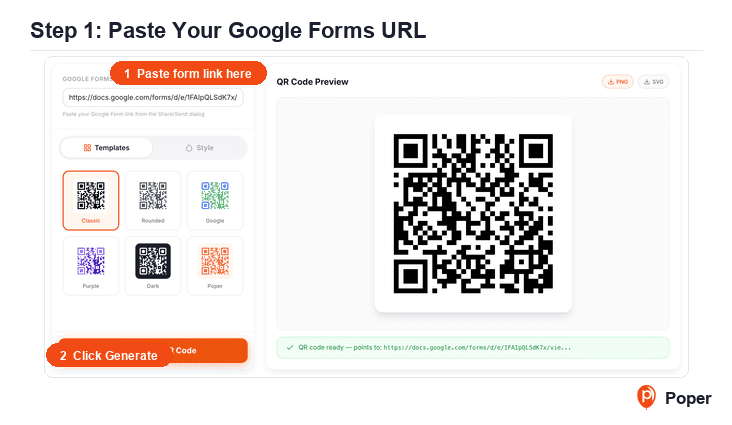
Paste Your Google Forms URL
Open your Google Form, click the Send button, copy the shareable link, and paste it into the URL input field. The tool validates that it is a valid Google Forms link and automatically formats it for best scanning results.
Customize the QR Code Style
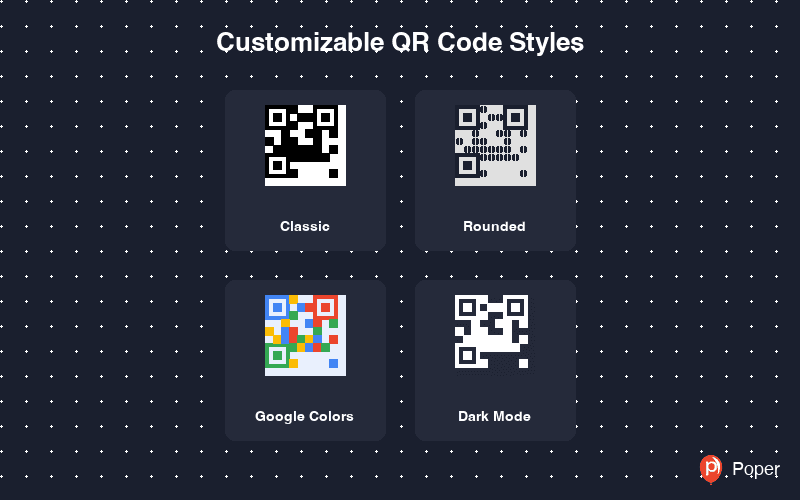
Choose from 6 preset templates — Classic, Rounded, Google Colors, Purple Gradient, Dark Mode, and Poper Orange. Fine-tune the foreground color, background color, and output size to match your brand.
Download and Share
Click Generate QR Code, then download as high-resolution PNG or SVG. Print it on flyers, posters, event badges, or embed it in slides, emails, and websites.
Turn Any Google Form into a Scannable QR Code
The Google Forms QR Code Generator is a free tool that instantly converts any Google Form URL into a high-quality, scannable QR code. Customize the style with 6 preset templates or pick your own colors. Download as PNG or SVG for use on printed materials, presentations, event signage, classroom handouts, or digital channels. No sign-up required — generate unlimited QR codes completely free.
Why Use This Free Google Forms QR Code Generator?
Why Use a QR Code for Your Google Form
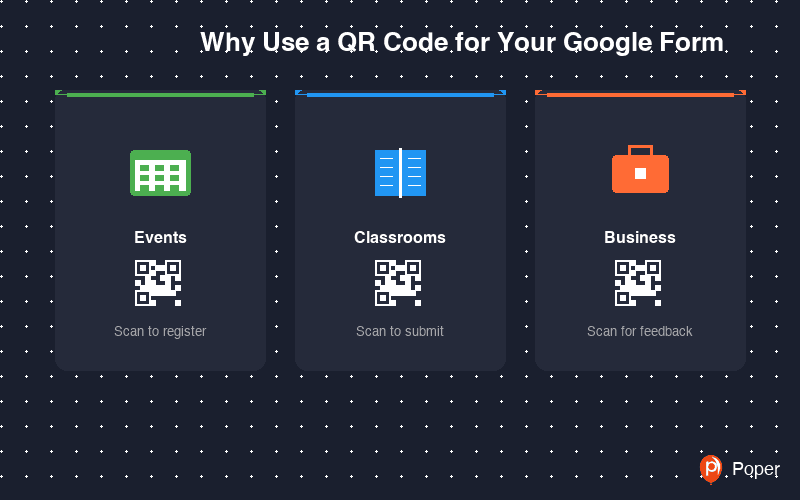
Google Forms is one of the most popular tools for collecting responses — surveys, event registrations, feedback, quizzes, and contact information. But sharing a long Google Forms URL via print, signage, or in-person settings is impractical. A QR code bridges the gap between offline and online.
With a QR code, attendees at conferences can scan to register, students can scan a classroom poster to submit homework, restaurant guests can scan a table tent to leave feedback, and shoppers can scan product packaging to fill out a warranty form. One scan replaces typing a 60-character URL.
Customizable QR Codes That Match Your Brand
Generic black-and-white QR codes work, but branded QR codes get scanned more. Choose from six preset styles including a Google-themed palette, modern rounded patterns, dark mode for light backgrounds, and Poper's signature orange.
Every aspect is customizable — foreground color, background color, pattern style, and output size. Whether you are printing on a white poster or a dark banner, you can create a QR code that blends with your design while remaining perfectly scannable.
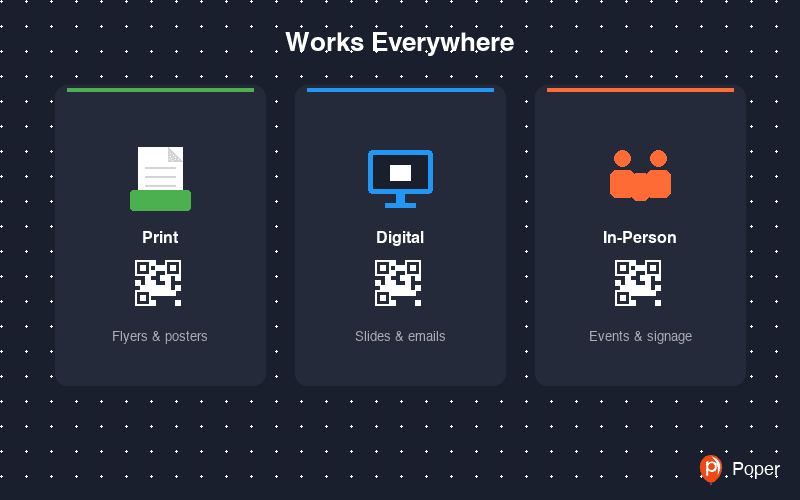
Works Everywhere — Print, Digital, and In-Person
Download your QR code as a high-resolution PNG for print or SVG for infinite scalability. The output works on any surface — paper flyers, vinyl banners, PowerPoint slides, PDF handouts, email signatures, websites, and social media posts.
Whether you are running a classroom, organizing an event, managing a business, or conducting research, this tool gives you a production-ready QR code in under 30 seconds that anyone can scan with their phone camera.
Perfect for Events, Classrooms, and Businesses
Event organizers use Google Forms QR codes for registration desks, session feedback, and post-event surveys. Teachers print QR codes on worksheets and classroom walls for assignments, quizzes, and parent communication. Businesses place them on receipts, product packaging, and store displays for customer feedback and warranty registration.
A QR code removes friction from form submission. Instead of asking people to visit a URL, type it correctly, and find the right form — they simply scan and start filling. This dramatically increases response rates, especially in time-sensitive or in-person situations.
Similar Tools
Google Forms QR Code Best Practices
Follow these tips to maximize scan rates and form completions
Always scan your QR code with at least 2 different phones before printing. Check that it opens the correct Google Form and that the form works on mobile.
Use the /viewform URL rather than the editor URL. Click Send in Google Forms and copy the link to get the correct shareable URL that respondents can access.
QR codes need strong contrast between foreground and background colors. Dark codes on light backgrounds work best. Avoid light-on-light or dark-on-dark combinations.
Place text near the QR code like 'Scan to Register', 'Scan for Feedback', or 'Scan to Take Quiz'. People are more likely to scan when they know what to expect.
Print the QR code large enough for the scanning distance. 2 cm minimum for close-up (business cards), 10+ cm for posters, 30+ cm for banners viewed from a distance.
Most QR code scans happen on phones. Keep your Google Form short, use simple field types, and avoid complex layouts that are hard to fill on small screens.