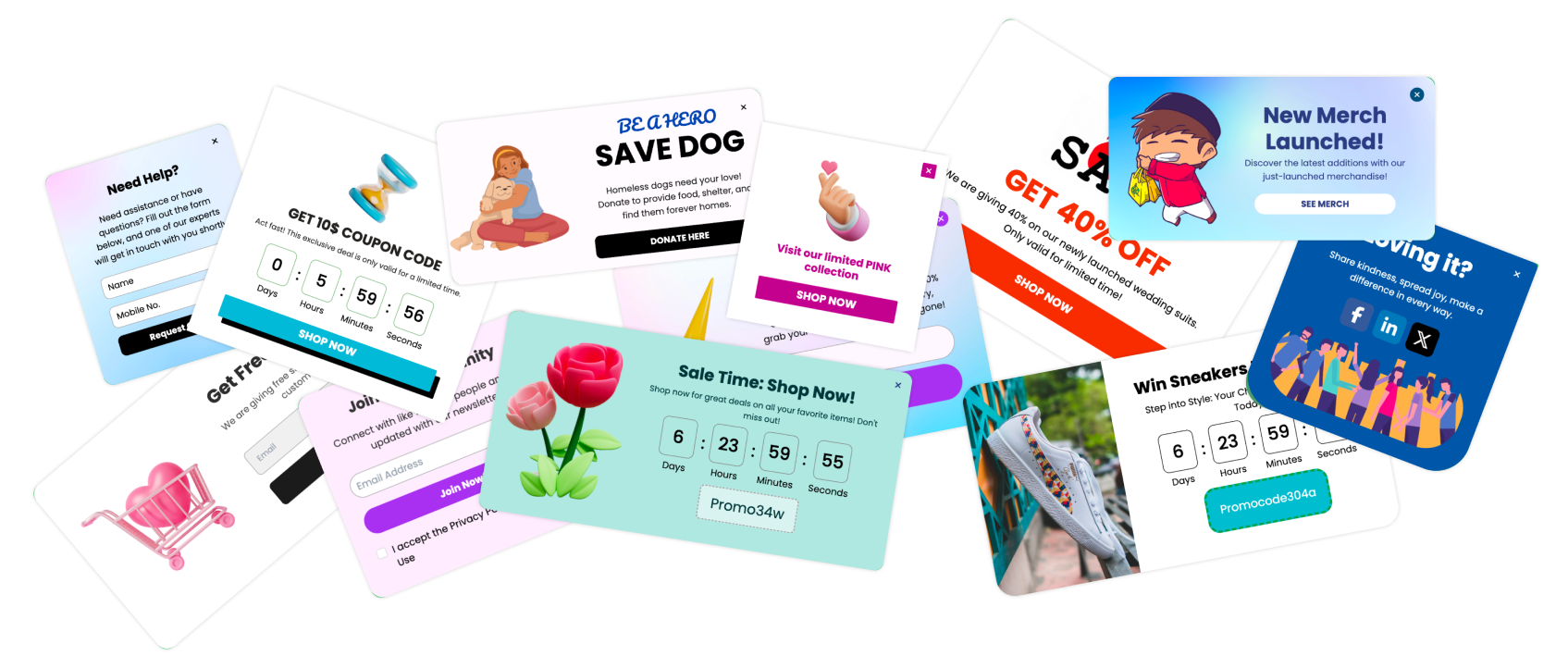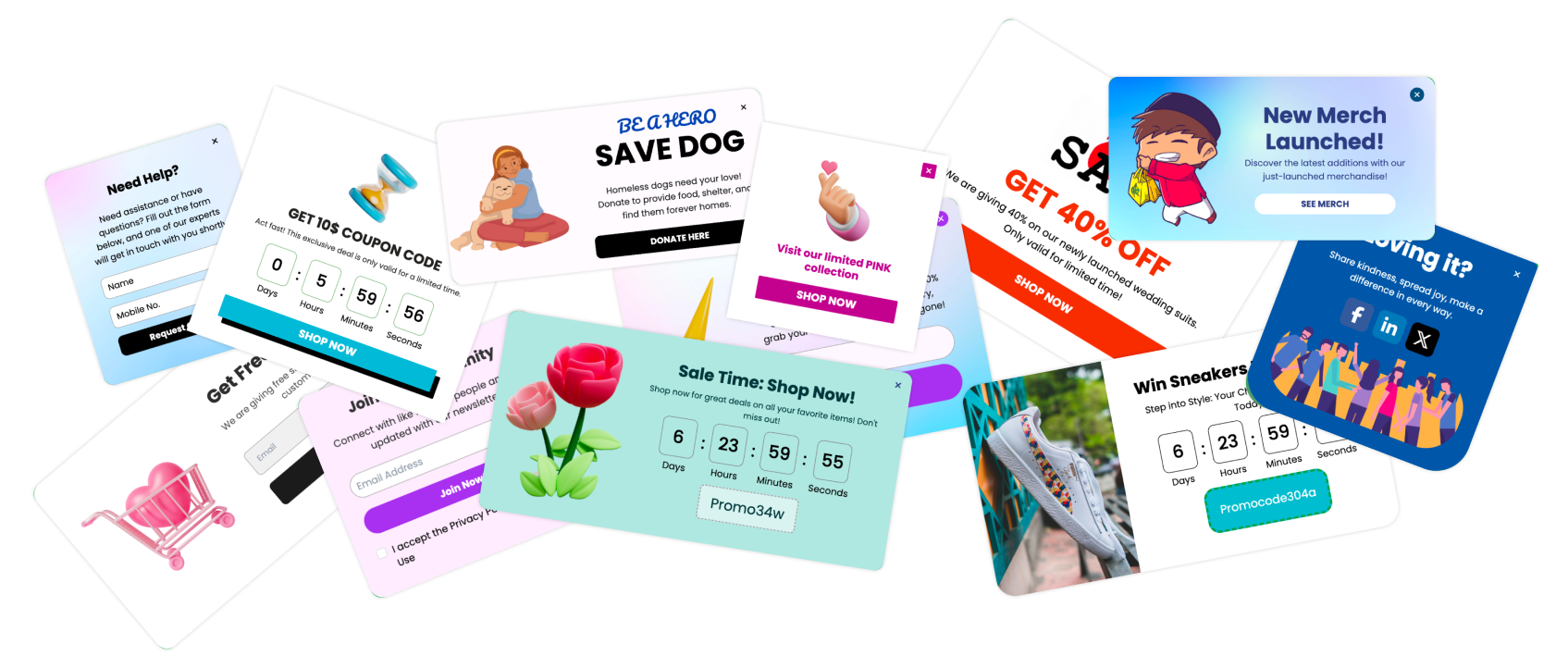
Cart-Based Popups in BigCommerce are one of the most effective ways to increase conversions. When customers cross a certain cart value, say, $100, they are showing strong buying intent.
This is the perfect moment to encourage them with a discount, a free gift, free shipping, or any offer that nudges them toward completing their purchase.
Unfortunately, creating such targeted popups directly inside BigCommerce or with most popup tools is still difficult. Very few platforms offer true e-commerce filters, and even fewer allow you to trigger a popup based on the customer’s cart value.
This is where Poper stands out. It gives you the ability to create advanced, cart-value-based popups without touching code or wrestling with complicated settings.
In this guide, you’ll learn how to install Poper on your BigCommerce store and create a popup that appears automatically when a visitor’s cart value reaches $100. Everything is explained in a natural, step-by-step flow so you can follow along easily.
Step 1: Install Poper on Your BigCommerce Store
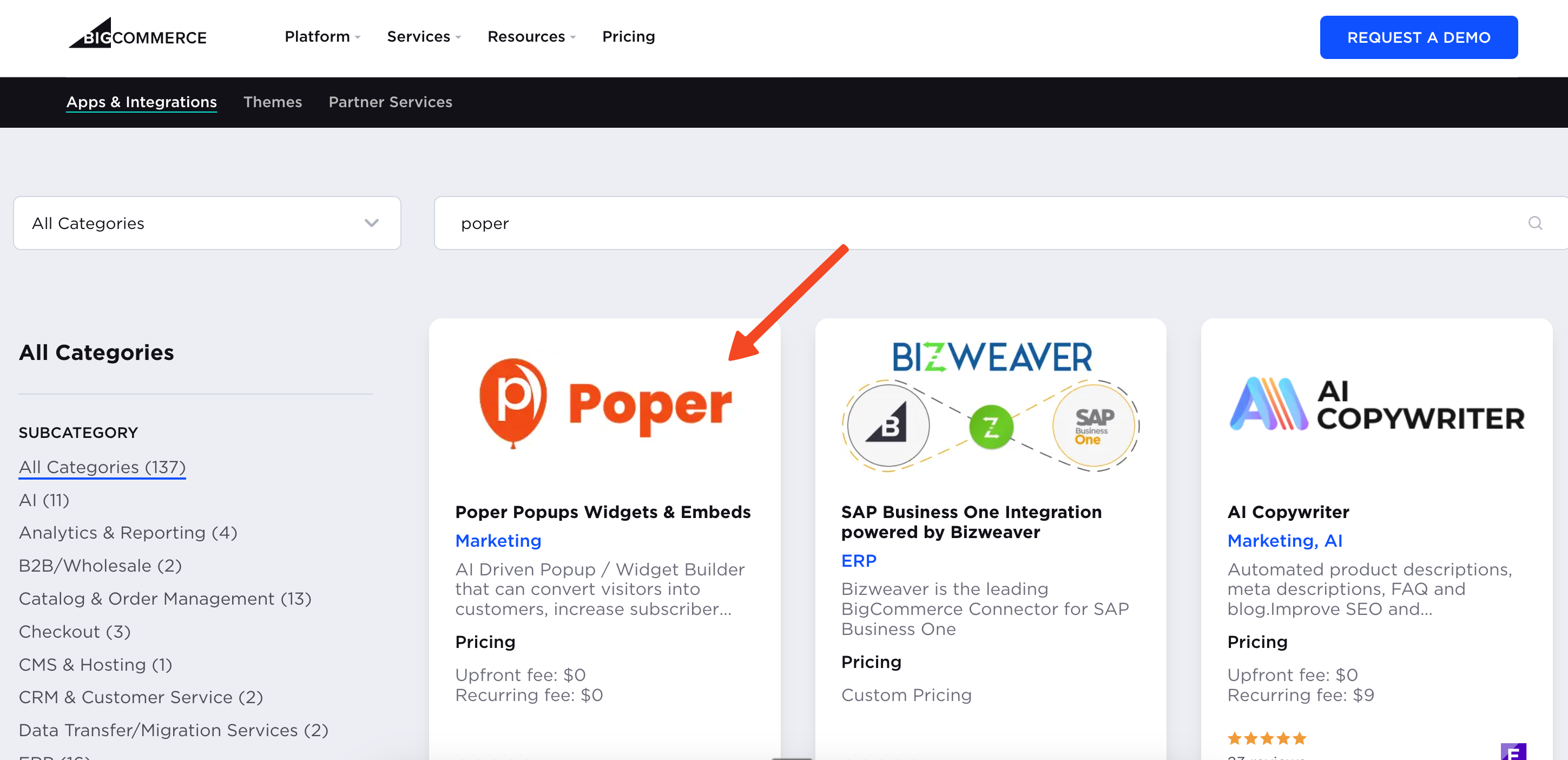
To begin, head over to your BigCommerce Admin Panel and open the App Marketplace. Search for Poper, and once you find it, install it directly from your store.
⚠️ You don’t need to create a separate account or manage any additional sign-up process. As soon as you complete the installation, Poper will automatically set up an account for you based on your BigCommerce store credentials.
After installation, you’ll be redirected to the Poper dashboard, where you can start building campaigns right away.
Step 2: Start Creating Your Popup
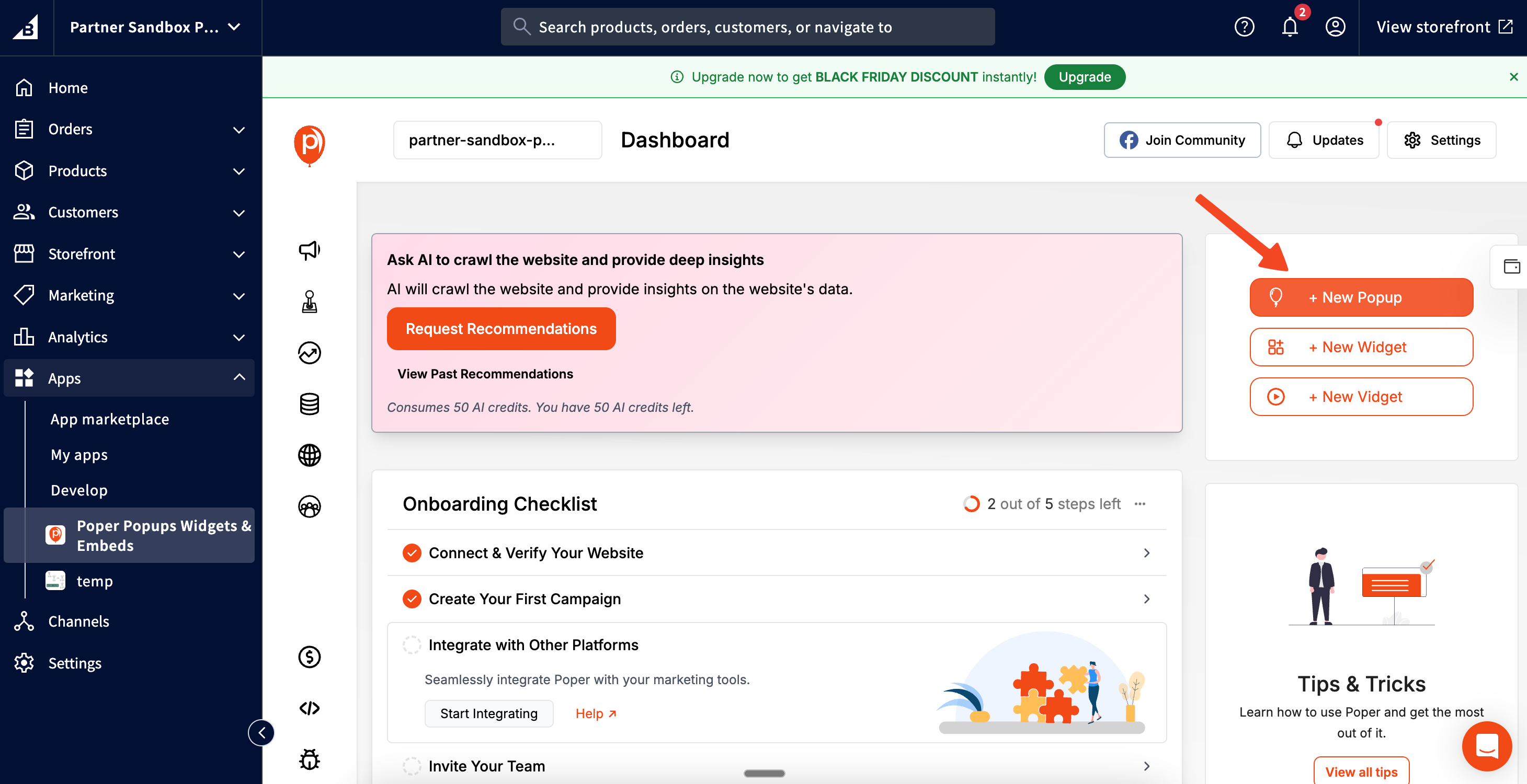
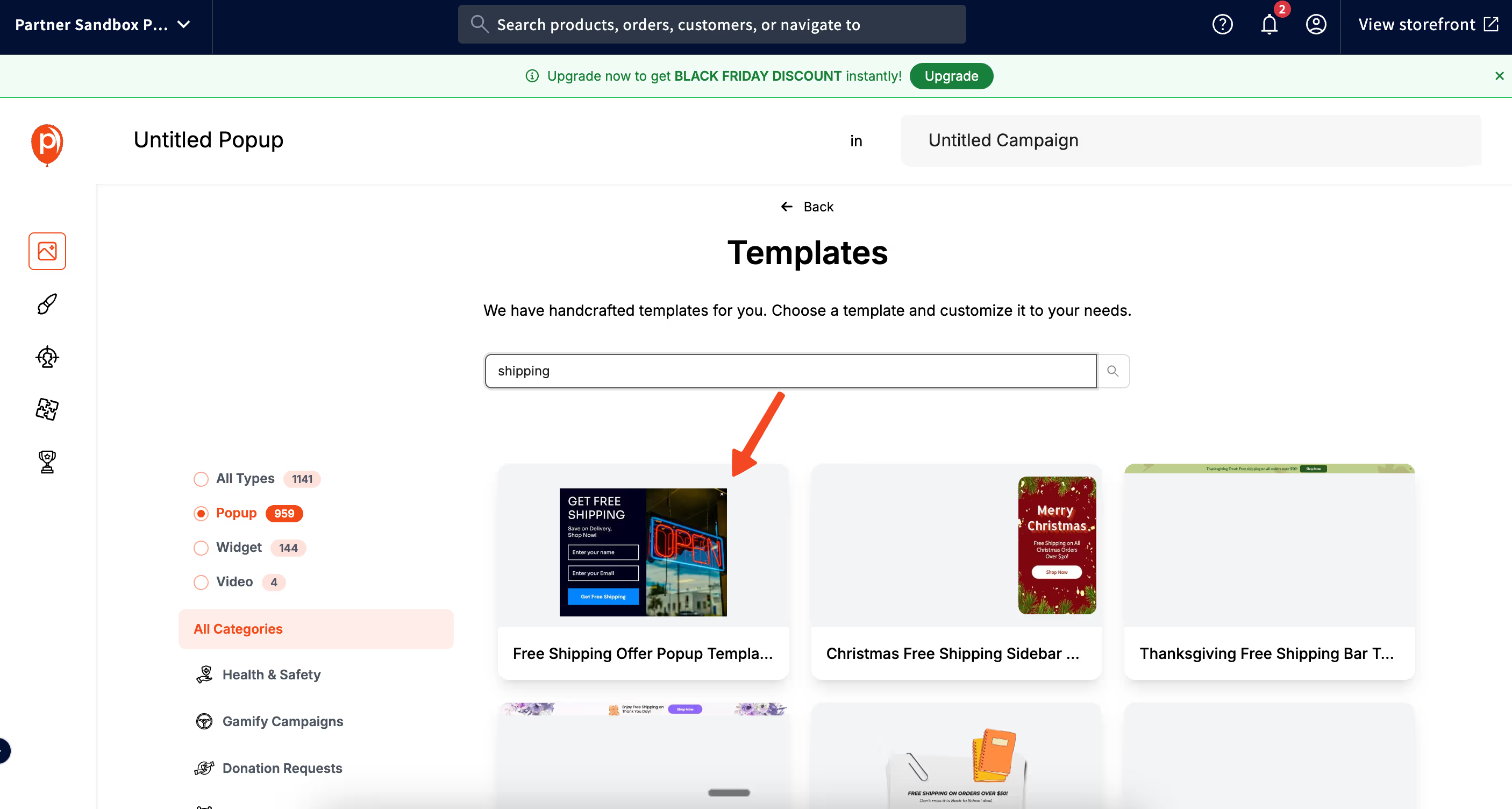
Once you land on the dashboard, look for the option to create a new popup. Clicking on it will take you to a collection of professionally designed templates.
If you’re planning to run a cart-based offer, such as a discount or free-shipping incentive, search for templates related to coupons or promotional offers.
You’ll find a wide variety of designs tailored specifically for these kinds of campaigns. Choose the one that matches your brand style or the purpose of your promotion.
Step 3: Customize the Popup Inside the Designer
After selecting a template, you’ll enter the Poper Designer. This is where you can customize the popup exactly the way you want. The editor is fully drag-and-drop, which means you can move elements around freely, add new components such as buttons or images, and modify text without any technical knowledge.
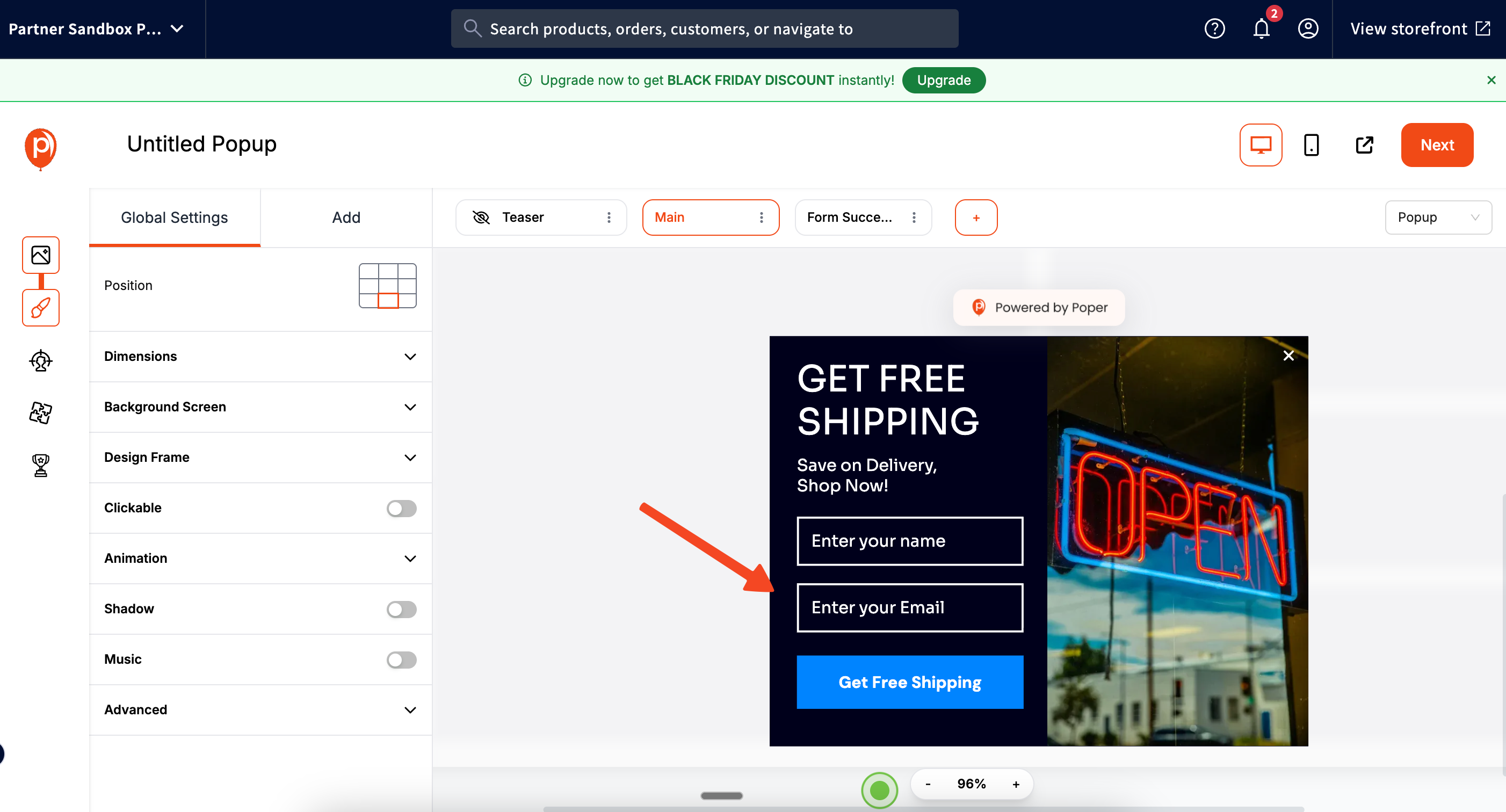
If your popup includes a coupon code, you can highlight it or place it prominently so customers notice it instantly. The designer makes it easy to fine-tune spacing, colors, background styles, and more, helping you maintain visual consistency with your BigCommerce store.
Once you’re happy with how your popup looks, move to the next step by clicking the Next button located at the top-right corner of the editor.
Step 4: Set Up Cart-Based Targeting for BigCommerce
Now comes the most important part, configuring your popup so it appears when a customer’s cart reaches a certain value.
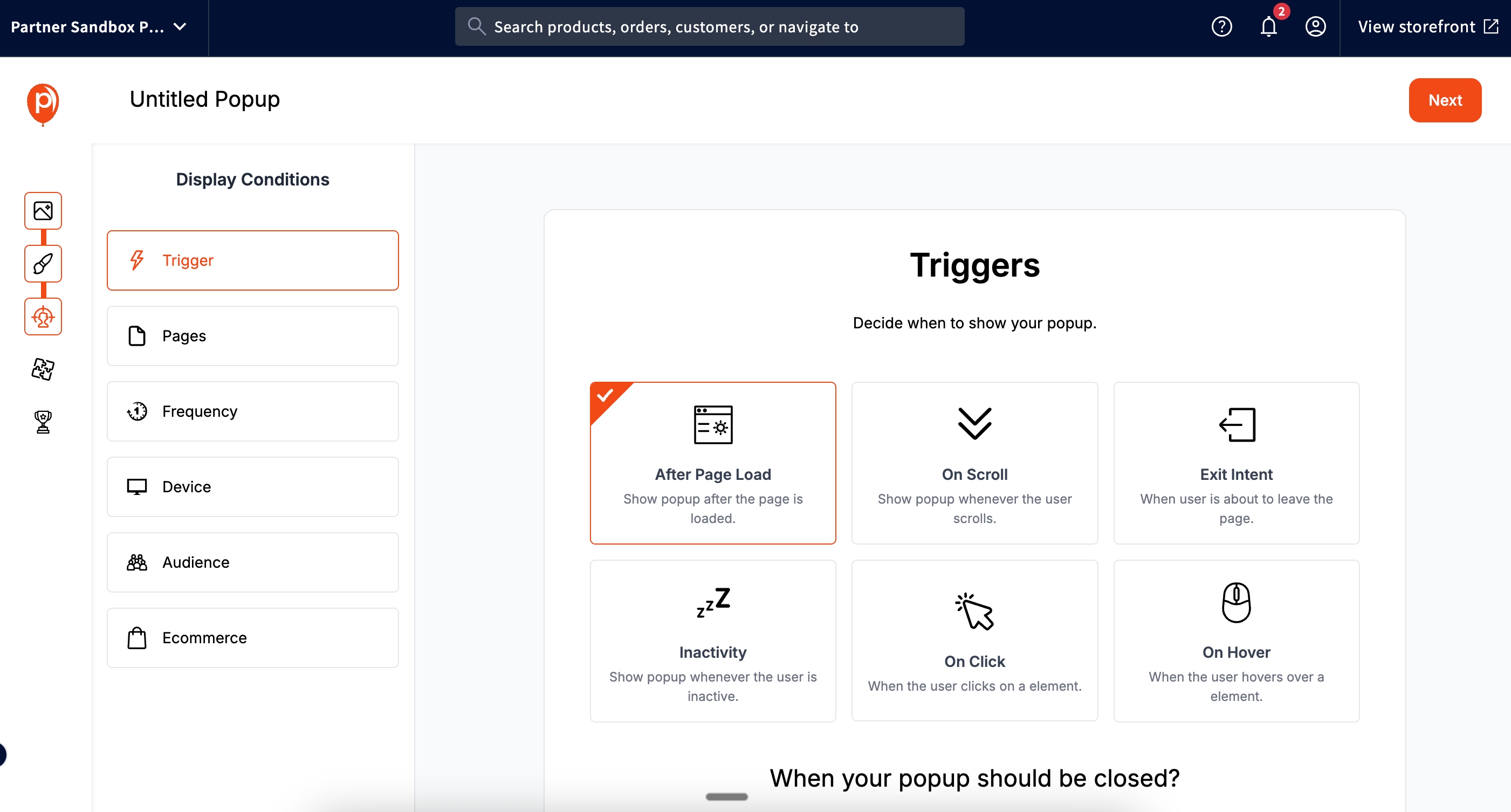
Inside the targeting section, you’ll see various trigger options such as showing the popup after a few seconds, when the user tries to exit the page, or when a specific action occurs.
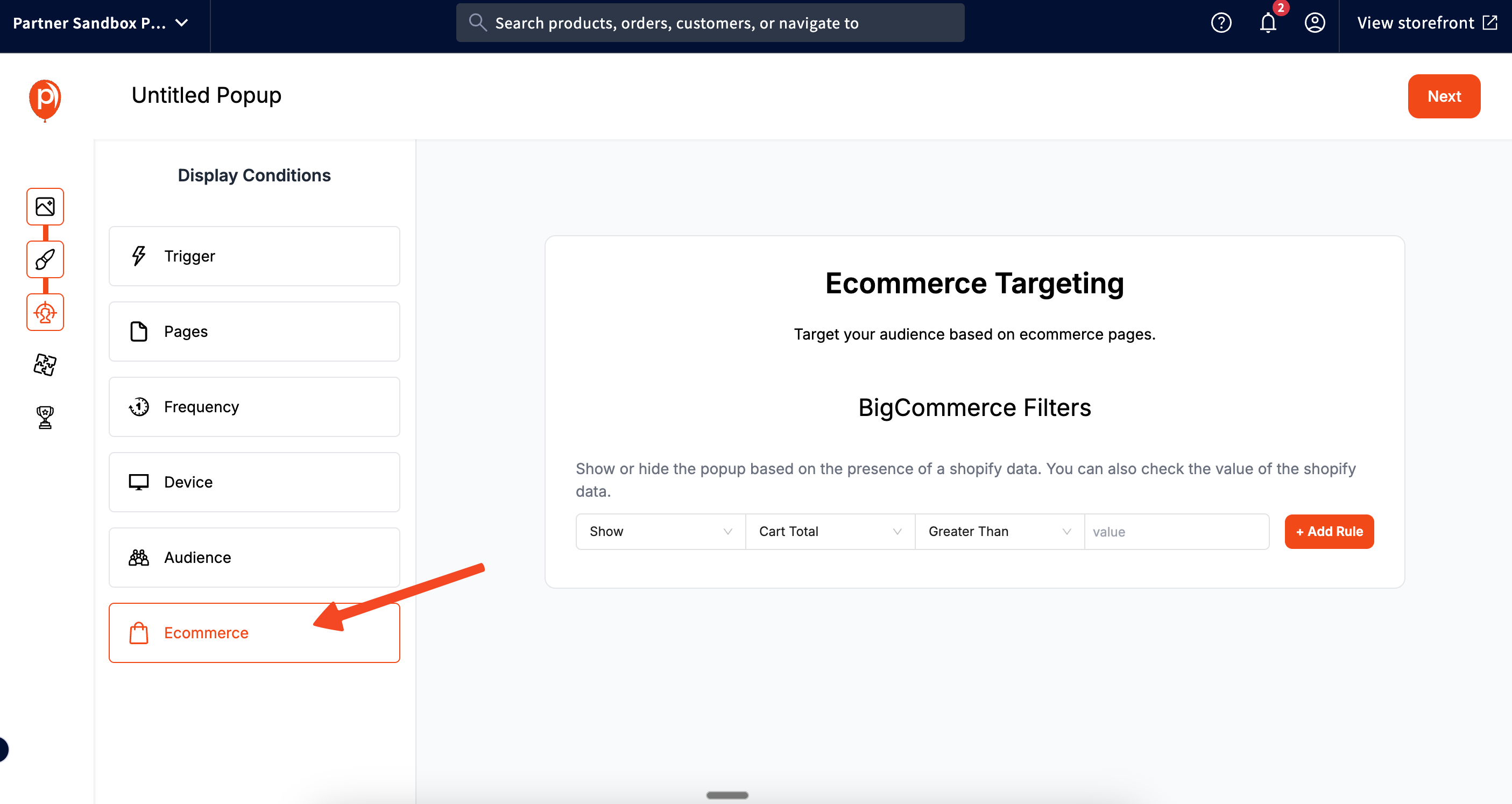
To set up a cart-value trigger for BigCommerce, you’ll need to open the E-commerce Targeting panel on the left. Once inside, you’ll notice a dedicated set of filters built specifically for BigCommerce users.
From these options, select the targeting type related to Cart Value. In the operator field, choose “greater than or equal to,” and then enter the value, here it would be 100.
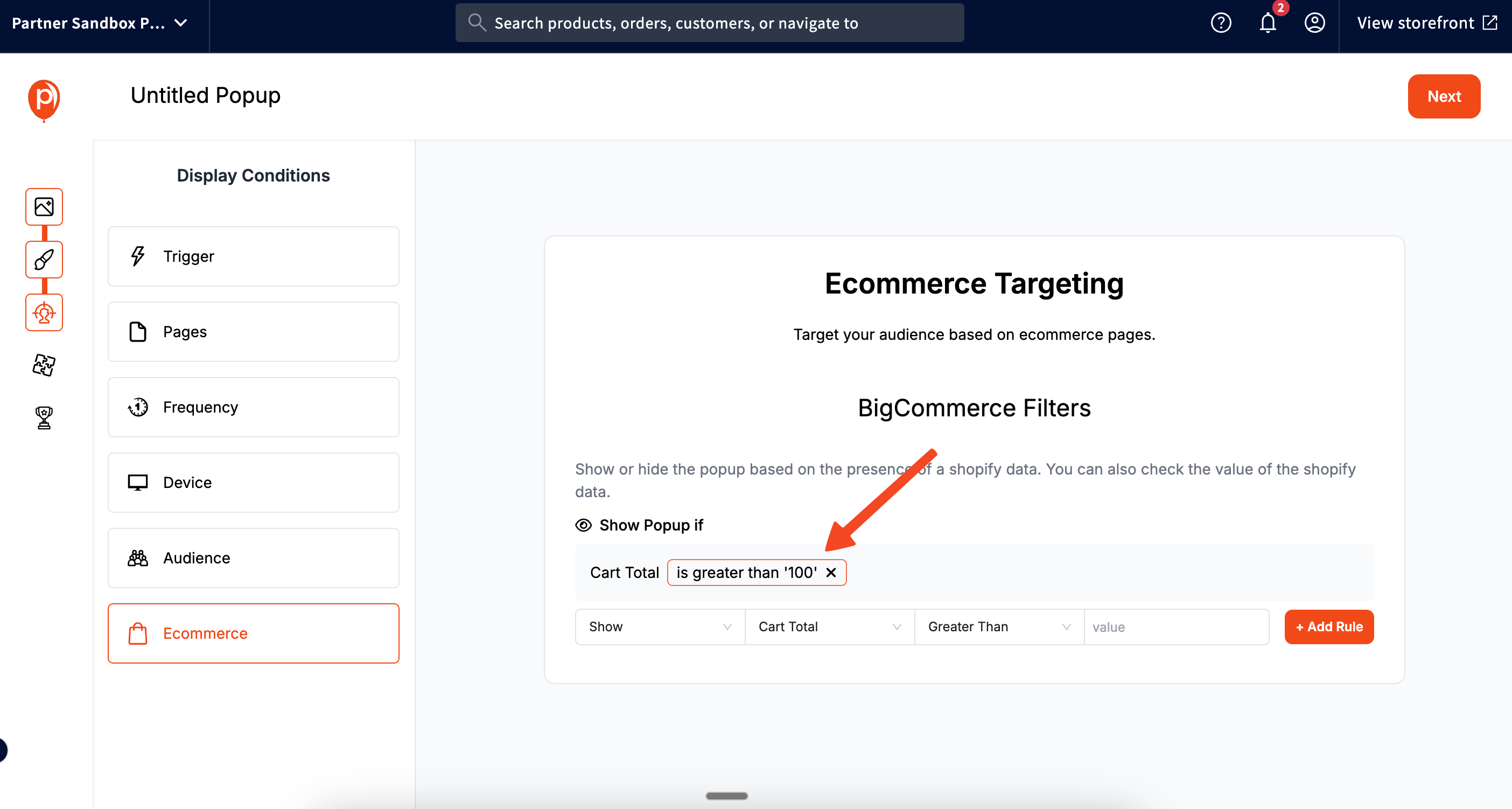
Adding this rule tells Poper to show the popup only when the visitor’s cart reaches or exceeds $100. After inserting the value, confirm it by clicking the Add Rule button. You’ll see the new rule appear immediately in your targeting list.
This level of precision is what makes cart-based popups so powerful. Instead of interrupting every visitor, you’re engaging only those who are already close to making a purchase, which leads to higher conversions and a better customer experience.
Step 5: Connect Your Email or CRM Integrations
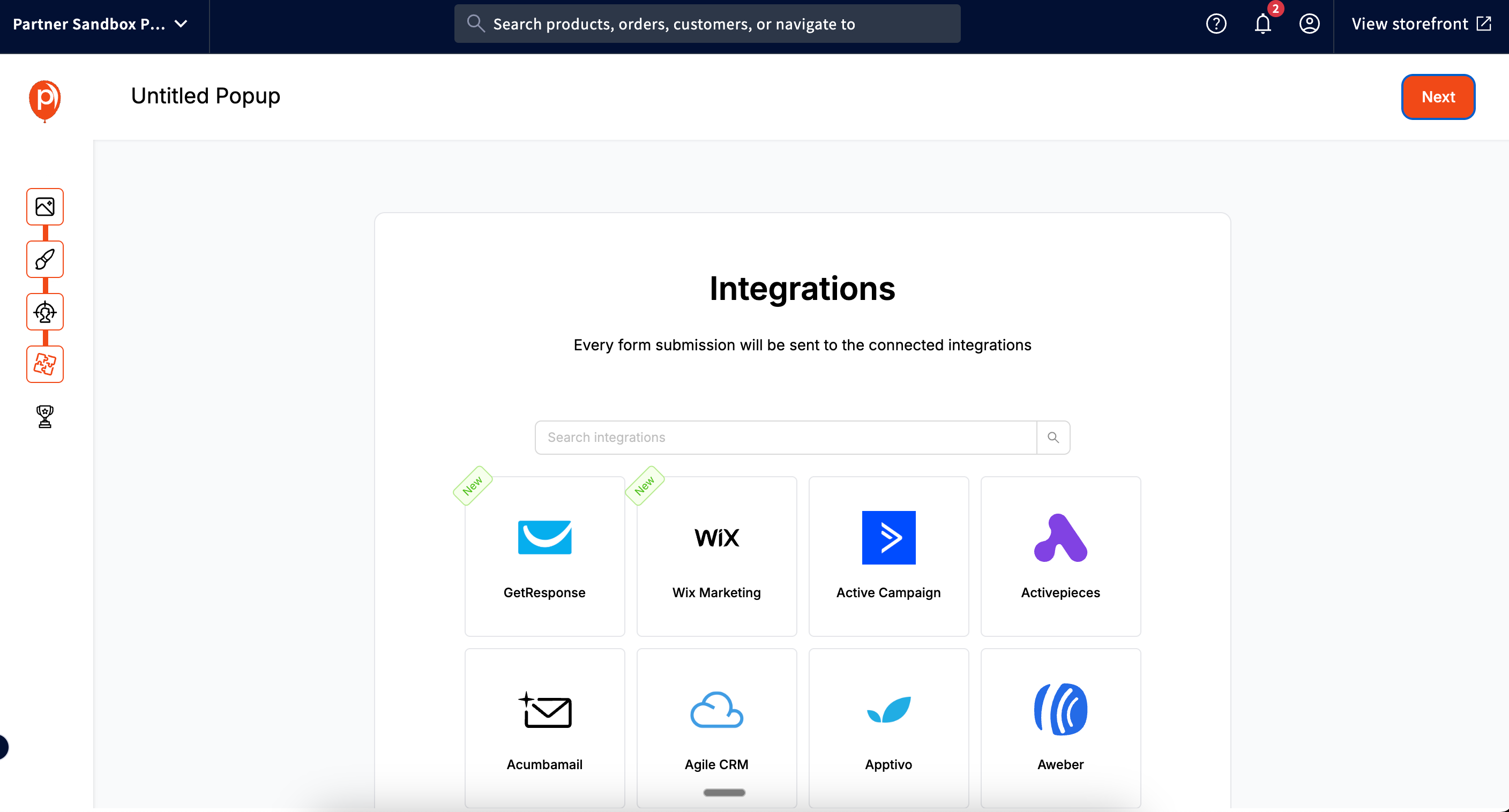
If your popup collects email addresses or other information from visitors, the next screen will allow you to connect your preferred integrations.
Poper supports a wide range of tools including Mailchimp, ActiveCampaign, Klaviyo, and other marketing platforms. Connecting an integration ensures that any leads you collect will flow automatically into your email lists or automations.
This is especially useful if you plan to send new subscribers a follow-up email, discount code, or abandoned cart sequence.
Once your integrations are linked, proceed to the final step.
Step 6: Save, Publish, and Test the Popup
After completing your design, targeting rules, and integrations, save your popup and publish it. Poper will make it live instantly on your BigCommerce store.
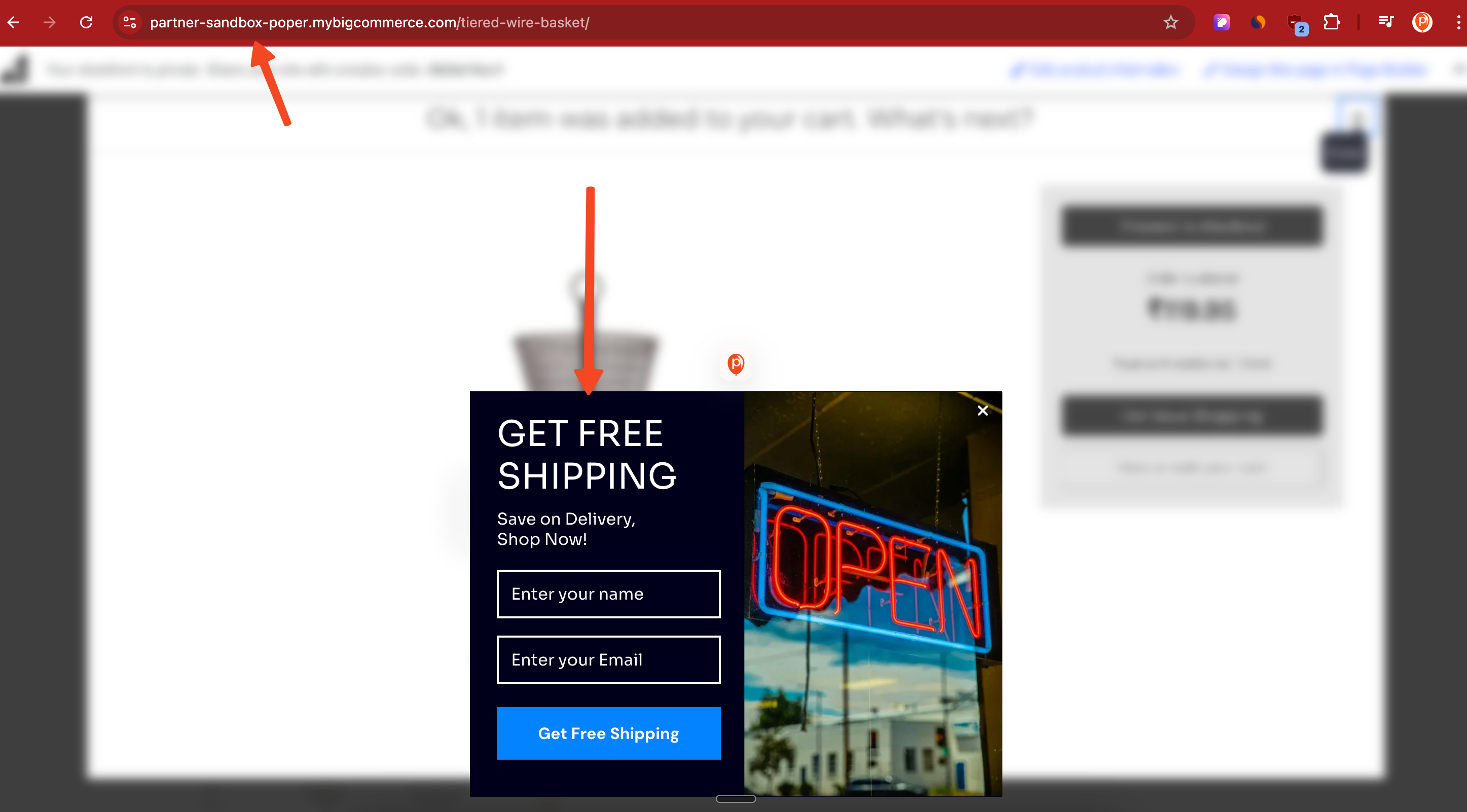
To verify everything is working correctly, open your website in a fresh tab or private window. Start adding products to your cart until the total reaches $100 or more.
As soon as you hit the threshold, your popup should appear automatically, showing the offer exactly at the moment the customer is most likely to convert.
Conclusion
Cart-Based Popups in BigCommerce are one of the easiest ways to increase your store’s revenue without changing your product catalog or running complicated promotions. By targeting customers who already have a high-intent cart, you can offer the right incentive at the perfect time.
While most popup tools make this process overly complicated, or simply don’t support cart-value triggers at all, Poper gives you an intuitive, BigCommerce-ready way to build these campaigns.
With just a few minutes of setup, you can launch a highly effective popup that boosts conversions, encourages customers to complete their purchase, and creates a smoother user journey. If you haven’t tried Cart-Based Popups in BigCommerce before, this is the perfect time to experiment with it and see how much it can improve your sales.