
Free WiFi QR Code Generator
Let guests connect to your WiFi with a single scan. Enter your network details, customize the style, and download a print-ready QR code. Your password never leaves your browser.
QR Code Preview
Enter your WiFi details and click Generate
Your WiFi QR code will appear here
Want to capture leads from your WiFi landing page?
With Poper, you can create captive portal popups, guest WiFi signup forms, email capture widgets, and smart engagement tools — all with built-in analytics, A/B testing, and 96+ integrations.
How to Create a WiFi QR Code?
Enter Your WiFi Details
Type your WiFi network name (SSID), select the encryption type (WPA/WPA2, WEP, or Open), and enter the password. Toggle the hidden network option if your SSID is not broadcast. Your credentials never leave your browser.
Customize the QR Code Style
Choose from 6 preset templates — Classic, Rounded, Ocean Blue, Purple Gradient, Dark Mode, and Poper Orange. Fine-tune the foreground color, background color, and output size to match your decor or branding.
Download and Print
Click Generate WiFi QR Code, then download as high-resolution PNG or SVG. Print it as a card, sticker, poster, or frame it near your router. Guests scan with their phone camera to connect instantly.
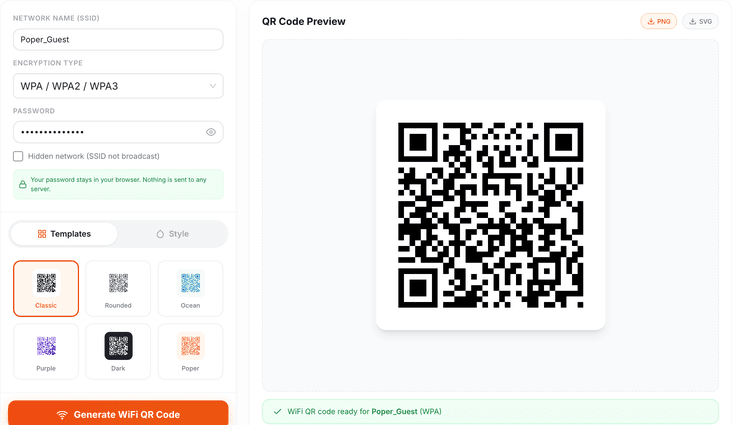
Share Your WiFi Password with a QR Code
The WiFi QR Code Generator is a free tool that creates a scannable QR code for any WiFi network. Guests point their phone camera at the code and connect instantly — no typing long passwords, no spelling out special characters, no hassle. Customize with 6 preset styles or pick your own colors. Download as PNG or SVG. Works with WPA/WPA2, WEP, and open networks. 100% private — your WiFi credentials are generated in-browser and never sent to any server.
Why Use This Free WiFi QR Code Generator?
No More Spelling Out WiFi Passwords
Every host knows the struggle — guests arrive, ask for the WiFi password, and you end up spelling it out letter by letter. Capital B, lowercase r, the number 4, underscore, hashtag... it takes forever and someone always gets it wrong.
A WiFi QR code eliminates this entirely. Print it on a card, stick it on the fridge, or frame it in the guest room. Visitors scan with their phone camera and connect in two seconds. Works with iPhones (iOS 11+), Android phones (10+), and tablets.
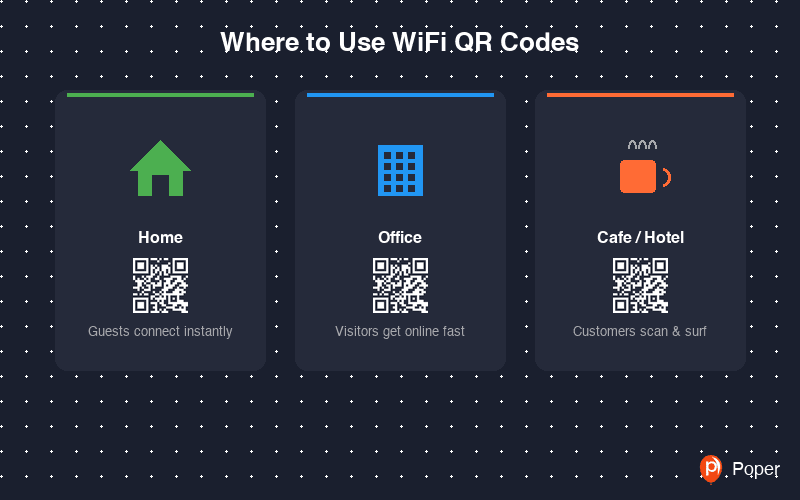
Perfect for Businesses and Hospitality
Cafes, restaurants, hotels, Airbnbs, co-working spaces, salons, clinics, and offices all benefit from WiFi QR codes. Place them on table tents, reception desks, room cards, or wall displays. Guests self-serve without bothering staff.
For businesses with guest networks, a WiFi QR code is a professional touch that improves customer experience. It also encourages visitors to connect, which opens opportunities for captive portal sign-ups, email capture, and engagement — all things Poper can help with.
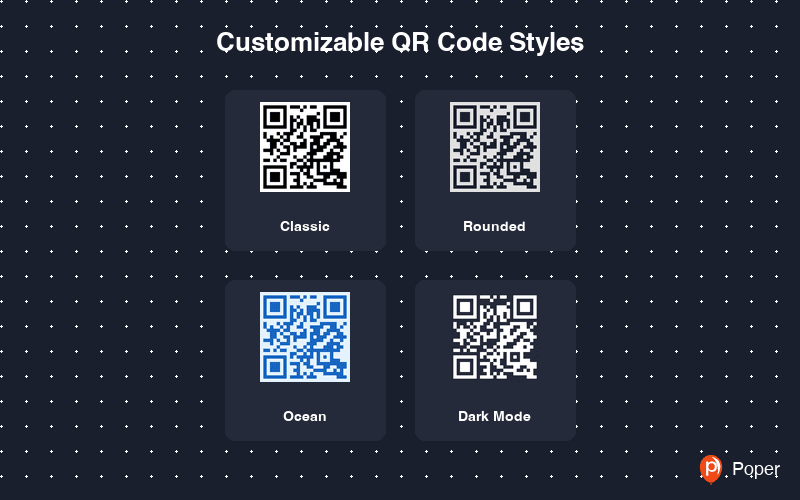
Customizable Styles for Any Setting
Generic black-and-white QR codes look out of place in a designed space. Choose from six preset styles — clean Classic for offices, Ocean Blue for coastal venues, Dark Mode for moody interiors, or Poper Orange for a pop of color.
Every aspect is adjustable — foreground color, background color, pattern style, and output size from 150 to 600 pixels. Whether you are printing a small card for a bedside table or a large poster for a lobby, you can create a QR code that fits.
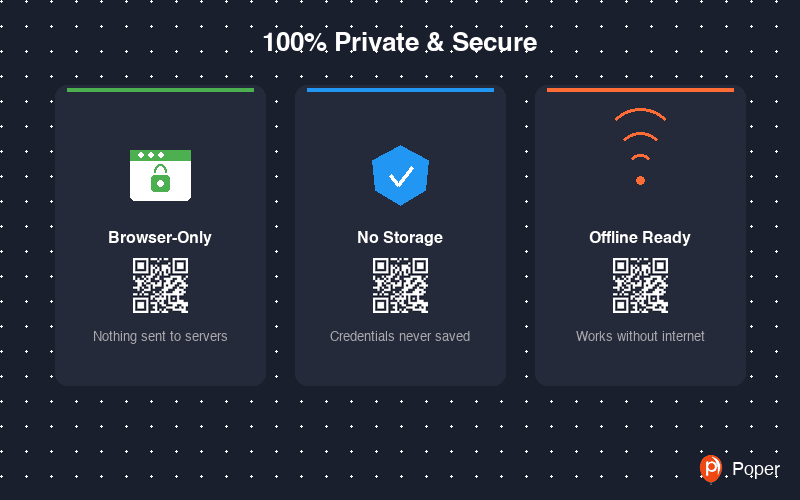
Privacy-First: Your Credentials Stay Local
Unlike many online WiFi QR generators, this tool runs entirely in your browser. Your network name and password are encoded into the QR code locally using JavaScript — nothing is sent to any server, nothing is stored, nothing is logged.
The generated QR code uses the standard WIFI: URI format recognized by all modern smartphones. When scanned, the phone reads the encoded SSID, password, and encryption type, and connects directly. The QR code itself is just an image — it contains no tracking or analytics code.
Similar Tools
WiFi QR Code Best Practices
Follow these tips to ensure a smooth scanning experience for your guests
Always scan your WiFi QR code with at least 2 different phones before printing. Verify it connects to the correct network and the password works.
QR codes need clear contrast between foreground and background colors. Dark codes on light backgrounds work best. Avoid low-contrast combinations that cameras struggle to read.
Place text near the QR code like 'Scan to Connect to WiFi' or 'Point your camera here for WiFi'. People are more likely to scan when they know what the code does.
For bedside cards, 3x3 cm is enough. For table tents in cafes, 5x5 cm. For wall posters or reception areas, 10-15 cm minimum. Bigger is better for visibility.
If you change your WiFi password, the old QR code will stop working. Generate and print a new one whenever you update your network credentials.
For businesses, create a separate guest WiFi network with its own QR code. This keeps your main network secure while giving visitors easy access.