
Hey there! Let's talk about something that isn't the most glamorous part of running an online store but is absolutely essential: the cookie consent popup. With privacy laws like GDPR, being transparent with your customers about data isn't just good practice, it's a legal necessity.
But cookie notices have a bad reputation for being annoying. When I built Poper, I wanted to solve this by making it incredibly easy to create a clean, professional, and user-friendly cookie notice.
The Quick & Free Cookie Consent Generator
If you need a straightforward cookie notice right now without signing up for anything, this is for you. I built this free tool so anyone can generate a compliant banner in under a minute.
Step 1: Choose How Your Notice Appears
First, decide how you want the notice to look on your site. A Banner is a clean bar that sits at the top or bottom of your screen. I find this is great for being noticeable without blocking your products.
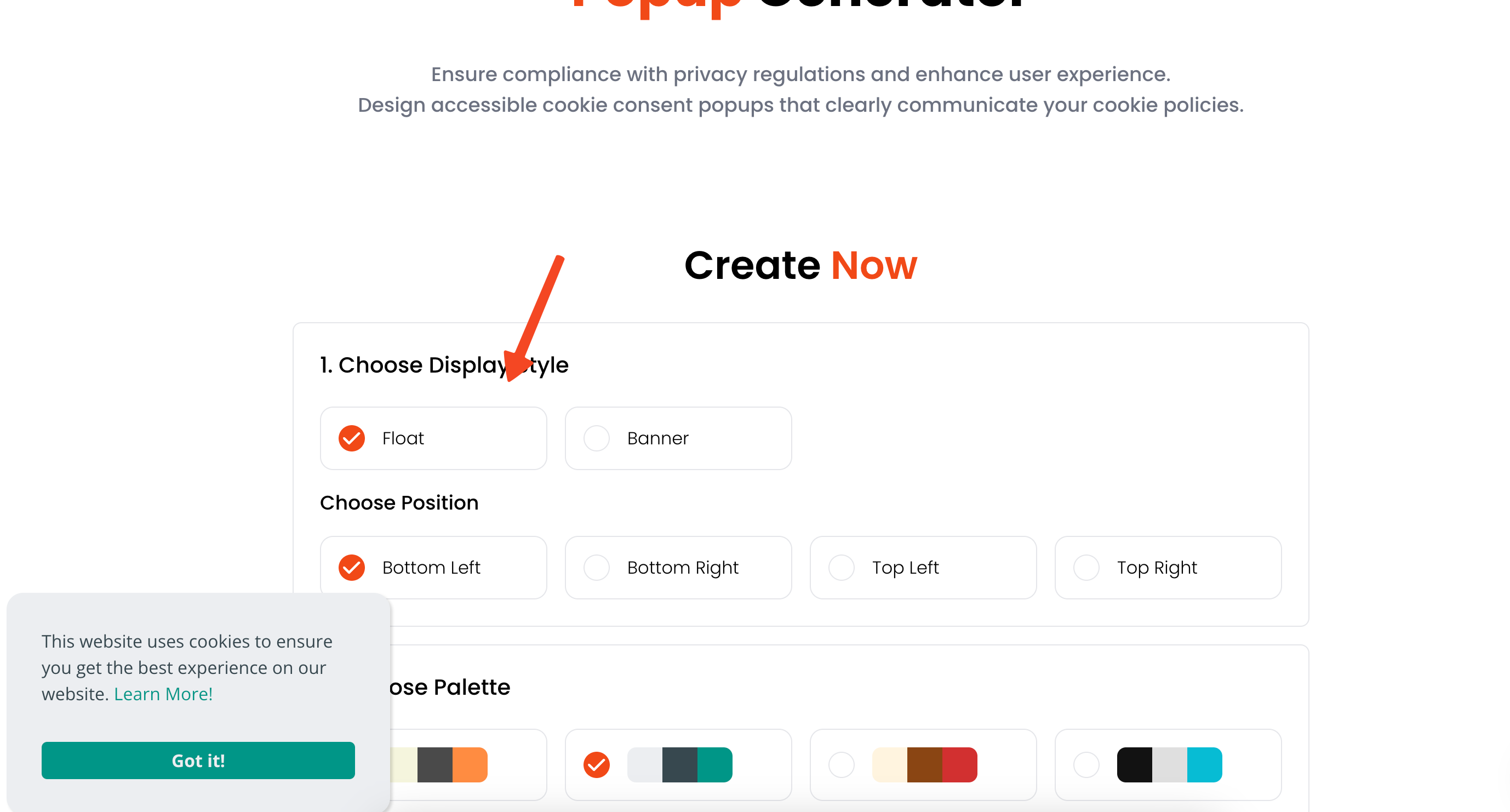
A Float is a small box that appears in a corner. This works well if you want to give the notice a bit more presence. There’s no wrong choice; just pick what feels best for your store’s layout.
Step 2: Style It to Match Your Brand
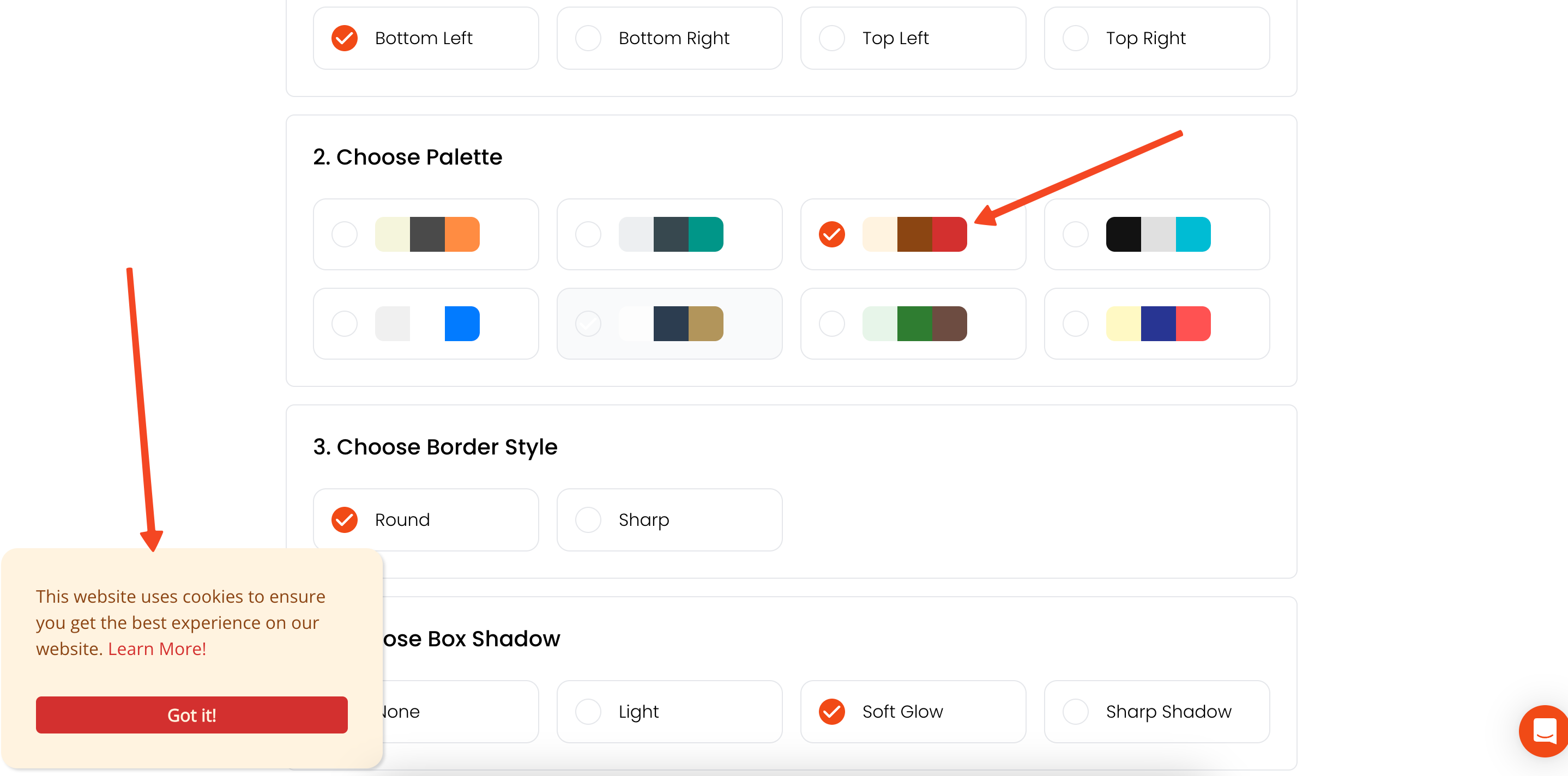
Next, let's make the notice look like it belongs on your website. You can pick a color that matches your brand’s design, which makes the experience feel seamless for your visitors. Building trust starts with brand consistency.
You can also adjust the border style and add a subtle shadow to make it stand out just enough. I recommend picking a font that matches your site’s typography for a polished look.
Step 3: Customize Your Message and Link
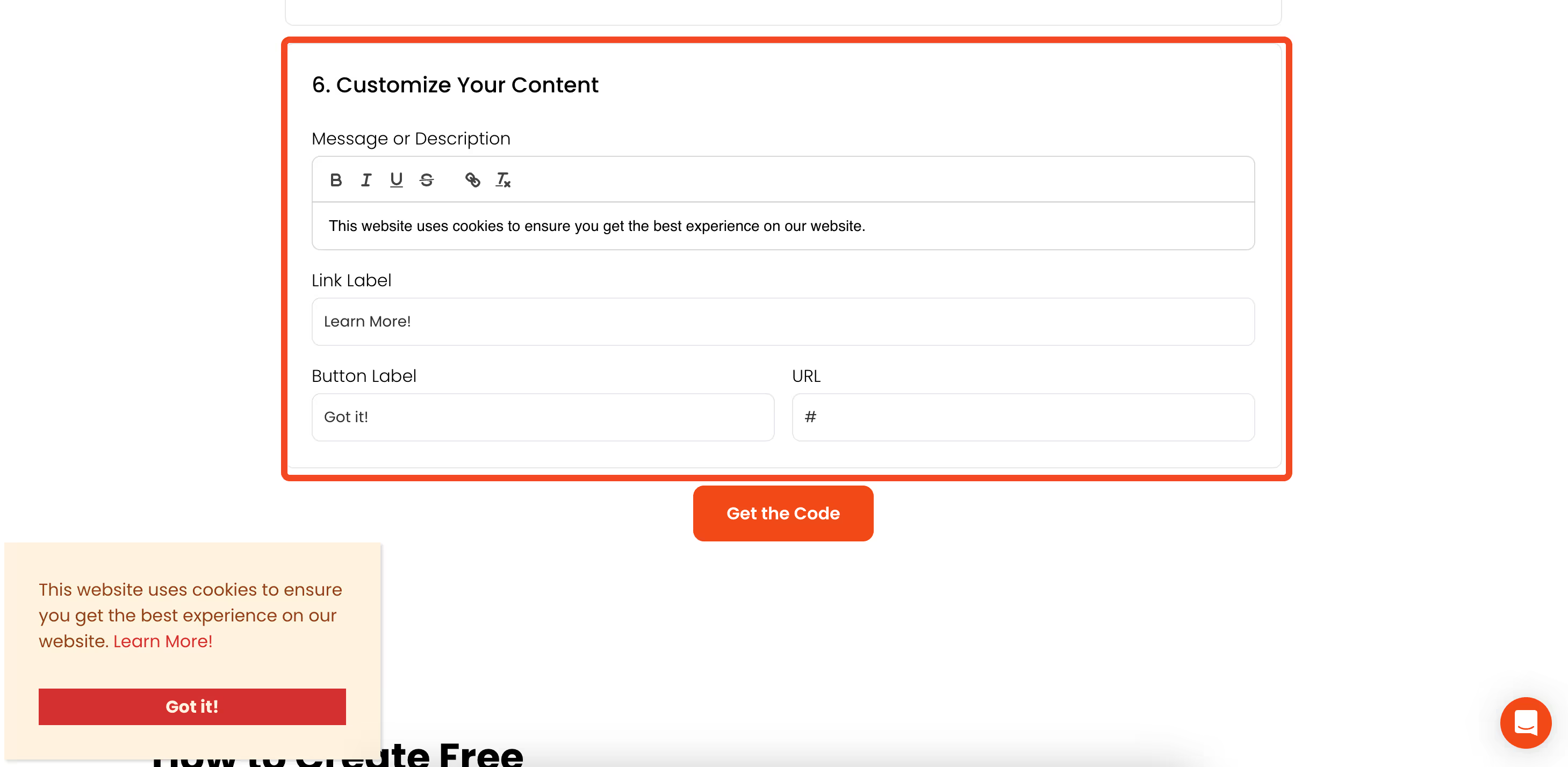
I’ve pre-filled the text with a standard message, but you can easily change this to match your brand’s voice. The most important part here is to link to your Privacy Policy.
Make sure you add your policy link in the URL field and update the button text to something clear like "Accept." This transparency is key for both legal compliance and customer trust.
Step 4: Get and Install the Code
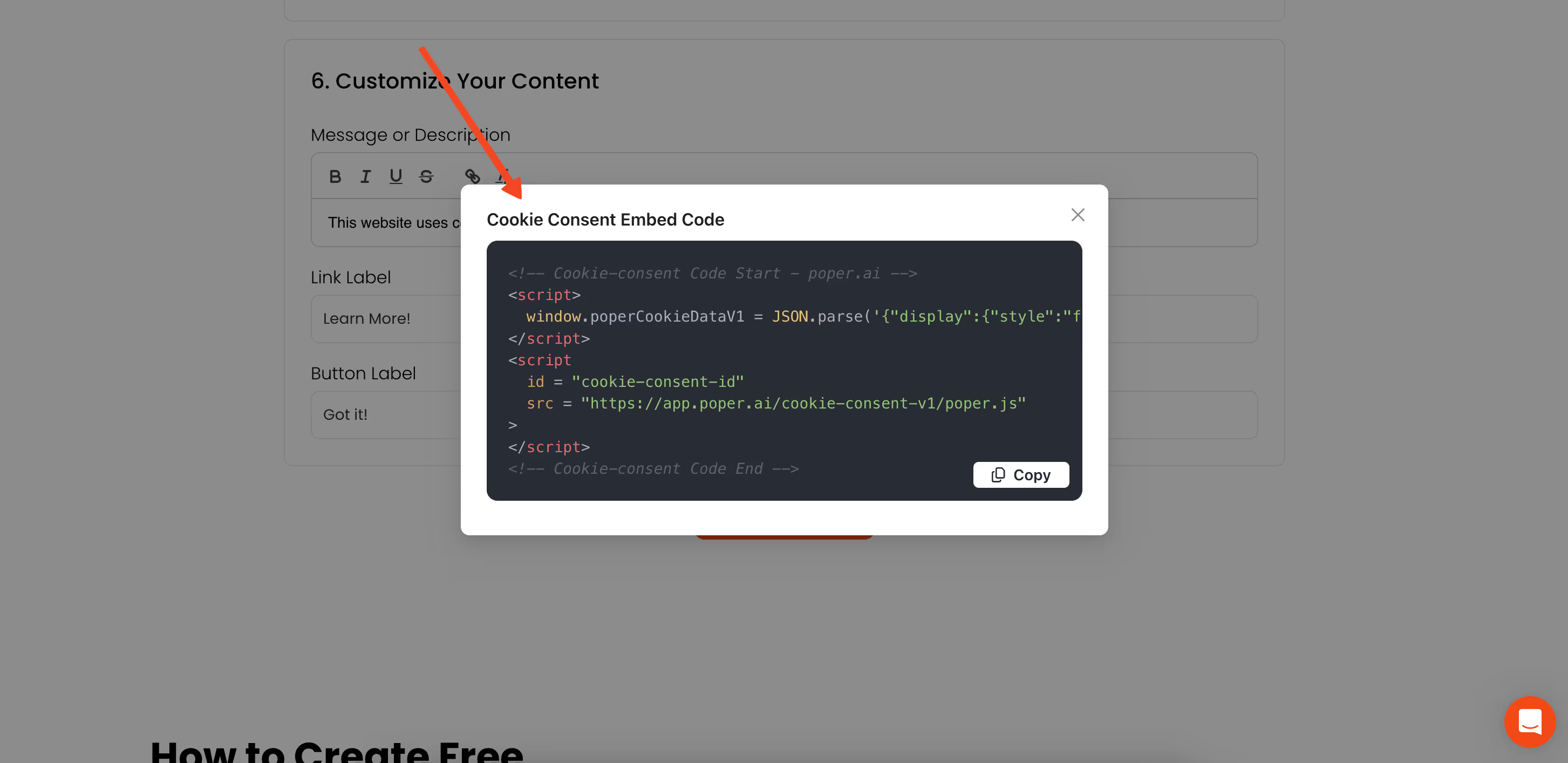
Once you’re happy with the design, just click Get Code. Copy the small snippet of code it provides. To install it on BigCommerce, go to your admin dashboard and find the Script Manager. Paste the code there, save it, and you're all set! Your cookie notice is now live.
Why a Good Cookie Popup Matters
Creating an "Accept Cookies" notice isn't just about checking a legal box. It's one of the first interactions a new visitor has with your brand. By making it clear, professional, and respectful, you start the relationship off on the right foot and show that you value their privacy.