
Hey there! As the CTO of Poper, I understand that for some businesses, controlling who accesses your site isn’t just a preference, it’s a legal requirement. Whether you sell alcohol, tobacco, vape products, or other age-sensitive items, you need a reliable way to verify your visitors' age.
I designed Poper’s age verification feature to be a simple, secure gatekeeper for your BigCommerce store. It needs to be professional, unskippable, and easy to set up.
Let me walk you through how to get your age restriction popup running in just a few minutes.
Setting Up Your BigCommerce Age Verification Popup
The goal here is to create a "lock" on your site that only visitors of a certain age can open. We need to make sure there are no easy ways to bypass it.
Step 1: Start with an Age Verification Template
To make this process as fast as possible, I’ve already created templates with the core settings built-in. From your Poper dashboard, click New Popup, then use the template search bar to look for "Age" or "Age Verification."
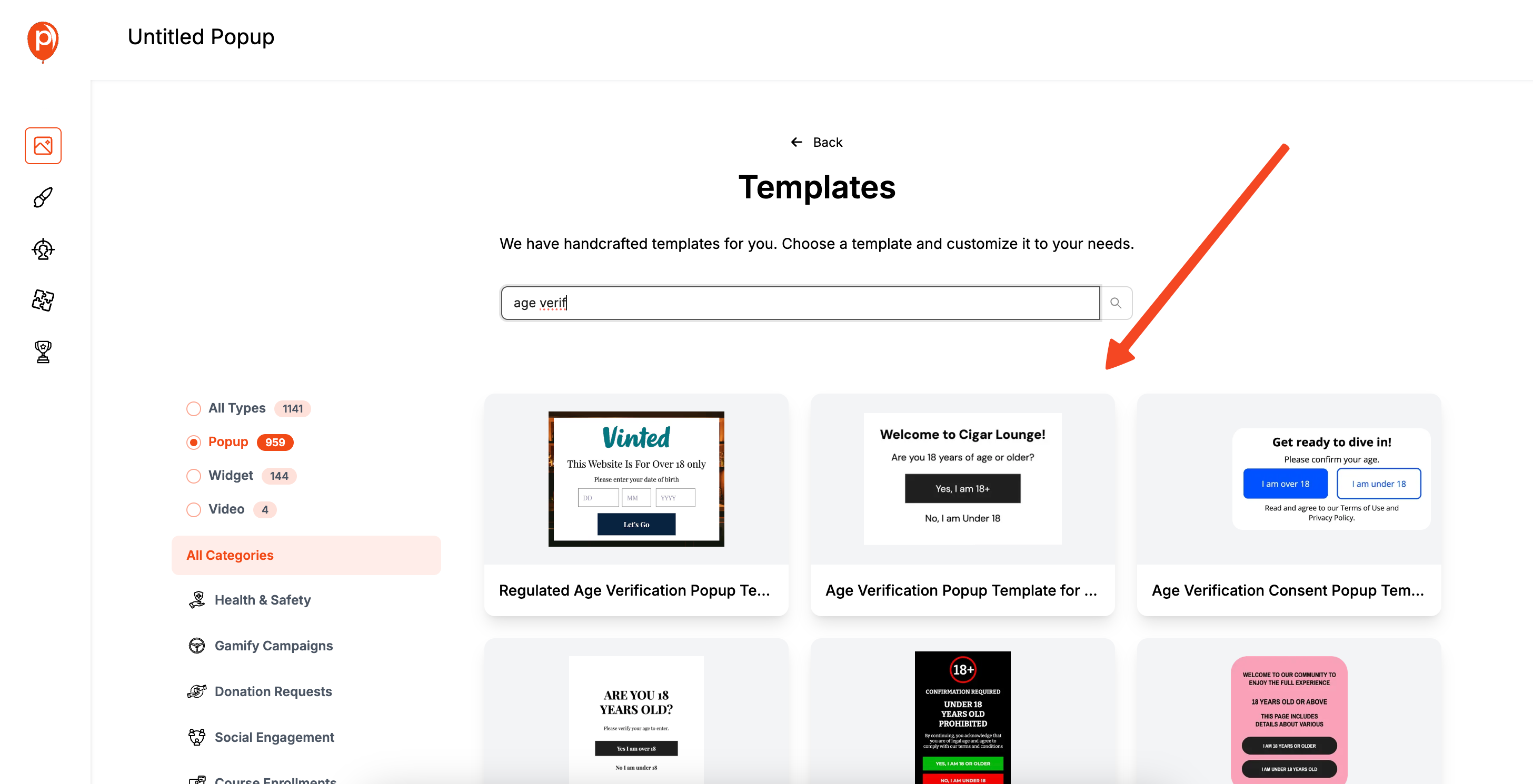
Choose a design you like. Starting with one of these templates means the most critical security settings are already handled for you, which I’ll cover in a moment.
Step 2: Customize Your Age Gate Message
Once you select a template, you’ll land in the Poper editor. Here, you can adjust the design to match your brand. Feel free to change the colors and fonts, or even add your logo.
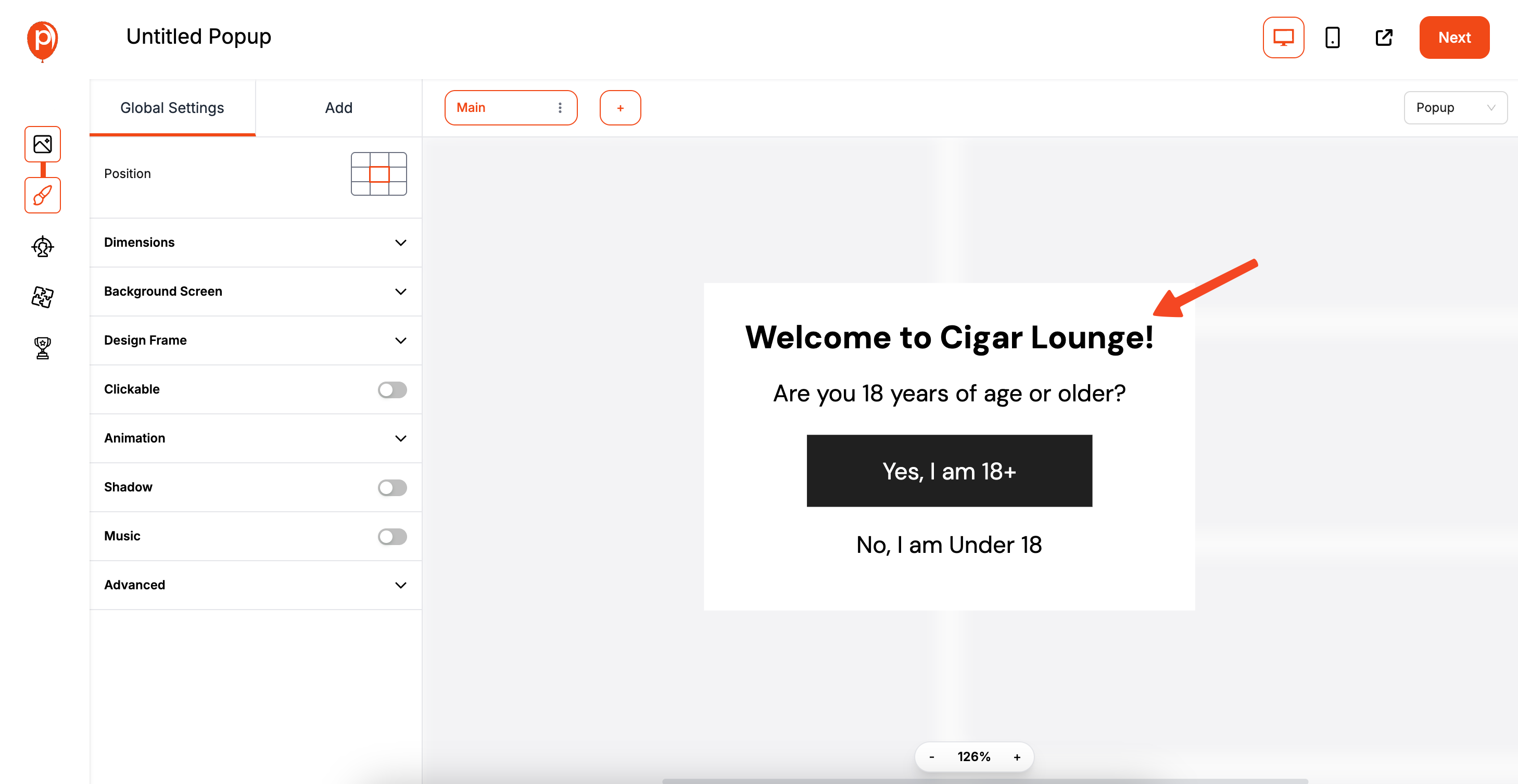
Most importantly, make sure your message is clear. For example, edit the text to say, "You must be 18 or older to enter this website." The template will include "Yes" and "No" buttons. The "Yes" button will grant access, while the "No" button should redirect visitors away from your store.
Step 3: Lock the Popup to Ensure Compliance
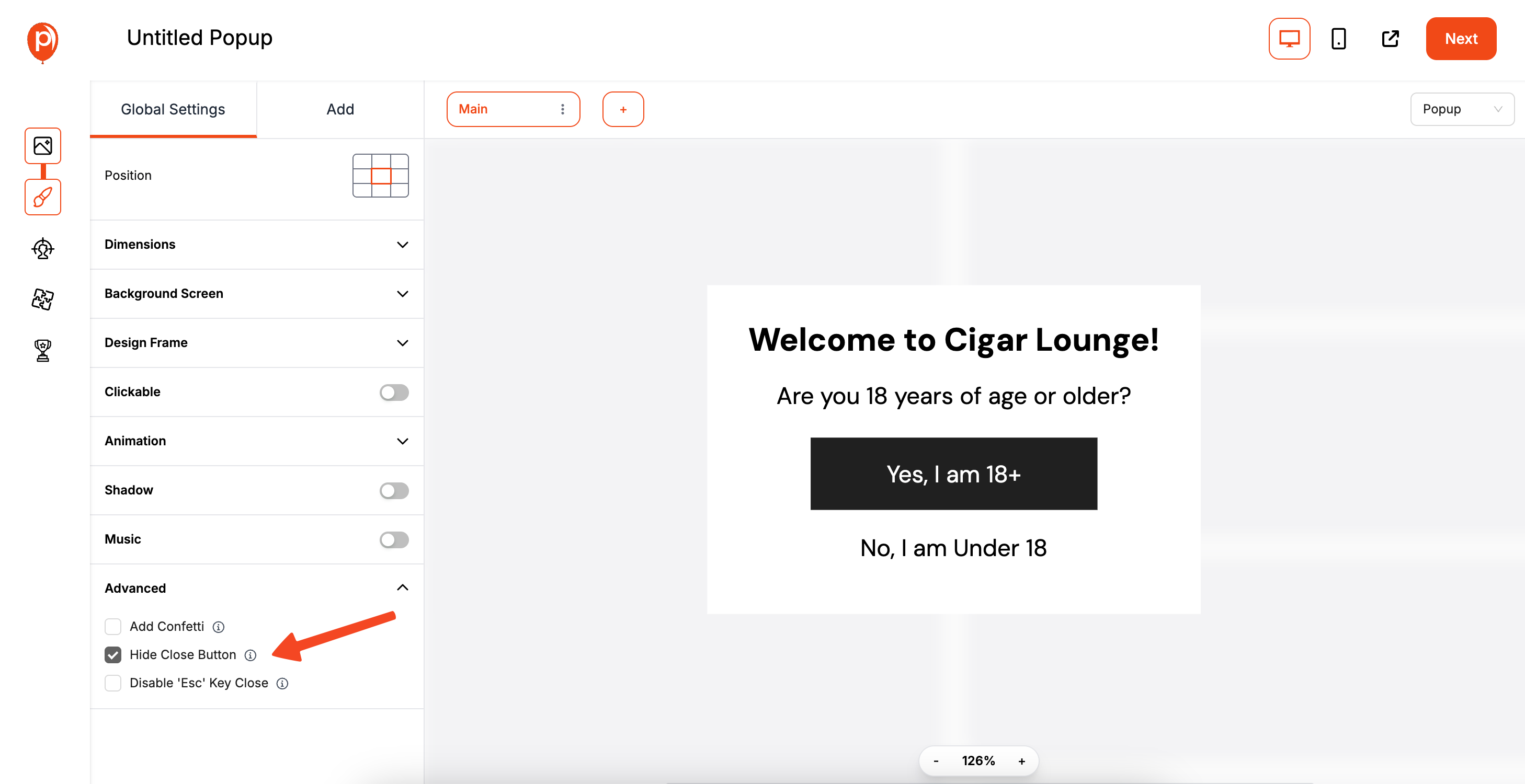
An age gate is useless if a visitor can simply close it. We need to make it mandatory. In the editor, look for Global Settings. You need to ensure that Hide Close Button and Disable Overlay Click Close are both turned on. This removes the 'X' button and prevents users from just clicking outside the popup to dismiss it.
Next, scroll down to the Popup Close Triggers section and check the box that says Disable ‘Esc’ key to close the popup. This prevents someone from using their keyboard to bypass the verification step. If you started with one of my templates, these options should already be enabled for you.
Step 4: Make It Appear Instantly
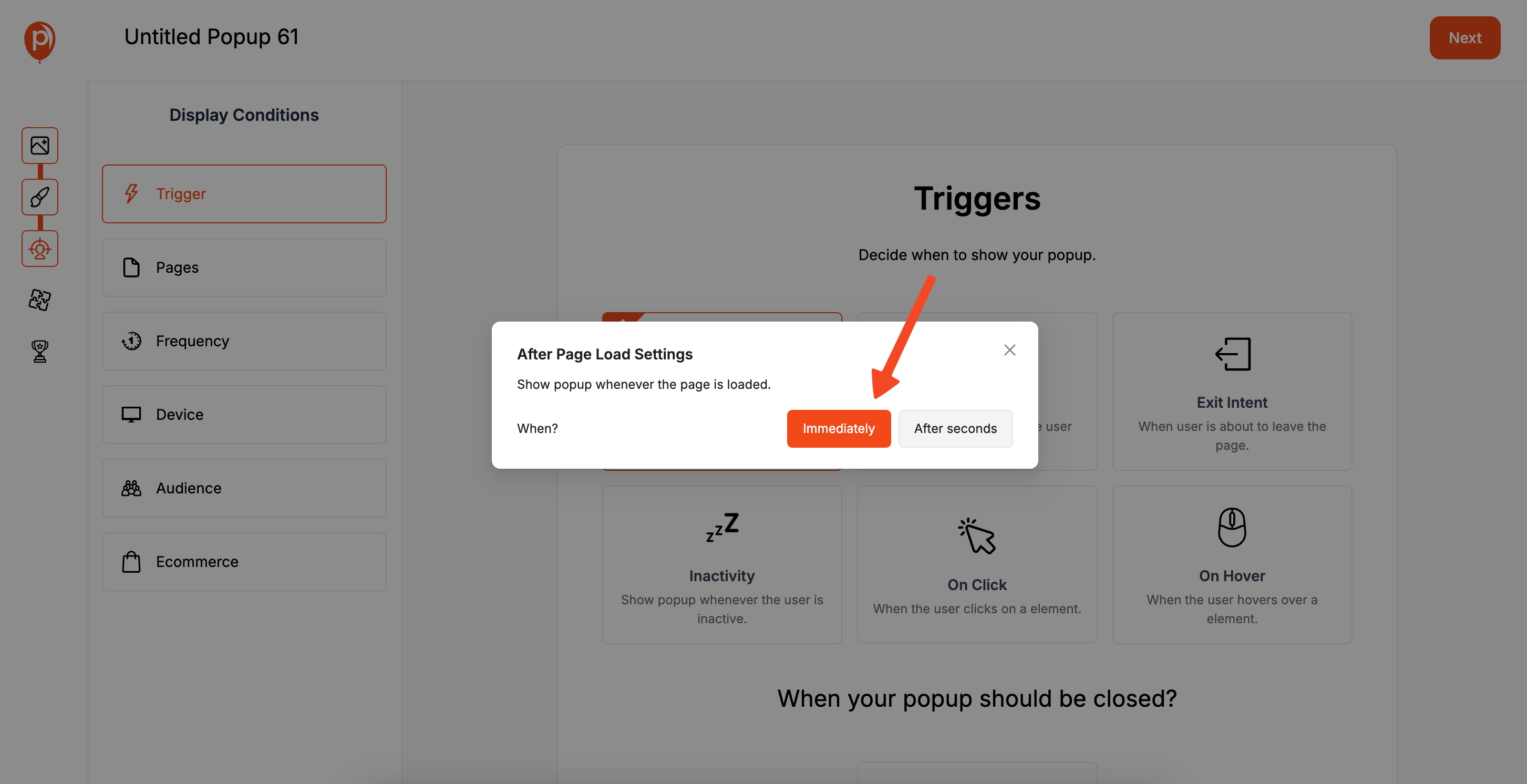
Your age gate must be the very first thing a new visitor sees. To do this, navigate to the Display Conditions page. Under the Triggers section, set the popup to appear after 0 seconds. This ensures it loads immediately with the page, blocking the content behind it until the visitor verifies their age.
Step 5: Stop Showing the Popup to Verified Visitors
You don’t want to ask for a visitor’s age every time they click to a new page. It creates a terrible user experience. To prevent this, stay on the Display Conditions page and look for the Frequency settings.
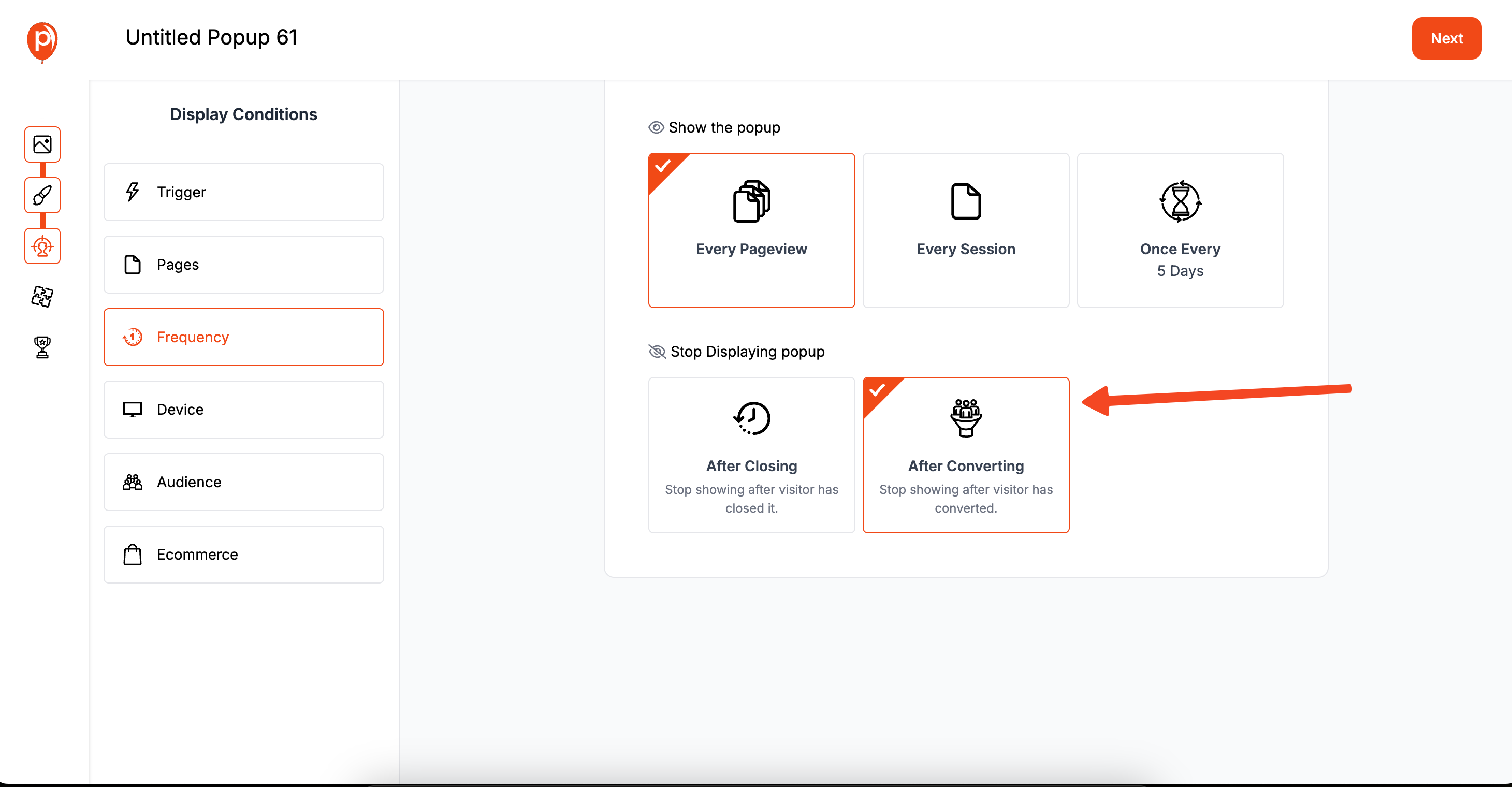
Set the rule When to stop displaying to After Closing Popup. This tells Poper that once a visitor successfully clicks the "Yes, I am of age" button (which closes the popup), they shouldn't see the age gate again during their session. It's a simple rule that respects your verified customers.
Step 6: Publish and Test Your Age Gate
After configuring these settings, click Save & Publish. Your age verification popup is now live on your BigCommerce store.
I strongly recommend you test it. Open your website in a new incognito or private browser window to see it as a new visitor would. Confirm that you can't close it, click around it, or use the Esc key. Then, click the "Yes" button and ensure you can browse the site freely.
Peace of Mind Through Compliance
By following these steps, you’ve created more than just a popup; you’ve built a responsible and secure entry point for your store. This not only helps with legal compliance but also shows your customers that you are a professional and trustworthy business.