
The first time I tried to embed calendar website code on a project, I almost gave up. A client wanted bookings to happen right on their landing page, not after a click that opened a strange new tab. I opened the Calendly help docs, then the Cal.com docs, then closed both, made a coffee, and started over. It took me about an hour to get it right, and once I did, the client's bookings jumped that same week.
So I want to save you that hour. In this guide I will walk you through how to embed calendar website widgets the right way, starting with Poper, the no-code option I now recommend first, and then covering Calendly, Cal.com, and the rest. We will cover the three embed types you actually have, the copy-paste snippets that work, and the mistakes I see people make over and over when they embed calendar website code without thinking about conversion.
Why You Should Embed Calendar Website Widgets Instead of Linking Out
Let me start with the why, because this is the part most people skip. When you embed calendar website booking on your own page, you keep the visitor inside your story. When you link out to a Calendly or Cal.com page, you drop them into a generic environment that does not feel like your brand, and a chunk of them never come back.
The drop-off is real. A funnel benchmark study that tracked more than 12 billion user sessions found that the average multi-step funnel now loses between 60% and 90% of users before they finish.
A separate report from SiteMinder noted that 52% of travelers abandon a booking because of a bad digital experience, not a change of heart. Both numbers tell the same story: every extra hop, every unfamiliar page, leaks bookings.
When you embed calendar website code on the same page that sold the visitor in the first place, you remove a hop, and you keep more of them.
There is a second reason that gets less attention. When you embed calendar website widgets inline, your page gets credit for the conversion in your analytics. When you ship the visitor to a third-party domain, your attribution falls apart. Anyone running paid traffic should care about that, because clean numbers are what let you scale ad spend with confidence.
Embed A Calendar Without Writing Any Code
Poper serves the calendar as a hosted widget, so there is nothing to build. You paste one script tag into your site once, then place the event calendar or the booking form wherever the visitor is already reading.
<script id="poper-js-script" data-account-id="YOUR_ACCOUNT_ID" src="https://app.poper.ai/share/poper.js" defer></script>The 3 Ways To Embed Calendar Website Widgets
Whichever tool you pick, you basically have three formats to choose from. I want to define them up front so the rest of this guide makes sense, because the embed calendar website snippet you grab from any tool depends entirely on which format you want.
The first format is the inline embed. This is the one where the calendar lives inside the page, sitting in a section like any other block of content. It is the strongest format for conversion, because the visitor sees real time slots without clicking anything.
The second is the popup, which opens the calendar over the current page when someone clicks a button or link.
The third is the floating widget, which is a small button stuck to the corner of every page, ready to open the calendar on demand. Each format has a place, but for most landing pages I default to inline when I embed calendar website code, then add a floating widget as a backup.
Embed Calendar Website Widgets With Poper
Before I get into the snippet-based tools, let me share the path I now recommend first to almost every small business owner who wants to embed calendar website booking without the fuss.
Poper is an AI-powered engagement platform, and its Appointment Booking widget is purpose-built to embed calendar website widgets on any page in under two minutes, without touching a single line of code.
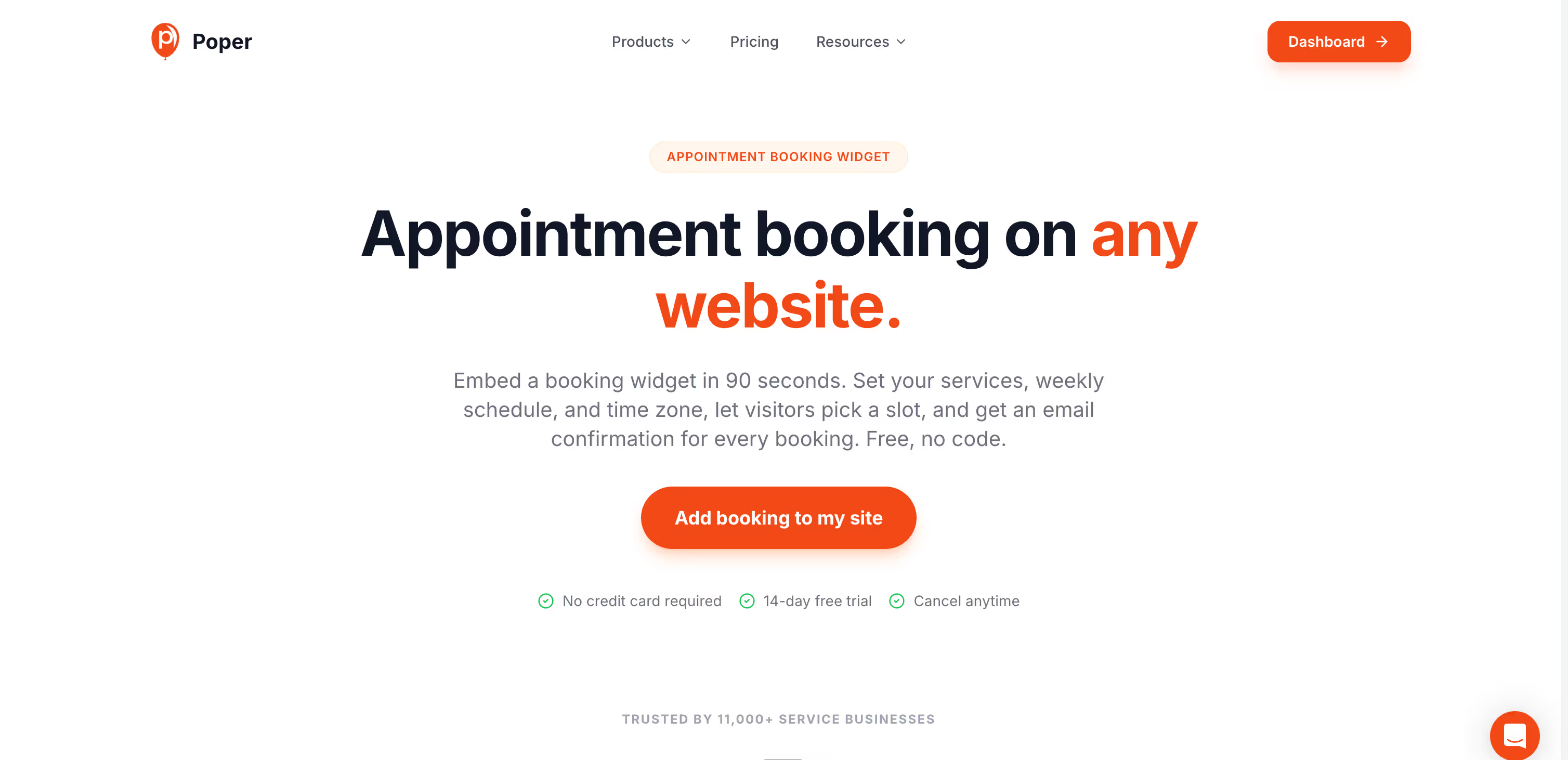
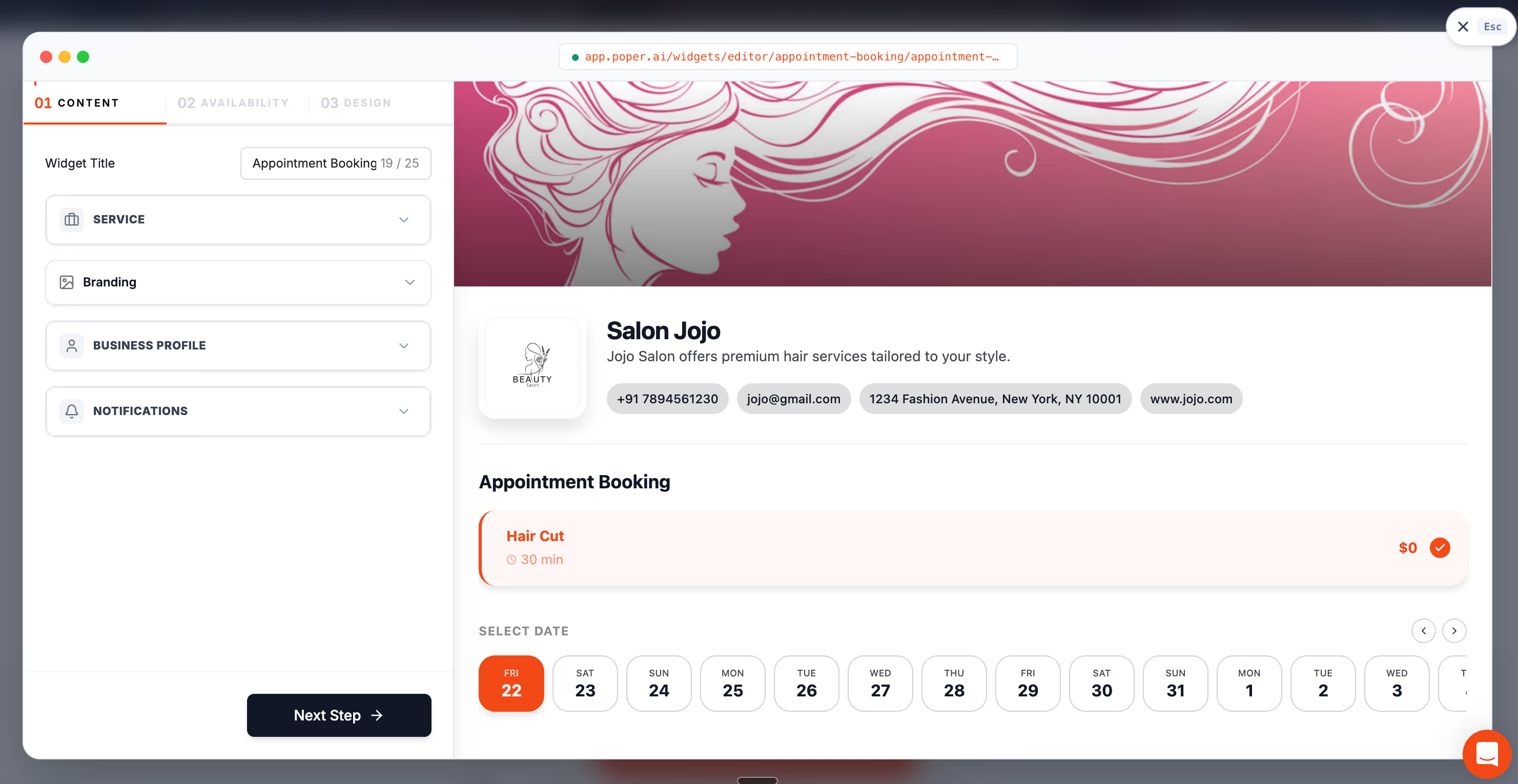
The setup is genuinely easy. You open Poper, pick the Appointment Booking widget, set your availability, customize the colors and copy to match your brand, and Poper gives you one short embed code that drops the calendar onto WordPress, Shopify, Webflow, Wix, Squarespace, or any other site. No script juggling, no third-party domain in the booking flow, no separate login for your team to manage. The booking lives on your site, under your brand, with your analytics intact.
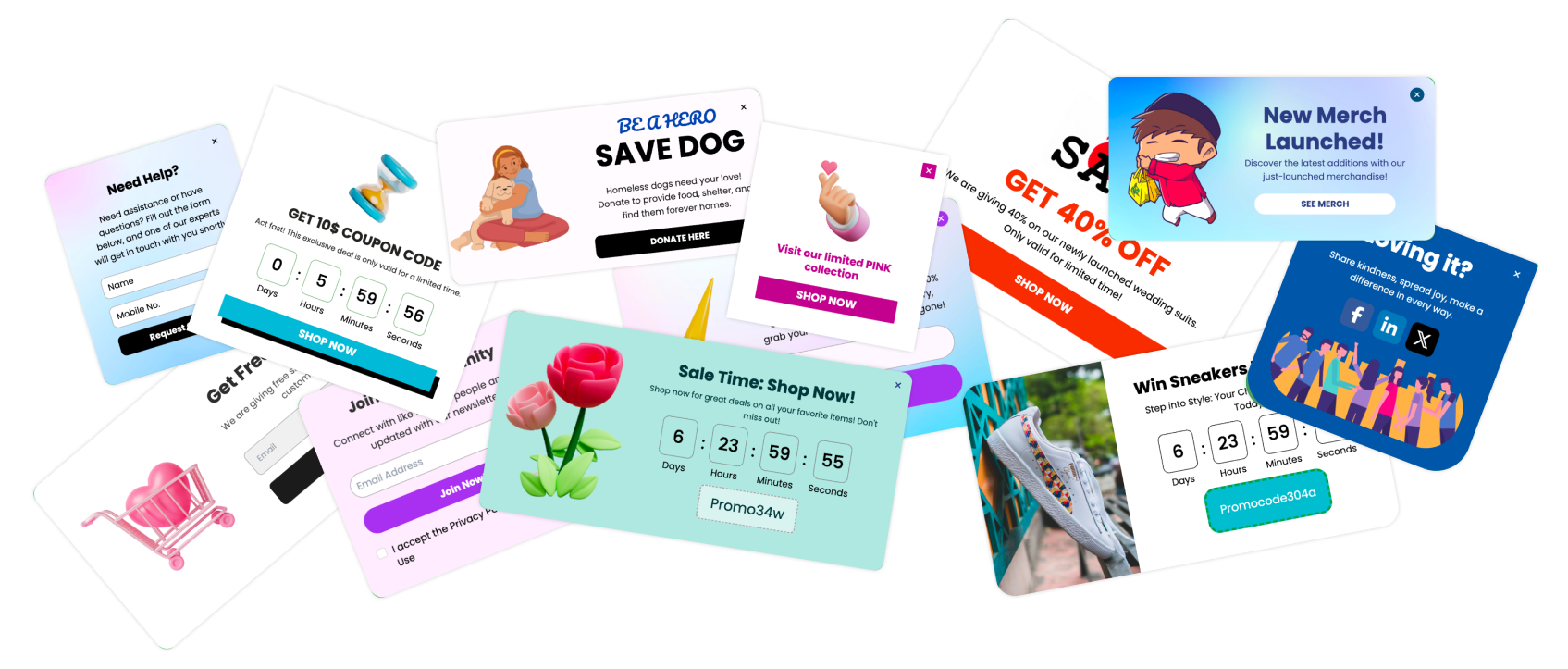
What makes Poper my first pick is that the Appointment Booking widget is one piece of a larger engagement layer. The same Poper account that helps you embed calendar website booking also handles your popups, quizzes, gamified spin-to-win, lead forms, and 200-plus other widgets. So when a visitor lands on the page, Poper can show the right widget at the right moment using 12-plus advanced targeting rules like exit-intent, scroll-depth, and time-delay. You can A/B test the booking variation that converts best, all from the same dashboard.
You also get the inline, popup, and floating-button formats I described earlier, so every layout choice is supported. The free plan is real, with no card required to start, which means you can embed calendar website booking on a live page today and decide later whether to upgrade. For a small team that wants the cleanest possible path from visitor to booked slot, Poper is the tool I reach for first.
How To Embed Calendar Website Code With Calendly
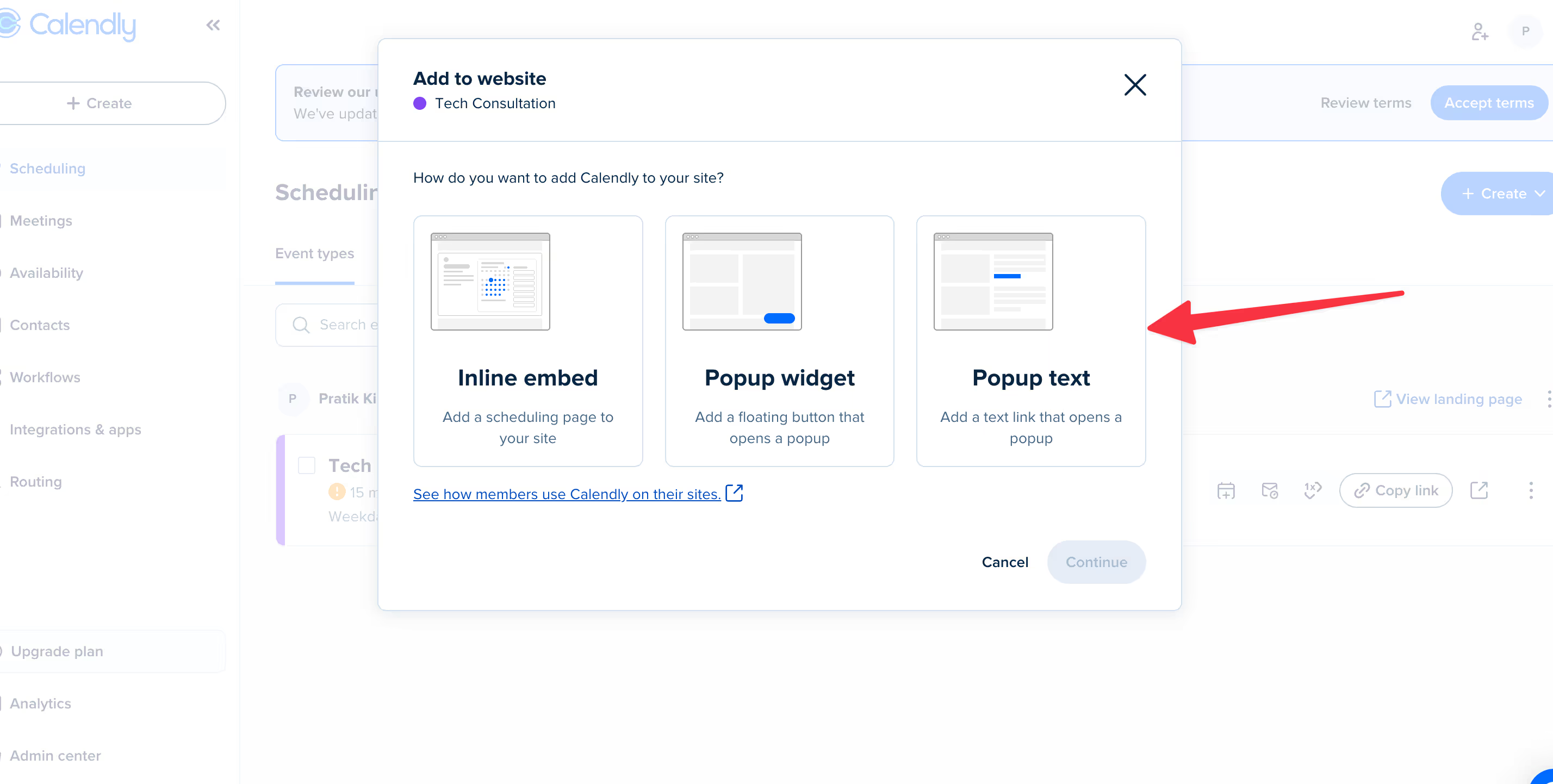
If you already use Calendly or you need a dedicated scheduling tool with deep team features, the embed flow is still genuinely simple. To embed calendar website code from Calendly, log into your account, open the event type you want to share, and click "Share." You will see a tab called "Add to Website" with the three embed formats sitting right there.
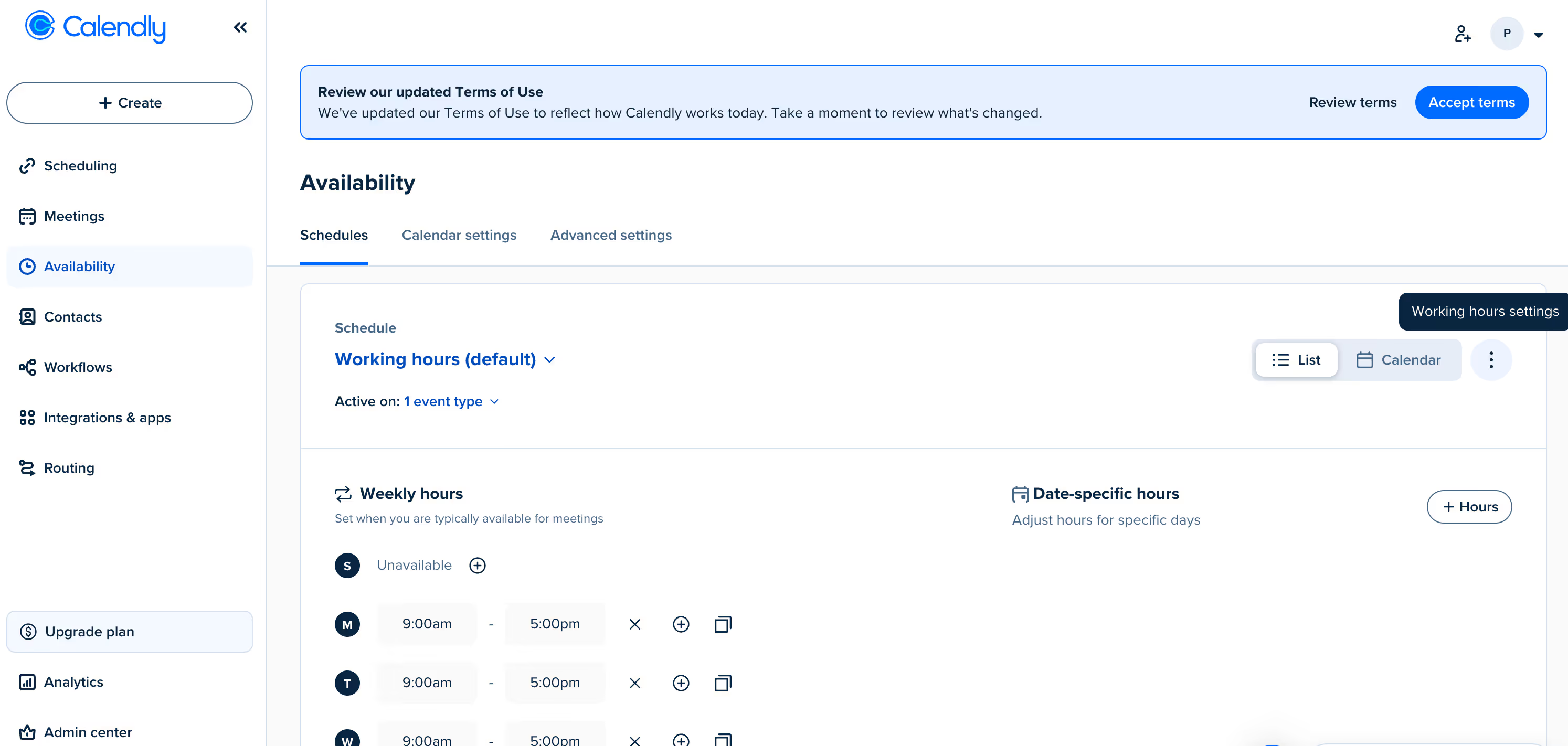
Pick inline, popup text, or popup widget, then copy the snippet. Calendly gives you a short script tag plus a div, and you paste both into the spot on your site where the calendar should appear.
On WordPress you can drop the snippet into a Custom HTML block. On Shopify you can paste it into a section in the theme editor. On Webflow you use an Embed element. The mechanics are identical no matter which builder you use, which is part of why people reach for Calendly when they want to embed calendar website widgets in a hurry.
The honest catch is pricing. As of 2026, Calendly's free plan limits you to one event type, one connected calendar, and no automated reminders, and paid plans start at about $12 per user each month, climbing fast for teams. So while it is easy to embed calendar website code with Calendly, the long-term cost is something to watch, especially if you add seats.
How To Embed Calendar Website Code With Cal.com
Cal.com is the open-source challenger, and it has become a strong pick when a client wants more control than Calendly gives. To embed calendar website code from Cal.com, log into your dashboard, open the event type, and use the Embed Snippet Generator. You get four formats here: inline, floating popup button, element-click popup, and an email-friendly embed.
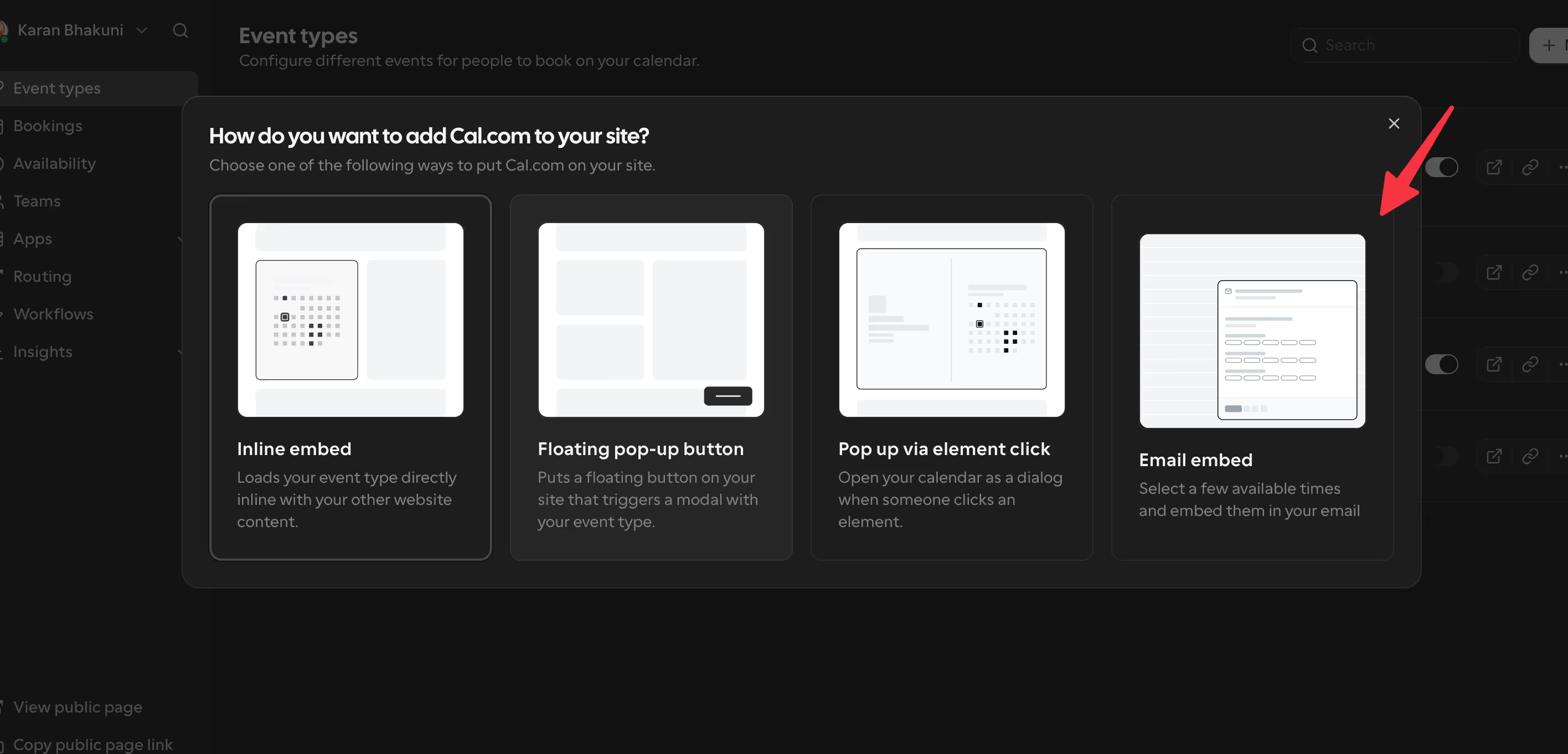
The Cal.com snippet looks slightly different from Calendly's because it uses an init script and a small configuration object, but the result is the same. You paste the snippet into your page, and a working booking widget shows up. Cal.com also lets you self-host the entire platform, which matters if you need to embed calendar website code under your own domain for compliance or branding reasons.
On price, Cal.com's free plan is far more generous than Calendly's. According to a comparison from YouCanBook.me, Cal.com's free tier includes unlimited bookings, unlimited event types, unlimited calendar connections, and AI-assisted scheduling, while Calendly's free tier caps you at one event type.
Cal.com's paid Teams plan starts around $15 per user each month and bundles round-robin, routing forms, and team workflows. If you want to embed calendar website code on a budget and still get team features, Cal.com is usually the better economic call.
Put The Booking Calendar On The Page That Sells
You have now seen what each scheduling tool costs and what it holds behind a paid seat. Poper builds the calendar, the event list, and the booking form in one drag and drop editor, then renders them from the snippet you already installed.
Poper vs Calendly vs Cal.com when you Embed Calendar Website Code
Both tools can embed calendar website widgets on any modern site, but they make different trade-offs. Rather than walk through every feature in prose, I find this comparison easier to read as a table.
| Aspect | Poper | Calendly | Cal.com |
|---|---|---|---|
| Free plan | Real free tier, no card, booking plus 200+ widgets | 1 event type, 1 calendar, no reminders | Unlimited events, unlimited calendars, AI scheduling |
| Paid from | Flat plan, not per user | About $12 per user, monthly | About $15 per user, monthly for Teams |
| Embed formats | Inline, popup, floating button | Inline, popup text, popup widget | Inline, floating, click popup, email |
| Self-host option | No, hosted SaaS | No | Yes, full source available |
| Best for | Booking plus full engagement layer in one account | Solo users and demo calls | Teams that want flexibility and lower cost |
Use Calendly when you just need to embed calendar website code in five minutes and you do not care about cost growth. Use Cal.com when you want more events, more seats, or a self-hosted option without paying the Calendly premium. Use Poper when you want the booking to live alongside the rest of your engagement layer without paying for or managing a separate scheduling tool.
The Mistakes I See When People Embed Calendar Website Code
Once you have the snippet on the page, the technical job is done, but the conversion job is just beginning. Most of the booking pages I audit make one or more of the same handful of mistakes after they embed calendar website widgets, and these mistakes quietly erase a chunk of every traffic source.

The first mistake is hiding the calendar below the fold. If your visitor has to scroll to find the slots, you have lost the moment of intent. When you embed calendar website code, put the widget high on the page, ideally next to or just under your main value proposition. The second mistake is using too many fields. Each extra field cuts completions by roughly 3% to 5%, so trim everything you do not need before the slot is locked in.
The third mistake is forcing account creation. 24% of shoppers abandon because they were pushed to create an account before they could finish. The same logic applies when you embed calendar website code: let people book as a guest, and invite them to save details after the booking is confirmed. The fourth mistake is forgetting mobile. Most of your traffic is on a phone, and a calendar that needs pinching to read is a calendar nobody uses. Test every embed calendar website setup on a real device before you call it done.
A Quick Checklist Before You Ship
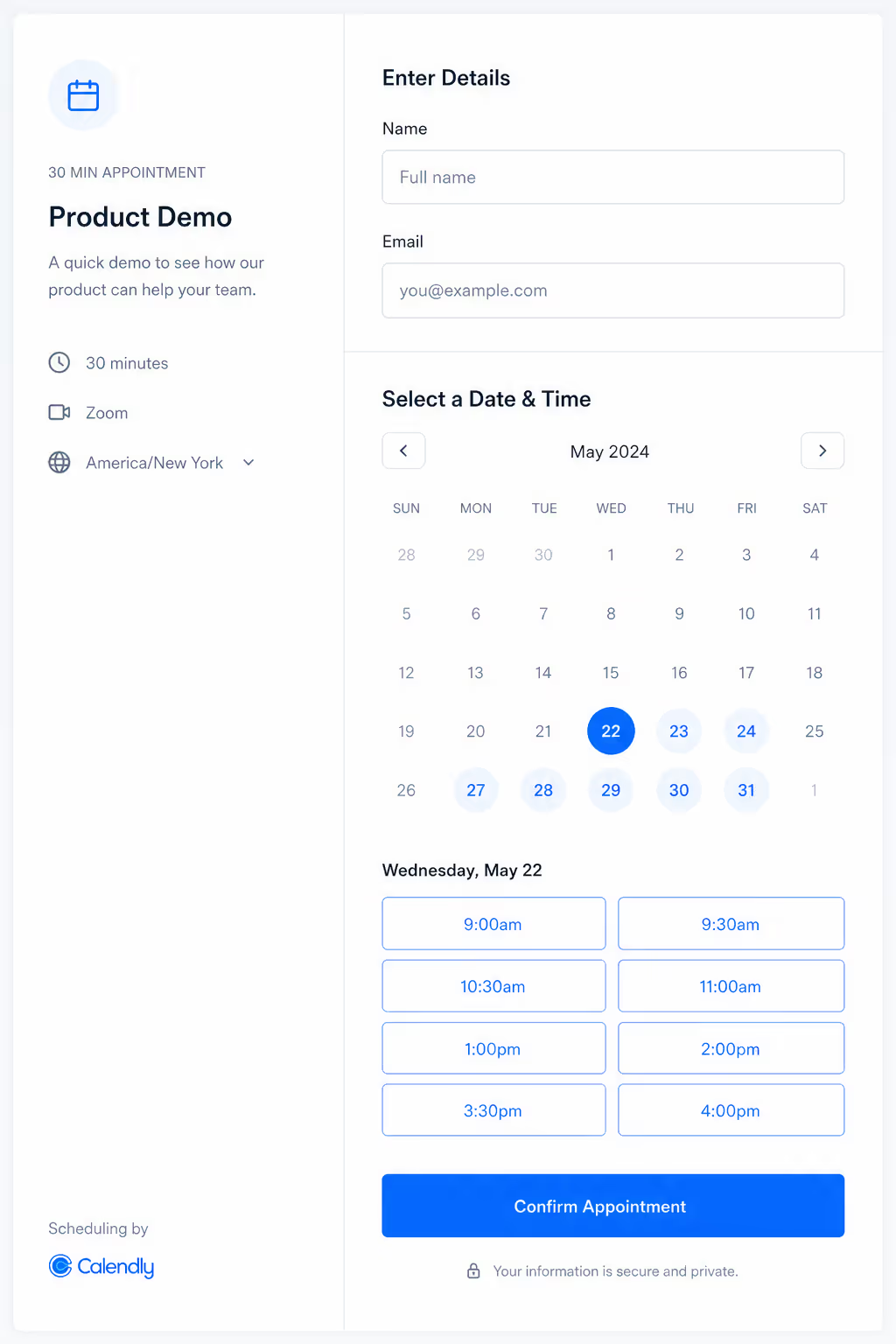
Before you publish, run a short pass to make sure the embed actually performs. I keep this checklist short on purpose, because anything longer gets ignored.
The calendar loads above the fold on desktop and mobile.
The form asks for three fields or fewer before the slot is held.
The booking confirmation triggers reminders by email and SMS.
Your analytics fire a conversion event when a booking is completed.
The widget keeps your brand colors and font, not the default tool styling.
If every box is ticked, the embed will earn its place. If not, fix the one that is weakest before you spend another rupee or dollar on traffic, because every dollar you spend will leak through the same hole until you do.
Final Word on the Right Way To Embed Calendar Website Widgets
The point of all this is simple. You do not embed calendar website code just to tick a box, you do it to keep the visitor's attention through the moment they pick a time. Poper is the cleanest no-code path and my first recommendation, because it bundles the booking with the rest of your engagement layer in a single account. Calendly is the fastest dedicated scheduling tool to start with, and Cal.com is the better deal for teams that want open-source flexibility.
Pick the tool that fits your stage, drop the widget or paste the snippet, then spend the rest of your effort on the things that actually move the needle: a short form, a visible calendar, real reminders, and a mobile-friendly layout. Do that, and the next time you embed calendar website code on a page, the calendar will not just sit there. It will book.
Get Your Calendar Live On The Page Today
Run the checklist, then pick your tool. If you want the calendar on the page without a developer and without paying per seat to start, create a Poper account, build the widget in the editor, and paste the one script tag into your site.
Start With Poper FreeThe same snippet also powers 160 plus other embeddable widgets.